NAS Guides · Published 2026-10-30
What Is a NAS? A Plain-English Guide for Beginners
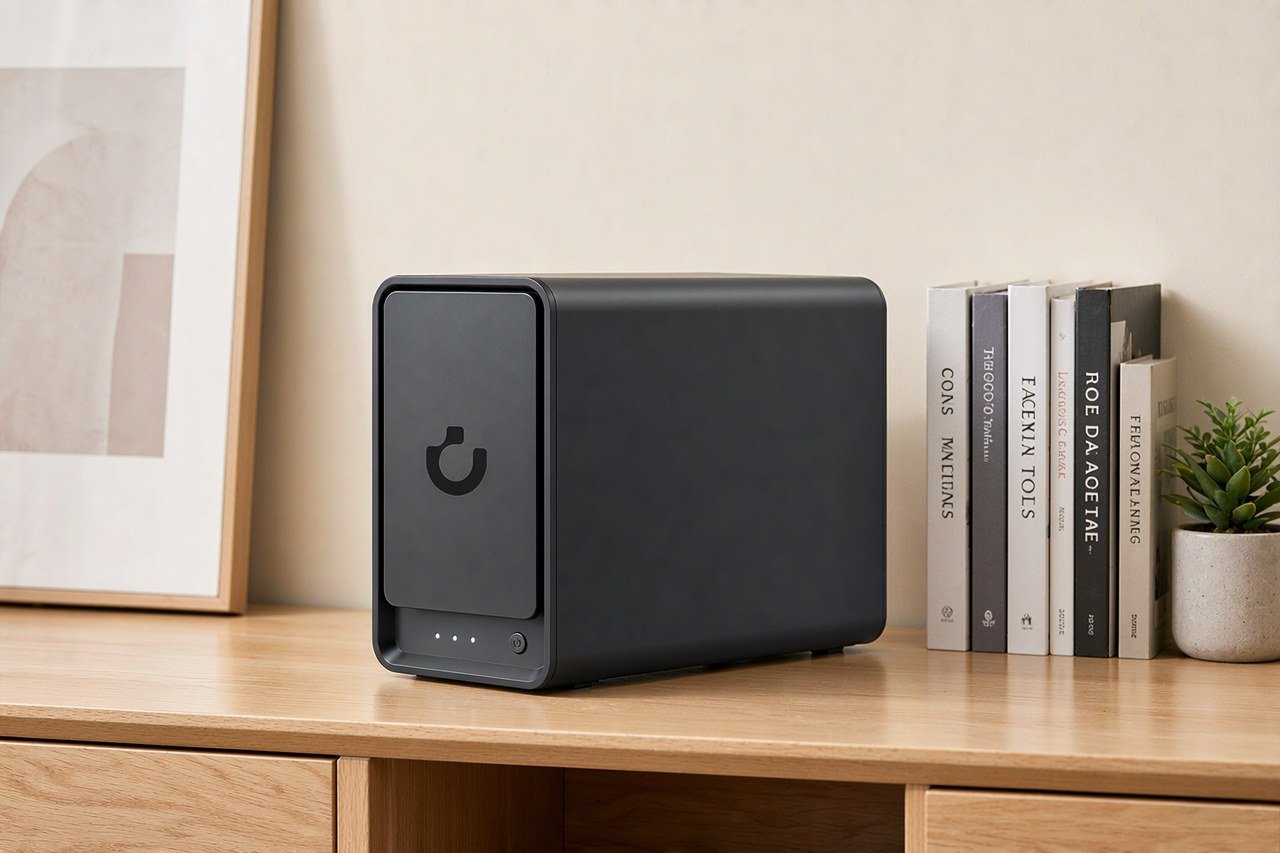
Direct answer up front, then the trade-offs that matter. This page covers what is a nas and answers: what is a nas server.
By Leo · Hardware Reviewer
Beat: Drive bays, RAID and expandability · How we review
Quick Answer
A NAS (network-attached storage) is a small storage server that sits on your home network. Phones, laptops, and TVs connect to it over Wi-Fi or Ethernet, so every device in the house reads and writes files in one place. QNAP's beginner guide defines it as "a centralized storage device that connects to a network, allowing users to store photos, videos, documents, and backup data in one place" (accessed 2026-10-30). The short version: it is storage hardware you own, not a subscription you rent.
Key Takeaways
- The box is a small computer with its own CPU, RAM, and drive slots that plugs into your router; every device on the network can reach its files at the same time.
- You buy the enclosure and the drives separately, so the sticker price is never the whole bill — the scenario section below runs the real arithmetic.
- RAID protects you when a drive dies. It does not protect you from ransomware, theft, or fire, which is why the 3-2-1 backup rule still applies on top (Backblaze, accessed 2026-10-30).
- It can replace cloud sync for most home tasks, but remote access away from home takes extra setup, and some cloud services still make sense to keep.
- Skip it if you back up one laptop and nothing else — a single external drive does that job for a tenth of the cost.
Definition
A NAS is a dedicated file storage device connected to a network. Unlike an external hard drive, which plugs into one computer at a time, the server itself attaches to the network. Any authorized device on that network — a Windows desktop, a Mac, an Android phone, a tablet — can read from it and write to it simultaneously. Seagate's storage guide describes the same idea from the business side: on-site storage hardware connected to the network, with data storage and retrieval open to any authorized user, including remote workers (accessed 2026-10-30).
The word "server" scares beginners, so here is a plainer framing. Think of it as a shoebox-sized computer whose only job is storing files and serving them to other devices. It boots a storage operating system — Synology ships DSM, QNAP ships QTS — and you manage everything from a browser window like any other web app. No monitor. No keyboard. QNAP's FAQ puts it this way: most modern systems offer graphical interfaces and guided setup wizards, so everyday users can handle storage, backups, and file sharing without professional IT skills (accessed 2026-10-30).
Concrete example. The UGREEN NASync DXP4800 Plus is a desktop-tower unit built around an Intel Pentium Gold 8505, a five-core laptop-class chip, per the vendor's product page as recorded in our spec ledger. Under the hood it carries four drive slots, two M.2 NVMe slots for fast cache drives, and a 10GbE network port. That hardware list is typical of the current home-NAS market: a mid-tier box pairs modest compute with a lot of drive capacity.
How It Works
Plug the box into your router, install one or more hard drives, power it on, and run the vendor's setup wizard. The wizard finds it on your network, walks you through creating an admin account, and formats the drives into a storage pool. From that point the drive shows up on your computers as a network share — a drive letter on Windows, a mounted volume on macOS. Drag files onto it like any other folder.
The storage pool is where RAID enters. RAID (redundant array of independent disks) spreads your data across multiple drives with built-in redundancy. In a mirrored two-drive setup, every file exists twice, once on each disk. One drive can fail completely and your files stay readable while you swap in a replacement. QNAP's beginner material names RAID as the technology that keeps data safe when a hard drive fails (accessed 2026-10-30).
What happens when a drive actually fails? In a mirrored setup, the surviving disk keeps serving files while you pull the dead one and slide in a new drive. The system rebuilds the duplicate in the background — hours, for large disks — and your household keeps working through it. Watch out for one detail here: the replacement must be at least as large as the drive it replaces, because a smaller disk will not join the pool.
This is also why drive choice matters more than box choice. You will touch the drives more often than the enclosure over five years, and adding capacity later means buying more disks rather than a new machine.
Then come the apps. Modern NAS operating systems run photo backup tools, media servers, surveillance managers, and virtual machines. The hardware is a small computer, so it can take on jobs beyond file storage — the QNAP guide runs from AI photo albums to hosting a WordPress site. Which apps work well is a different question. The photo tools are genuinely useful; running a full Windows virtual machine on a Celeron-class chip is a recipe for waiting.
Why It Matters
Ownership is the core argument. Cloud storage means your files live on a vendor's servers, gated by a subscription that never ends. Google lists its 2 TB plan at $9.99 per month (checked 2026-10-02), which is $119.88 every year, indefinitely, for 2 terabytes. Stop paying and the sync stops. Owning the hardware inverts that: you pay once, then the storage is yours, at whatever capacity your drives add up to.
Privacy is the second argument. Files on the box stay on hardware you control inside your home; files in a public cloud sit in a vendor's data center under the vendor's policies. QNAP's comparison table frames this as "private cloud" versus "public cloud" — the data location and the access rules are yours (accessed 2026-10-30). Seagate makes the same point for small businesses: a NAS unit operates like a private cloud setup but offers greater control over the storage setup.
The third argument is multi-device reality. Your household in 2026 generates photos on two phones, school files on a laptop, and game clips on a console. An external drive attached to one PC cannot serve all of that at once. The server can, because the network — not a USB cable — is the connection.
Honesty requires the other side of the ledger, too. The box draws power around the clock, adds a hum to whatever shelf it sits on, and asks for a restore drill once in a while. None of that appears on the sticker. If your usage is light — a phone and a laptop, mostly documents — a cloud plan stays simpler and probably cheaper. The math changes when a household's photo library grows past a couple of terabytes, because that is where subscription pricing starts to climb and where local capacity pulls ahead.
Common Misconceptions
"RAID is my backup." No. RAID protects against one specific failure: a drive dying. It does nothing about ransomware that encrypts every file on the share, a burglar who takes the box, or a power surge that kills both disks at once. Backblaze's explainer is blunt about this — the 3-2-1 rule (three copies, two different devices, one off-site) remains the baseline, and a 2012 US-CERT paper from Carnegie Mellon recommended it (accessed 2026-10-30). The box is a great place for two of those three copies. It is not the whole strategy.
"NAS drives are just marked-up desktop drives." Vendors claim NAS drives are built for 24/7 operation, with vibration sensors and error-recovery firmware tuned for multi-drive enclosures (Seagate, accessed 2026-10-30). We could not verify these claims in independent testing, and no first-party benchmark comparing failure rates shipped with the marketing. The safe statement: desktop drives carry no 24/7 duty rating, so for an always-on machine, a drive rated for server duty is the sensible default.
"A NAS replaces the cloud completely." Not quite. Inside your home, yes — the box is faster than any cloud sync. Away from home, your files are only as reachable as your remote-access setup allows, and punching holes through a router firewall is exactly what beginners should avoid. Our guide to accessing a NAS without port forwarding covers the safer paths.
Related Terms
RAID — the redundancy scheme described above; RAID 1 mirrors two drives, RAID 5 spreads three or more. NAS drive — a hard drive rated for always-on, multi-drive enclosures; our HDD vs SSD guide covers which drives belong in a home NAS. DAS — direct-attached storage, the USB external drive this category replaces. Private cloud — the marketing term for what a NAS actually delivers: network storage on hardware you own. Snapshot — a point-in-time copy of the storage pool that ransomware cannot silently overwrite; QNAP's home protection guide leans on multi-version snapshots for exactly that reason (accessed 2026-10-30).
Real-World Scenario: What a First NAS Actually Costs
Spec sheets hide the real bill. Here is the arithmetic for a working first setup, using prices recorded in our price ledger.
Hardware and software requirements
The enclosure is only half the purchase. Drives are extra, and most units ship without them — check the listing before checkout, because "diskless" hides in small print.
| Field | UGREEN NASync DXP4800 Plus | Synology DiskStation DS925+ | QNAP TS-464 (8 GB) | TerraMaster F4-424 Pro |
|---|---|---|---|---|
| Price (tracked) | Amazon $656.99 (2026-10-16) | Amazon $749.76 (2026-10-02) | Amazon $639 (2026-10-02) | DatacenterDisk listing $730.99 (2026-10-02) |
| Drive bays (SATA) | 4 bays | 4 bays | 4 bays | 4 bays |
| M.2 NVMe slots | 2 slots | 2 slots | 2 slots | 2 slots |
| Max raw capacity | 144 TB | — | — | 88 TB |
| Max bays with expansion | — | 9 bays | — | — |
| Hot-swap bays | Yes | Yes | Yes | Yes |
| CPU | Intel Pentium Gold 8505 | AMD Ryzen V1500B | Intel Celeron N5095 | Intel Core i3-N305 |
| CPU cores | 5 cores | 4 cores | 4 cores | 8 cores |
| Installed RAM | 8 GB | 4 GB | 8 GB | 32 GB |
| Max RAM | 64 GB | 32 GB | 16 GB | 32 GB |
| RAM slots | — | 2 slots | 2 slots | 1 slot |
| ECC RAM | — | Yes | — | — |
| RAM soldered (not upgradeable) | No | — | — | — |
| 2.5GbE ports | 1 port | 2 ports | 2 ports | 2 ports |
| 10GbE ports | 1 port | — | — | — |
| PCIe slots | — | — | 1 slot | — |
| USB ports | 4 ports | 2 ports | 4 ports | 2 ports |
| HDMI output | 4K 60Hz | — | 4K 60Hz | 4K 60Hz |
| Form factor | Desktop tower | Desktop tower | Tower | Desktop tower |
| Weight | — | 2.26 kg | 2.26 kg | 3.4 kg |
| Internal filesystem | — | Btrfs, ext4 | — | — |
| Warranty | 2 years | 3 years | 3 years | 2 years |
Take the UGREEN NASync DXP4800 Plus at $656.99 (Amazon, checked 2026-10-16) and add two Seagate IronWolf 8 TB drives at $347 each (Amazon, checked 2026-10-02). Hardware total: $1,350.99 for roughly 16 terabytes of raw capacity, which a mirrored pair turns into about 8 TB of protected storage — one copy of each file survives any single drive failure. The operating system and the core backup apps cost nothing extra; both Synology DSM and QNAP QTS ship free.
One caveat on the arithmetic. Every price above carries its checked date because street prices move; the drive figure especially can swing by tens of dollars between sellers and between weeks. Treat the totals as worked examples built from recorded readings, not as quotes you can take to checkout today.
What this changes for the use case
Set that against the cloud math. Google One's 2 TB plan runs $9.99 per month (checked 2026-10-02), or $119.88 per year. The hardware spends $1,350.99 once; the cloud charges $119.88 forever. Pure price parity takes about eleven years — and that comparison flatters the cloud, because the two products are not the same size. One is 2 TB of synced storage. The other is 8 TB of mirrored storage that a family of four can all use at once, with no upload bottleneck when a phone dumps 40 GB of video.
The trade-off runs the other way, too, and it deserves equal billing. Spinners click and hum, so a bedroom is a bad home for one. It draws power around the clock. It needs a restore drill now and then, because a backup you never test is a hope, not a backup. And the up-front hit lands all at once, while cloud billing hides in $9.99 slices.
Limits, caveats, and who should skip it
Worth it if: your household produces more than a couple of terabytes of photos and video, you want every device backing up automatically, or you simply refuse to rent storage forever. Skip it if: you back up one laptop, your internet upload is slow enough that off-site copies would crawl anyway, or a humming box on a shelf will annoy everyone in a small apartment. Our take: a first NAS earns its cost through capacity and control, not through being cheaper than a cloud bill — anyone selling it as the frugal option for 2 TB needs is overselling.
Frequently Asked Questions
What is a NAS server?
A storage server attached to your network rather than to a single computer. It runs its own operating system, holds one or more drives, and serves files to every authorized device on the network at once. QNAP's FAQ defines it as a storage device that lets files be stored in one central location and accessed over the network (accessed 2026-10-30).
What is a NAS drive?
A hard drive rated for always-on operation inside a multi-drive enclosure. Vendors build in vibration resistance and error-recovery controls tuned for that duty cycle (Seagate, accessed 2026-10-30). A desktop drive may work in the short term, but it carries no 24/7 rating, so we treat server-rated drives as your default choice.
What is a NAS and do I need one?
You need one if multiple devices produce data you would hate to lose and you want that data on hardware you control. You do not need one if a single external drive covers your backup needs. Start from the amount of data, not from the hardware.
How much does a home NAS cost?
The enclosure is the smaller part. In our price ledger, the UGREEN NASync DXP4800 Plus lists at $656.99 on Amazon (checked 2026-10-16), and two Seagate IronWolf 8 TB drives add $694 (Amazon, checked 2026-10-02), for a working $1,350.99 setup. Smaller two-drive boxes from the same brands cost far less; we could not verify current pricing for every entry model, so check the ledger before treating any number here as today's street price.
How many bays do I need?
Count the data, then add headroom. A mirrored pair of drives covers most families; four drive slots leave room to grow without replacing the box. Buying exactly what you need today is the most common mistake beginners make with their first unit, because the enclosure — not the drives — is the part you live with for years.
Can a NAS replace cloud storage?
For sync, backup, and media serving inside your home, yes. For off-site protection, no — a local box in the same room as your devices shares their fire and theft risk, which is why the 3-2-1 rule keeps one copy elsewhere (Backblaze, accessed 2026-10-30). Many owners run both: the NAS for the bulk, a small cloud plan for the off-site copy.
Sources
- QNAP — What Is NAS? Benefits and a Beginner's Guide — https://qnap.com/en/solution/7-reasons-why-nas (accessed 2026-10-30)
- Backblaze — Why the 3-2-1 Backup Strategy is the Best — https://www.backblaze.com/blog/the-3-2-1-backup-strategy/ (accessed 2026-10-30)
- Seagate — What is a NAS Device & How Does it Work? — https://www.seagate.com/gb/en/blog/a-guide-to-network-attached-storage/ (accessed 2026-10-30)
Run your own 5-year cost comparison with the on-site calculator
Every figure above is attributed in the Sources list — put your own drive count and subscription tiers into the calculator to see where you land.
Open the cost calculator →Related reading
Was this article helpful?
One tap, no account and no comment box. It tells us which guides are actually worth updating.
How many drive bays is your NAS?
This is how we decide which setups to cover next.
Thanks.
Need help with a specific setup?
Storage choices depend on your drives, your budget and how many people share the box. Tell us what you are building and we will point you at a configuration that fits — no obligation, no sales script.
Affiliate Disclosure: SecureNAS Hub may earn a commission from qualifying purchases made through links on this page, at no extra cost to you. Facts and figures are attributed in the Sources list; nothing on this page is a fabricated test result. See our full disclosure. Product images are either supplied by the manufacturer or clearly labelled as illustrative renders; each one is captioned accordingly. Last reviewed 2026-10-30.