NAS Guides · Published 2026-10-23
NAS HDD vs SSD: Which Drives Belong in a Home NAS
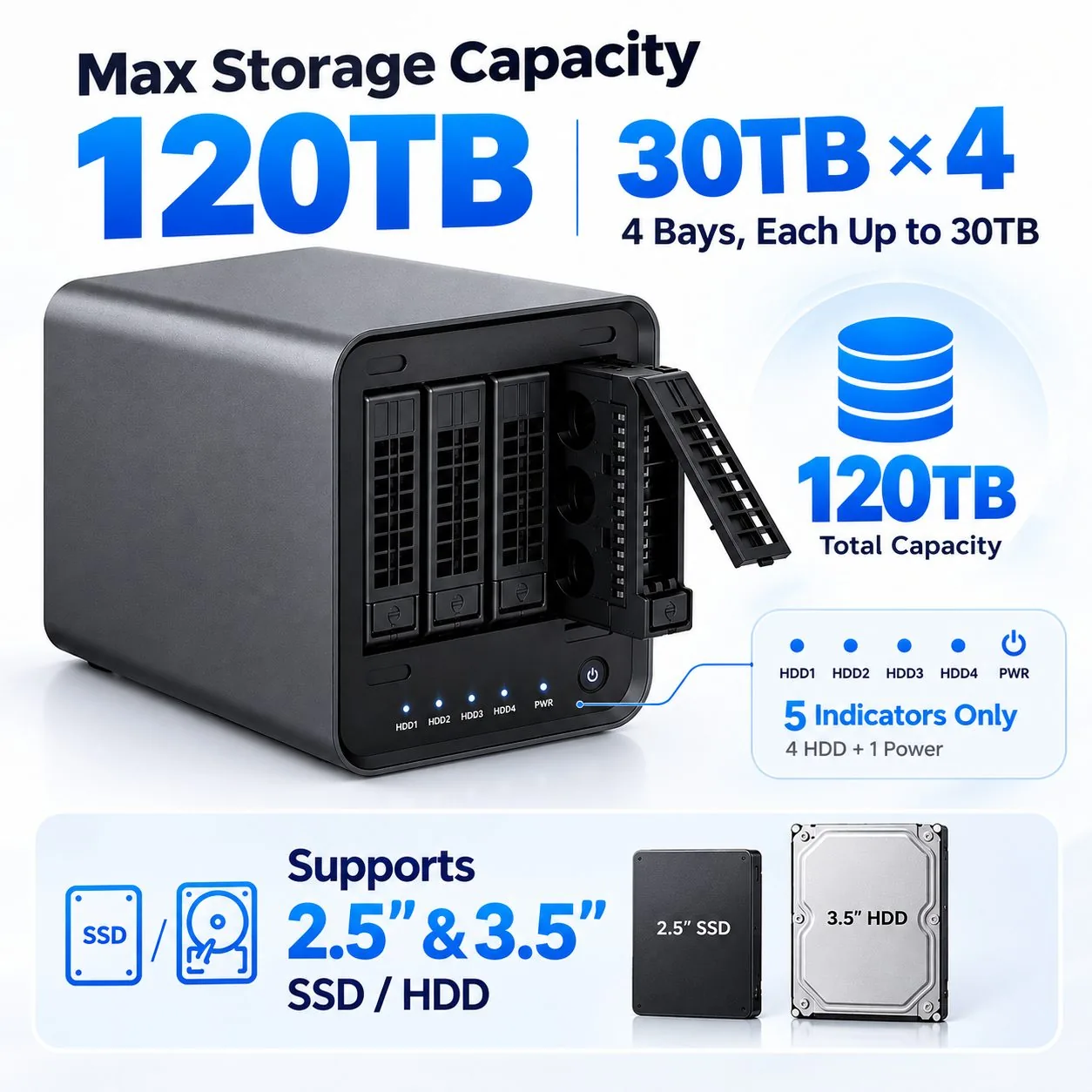
Direct answer up front, then the trade-offs that matter. This page covers nas hdd vs ssd and answers: What is a NAS and do I need one?.
By Konpin · Founder / Lead Analyst
Beat: Private-cloud economics · How we review
Quick Answer
Fill your NAS with 3.5-inch NAS hard drives, and add one NVMe SSD only for cache or a small metadata pool. Price settles the argument before performance does. Checked on 2026-10-02, an 8 TB WD Red Plus (WD80EFPX) at $431 works out to $54.00 per terabyte, while a 1 TB WD Red SN700 NVMe drive at $145.38 (Walmart, checked 2026-10-21) is $145.38 per terabyte. Flash wins on latency, spinning platters win on capacity per dollar, and a mixed setup gets you both without paying flash prices for bulk storage.
Key Takeaways
- Spinning disks still cost about one third of what NVMe costs per terabyte at retail, based on the two ledger prices above.
- Drive throughput is rarely your bottleneck. A single 2.5GbE port caps around 280 MB/s, which even a 5640 RPM drive can saturate on large sequential reads.
- Buy CMR drives. Every WD Red Plus and IronWolf model in the spec ledger is CMR, but other capacity points in the same families are not.
- One SSD slot used as a read cache or an app pool is the cheapest upgrade most people actually notice.
The Short Version
A NAS is a small box on your network that holds drives and shares their contents over SMB or NFS. You get a folder that behaves like a local disk while the data physically sits two metres away.
Three reasons push people to buy one. Photo archives that outgrew a phone. Backups that must survive a laptop dying. Files that should not sit on someone else's server.
Two drive types, two jobs.
Hard disk drives store bits on magnetic platters spinning at 5,400 to 7,200 RPM. They are cheap per terabyte, they tolerate being written to all day, and they are mechanically slow at random access. Solid state drives hold data in NAND flash with no moving parts. They answer in microseconds rather than milliseconds, and they cost several times more for the same capacity.
The result is a price gap you can measure in your own basket.
WD Red Plus 8 TB at $431 (DatacenterDisk listing, checked 2026-10-02) is $54.00 per terabyte. A 1 TB NVMe NAS drive at $145.38 (Walmart, checked 2026-10-21) is $145.38 per terabyte.
That gap does not close at higher capacity.
It widens, because flash capacity above a few terabytes gets expensive fast.
Side-by-Side Comparison
Four things decide it: price, latency, endurance, and how each type fails. Everything else is a detail.
Upfront cost
Cost per usable terabyte is the number that decides most builds. The spread in the price ledger runs from $54.00 per terabyte on an 8 TB CMR hard drive to $145 per terabyte on a 1 TB NVMe drive, checked 2026-10-02 and 2026-10-21 respectively.
The two 8 TB drives below are the ones this article compares, and the table is built from the spec and price ledgers rather than copied from a retailer page.
| Field | WD Red Plus 8 TB (WD80EFPX) | Seagate IronWolf 8 TB (ST8000VN004) |
|---|---|---|
| Price (tracked) | DatacenterDisk listing $431 (2026-10-02) | Amazon $347 (2026-10-02) |
| Capacity | 8 TB | 8 TB |
| Recording technology | CMR | CMR |
| Spindle speed | 5640 RPM | 7200 RPM |
| Cache | 256 MB | 256 MB |
| Workload rating | 180 TB/year | 180 TB/year |
| MTBF | 1000000 hours | 1000000 hours |
| NAS bays supported | 8 bays | 8 bays |
| Form factor | 3.5-inch | 3.5-inch |
| Weight | 0.71 kg | 0.72 kg |
| Warranty | 3 years | 3 years |
| Data recovery service | — | 3 years |
Buy in bulk and your hard drive budget gets better. Four 8 TB WD Red Plus drives at $431 each (DatacenterDisk listing, checked 2026-10-02) costs $1,724 for 32 TB raw. In a two-drive mirror that is 16 TB usable, so $108 per usable terabyte after redundancy.
Flash has no equivalent trick.
You can stripe NVMe drives for speed. You cannot make your terabyte of flash cost like a terabyte of magnetic disk.
Ongoing cost
Power is where the flash argument usually starts, and the numbers are smaller than you probably expect. Spindle and controller overhead land in single-digit watts per drive for most 3.5-inch NAS models. A four-drive array therefore adds tens of watts to a machine that idles somewhere in the 15 to 40 watt range.
We could not verify per-drive idle wattage from the spec ledger — that field is not tracked. Do that arithmetic from your own electricity tariff before you treat power as a decisive factor.
Privacy and ownership
Both drive types are local, so neither one sends your files anywhere. The privacy difference sits in the NAS software, not the platter material. Synology's SHR, for example, is a hybrid RAID that lets you mix drive capacities and still get redundancy, per the company's knowledge base article on SHR versus traditional RAID (accessed 2026-10-23).
Volume format decides how easily you can pull a single drive and read it on another machine. If you run ZFS or Btrfs, you can move a pool between boxes. A proprietary layout may lock you in, and you will not find that out until you try.
Where Each Option Wins
Hard drives win on the capacity you actually fill, and they win it by a wide margin once you need more than about 8 TB. A media library, a video editing scratch archive, a family photo store at 20,000 images — all of that is sequential-write territory where 7,200 RPM drives hold their own.
Seagate's IronWolf ST8000VN004 manual rates the drive for 180 TB per year of workload at 1 million hours MTBF (accessed 2026-10-23). Put plainly: it is designed for continuous operation inside a multi-drive chassis, which is exactly what a NAS does.
SSDs win differently. They win when a queue of small random reads matters more than a big file copy.
Photo thumbnail generation is the cleanest example. So is Immich or Synology Photos indexing 30,000 images, a Docker container running SQLite, or a virtual machine disk. Those workloads spend their time on 4 KB random reads, and that is where flash is several times faster than a platter.
Think about what that looks like when you sit down at your desk. The first library index takes hours on spinning disks and minutes on NVMe. After that, the difference only appears when you scroll through thumbnails or open a container's database.
The 990 PRO 1 TB specification shows the asymmetry: 7450 MB/s sequential read and 600 TBW of endurance (Samsung product page, accessed 2026-10-23). The SN700 1 TB, a NAS-focused drive, is rated 3430 MB/s and 2000 TBW (Sandisk product page, accessed 2026-10-23).
Note the reversal. The drive built for a NAS is slower on paper but rated for more than three times the total bytes written.
That is the trade-off in one line.
The Five-Year Arithmetic
Over five years the price gap compounds, and the arithmetic is worth doing on your own numbers rather than ours.
Take 16 TB usable. Four 8 TB CMR hard drives at $431 each, cached 2026-10-02, cost $1,724 and survive one drive failure in a four-drive array with parity. Reaching 16 TB with 1 TB NVMe drives takes sixteen units, and at $145.38 each, checked 2026-10-21, that is $2,326 before you own a single spare.
The hard drive side also gives you something the flash side does not: cheap growth. When 16 TB fills up, adding capacity means buying another disk. On the flash side it means either expanding the array or replacing drives wholesale.
Here is the pitfall first-time buyers walk into. You budget for the chassis, treat the drives as an afterthought, and only then notice the four drives cost more than the box. A 4-bay NAS at $656.99 (Amazon listing, checked 2026-10-16) plus four 8 TB drives at $431 (checked 2026-10-02) is $2,380 before tax. Plan the drive budget first and the chassis second.
Which Should You Choose
If it were our money, the answer would be four hard drives and one SSD, not five SSDs.
Here is the build that covers most homes. Two to four CMR NAS hard drives in a mirror or RAID 5, sized to whatever you expect to store in three years, plus a single NVMe drive in an M.2 slot used either as a read cache or as a separate volume for apps and their databases.
When flash is the wrong answer
- You are storing video, RAW photos, or backups and rarely touch the same file twice.
- Your network is 1GbE. At roughly 118 MB/s, the link limits speed long before any drive does.
- The budget is tight. Moving from $54.00 to $145.38 per terabyte triples the storage bill for capacity most people will not use.
- You want to expand later. Buying two more hard drives is a purchase. Replacing a full SSD array is a rebuild.
When flash earns its price
- The NAS runs containers, virtual machines, or a photo library with a large index.
- You edit photos or video on the NAS itself rather than copying files to a laptop.
- Noise matters and the box sits in a living room. A spinning platter is audible; NAND is not.
- You have a 10GbE link. A 10GbE port delivers around 1,180 MB/s in ideal conditions, and only NVMe arrays come close to that ceiling.
The trade-off, stated plainly. Hard drives give you the most terabytes for your money. SSDs give you the most responsiveness for your money. Combining them costs you one M.2 slot rather than a second purchase.
Frequently Asked Questions
Can I mix HDD and SSD in one NAS?
Yes, and it is the common arrangement. Put hard drives in the main bays for bulk capacity and an NVMe SSD in an M.2 slot for caching or as a separate volume. What you should not do is mix drive types inside one RAID group, because the array runs at the speed of the slowest member.
Do I need NAS-specific drives?
Yes, if you plan to leave the box running. Your drives need ratings for continuous operation and vibration. WD Red Plus and Seagate IronWolf both publish workload ratings in the 180 TB per year class (accessed 2026-10-23), and both carry CMR recording.
A desktop drive will usually work. Its warranty terms, though, assume a different duty cycle, and you carry that risk yourself.
Is CMR or SMR better for a NAS?
CMR, and treat the label as something you have to check yourself. Shingled magnetic recording overlaps tracks to fit more data, which slows rewrites in a RAID rebuild.
Every 8 TB model in the tracked spec sheet is CMR. Do not assume the rest of the family is. Confirm the recording method on the exact capacity you are buying, because the same product line can switch technology between sizes.
How much difference does an SSD cache make?
It depends on how repetitive your reads are. A cache helps when you request the same metadata and small files again and again. Photo thumbnails and directory listings are the obvious cases.
It does very little for streaming a 40 GB video file that you will watch once.
Sources
- Western Digital. "WD Red Plus 3.5-inch SATA NAS HDD." Product page, accessed 23 Oct. 2026, https://www.westerndigital.com/products/internal-drives/wd-red-plus-sata-3-5-hdd.
- Seagate. "IronWolf ST8000VN004 Product Manual." PDF, accessed 23 Oct. 2026, https://www.seagate.com/files/www-content/product-content/ironwolf/en-us/docs/100844482c.pdf.
- Sandisk. "WD Red SN700 NVMe SSD (WDS100T1R0C)." Product page, accessed 23 Oct. 2026, https://www.sandisk.com/products/ssd/internal-ssd/wd-red-sn700-nvme-ssd.
- Samsung. "990 PRO 1 TB NVMe PCIe Gen 4 (MZ-V9P1T0BW)." Product page, accessed 23 Oct. 2026, https://www.samsung.com/nz/memory-storage/nvme-ssd/990-pro-1tb-nvme-pcie-gen-4-mz-v9p1t0bw/.
- Synology. "What Are the Differences Between SHR and Traditional RAID Types?" Knowledge Center, accessed 23 Oct. 2026, https://kb.synology.com/en-us/DSM/tutorial/What_are_the_differences_between_SHR_and_traditional_RAID_types.
Run your own 5-year cost comparison with the on-site calculator
Every figure above is attributed in the Sources list — put your own drive count and subscription tiers into the calculator to see where you land.
Open the cost calculator →Related reading
Was this article helpful?
One tap, no account and no comment box. It tells us which guides are actually worth updating.
How many drive bays is your NAS?
This is how we decide which setups to cover next.
Thanks.
Need help with a specific setup?
Storage choices depend on your drives, your budget and how many people share the box. Tell us what you are building and we will point you at a configuration that fits — no obligation, no sales script.
Affiliate Disclosure: SecureNAS Hub may earn a commission from qualifying purchases made through links on this page, at no extra cost to you. Facts and figures are attributed in the Sources list; nothing on this page is a fabricated test result. See our full disclosure. Product images are either supplied by the manufacturer or clearly labelled as illustrative renders; each one is captioned accordingly. Last reviewed 2026-10-23.