NAS Guides · Published 2026-10-26
3-2-1 Backup Strategy Explained (With a Home Setup Example)
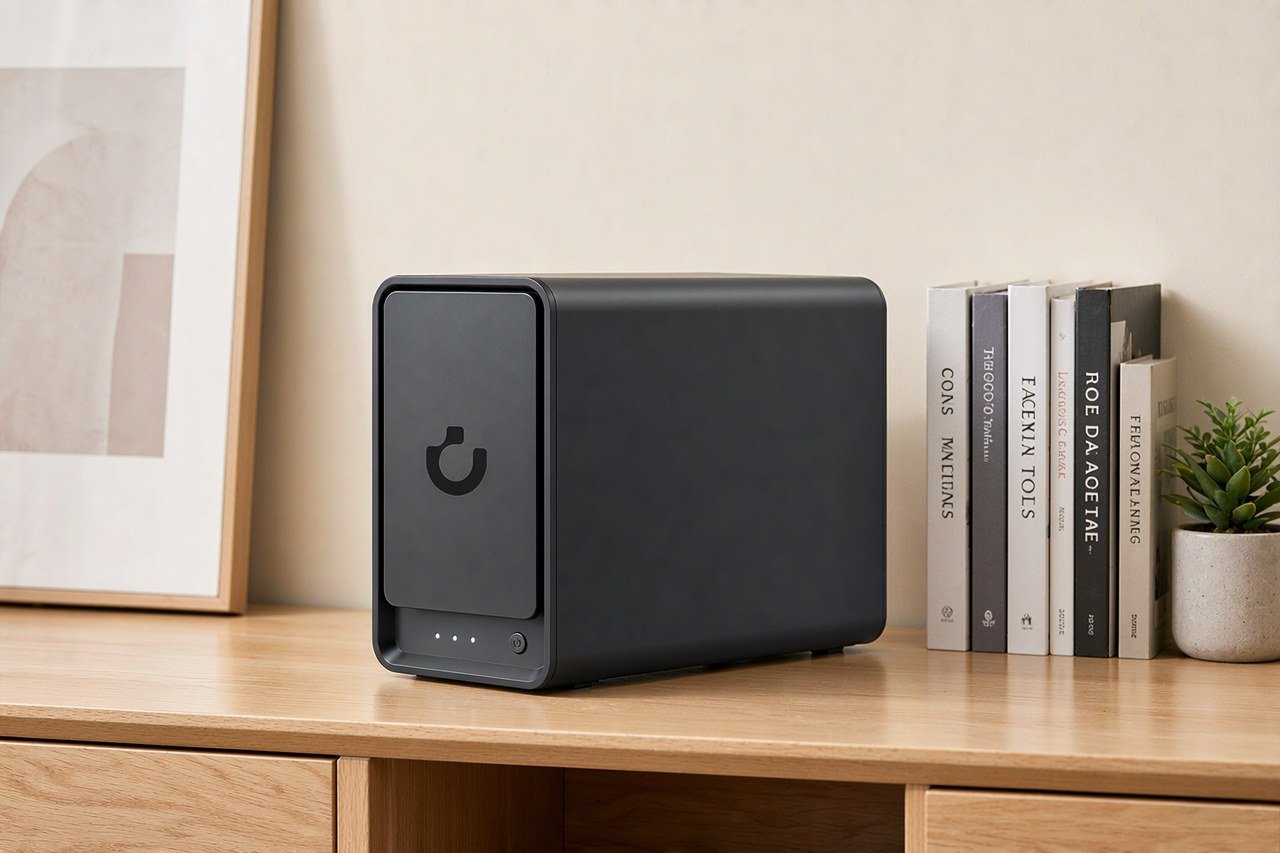
Direct answer up front, then the trade-offs that matter. This page covers 3-2-1 backup strategy and answers: what does 3-2-1 backup strategy mean.
By Konpin · Founder / Lead Analyst
Beat: Private-cloud economics · How we review
Quick Answer
The 3-2-1 backup strategy means keeping three copies of your data on two different types of storage, with one copy off-site (Backblaze, accessed 2026-10-26). At home that usually looks like this: originals on a NAS, a second copy on USB drives, a third at another building or in the cloud.
Key Takeaways
- Three copies, two media types, one off-site. A 2012 US-CERT paper, Data Backup Options, put the method in print, and Backblaze still describes it the same way today (accessed 2026-10-26).
- RAID is not a backup. A mirrored volume survives a dead drive — not a deleted folder, not ransomware, not a house fire.
- The off-site copy is the one most home setups skip, and the only one that survives theft, fire, or an attacker with admin rights.
- Concrete example from tracked prices: a UGREEN NASync DXP4800 Plus at $656.99 (Amazon, checked 2026-10-16) plus a mirrored pair of 8 TB WD Red Plus drives at $431 each (DatacenterDisk listing, checked 2026-10-02) comes to $1,518.99 before the off-site copy.
Definition
The name is the whole idea: 3 copies, 2 different media, 1 off-site. Keep the original plus two backups. Put those backups on two kinds of storage — a NAS and USB drives, or a NAS and a cloud service. Move one copy to another building, because a burglar does not care how good your RAID array is.
The method is old enough to vote. A 2012 paper for the United States Computer Emergency Readiness Team (US-CERT), Data Backup Options, compiled by Carnegie Mellon, recommended the approach (as cited in Backblaze's guide, accessed 2026-10-26). Veeam, whose core business is enterprise backup, still teaches the same three numbers — and now promotes an extended version called 3-2-1-1-0, which their blog describes as adding one immutable (unchangeable) copy and verifying zero recovery errors. That extension is vendor framing; the underlying rule it extends has not changed.
Two words in the rule do more work than people expect. "Different media" exists so one firmware bug or one bad batch of drives cannot kill every copy at once. "Off-site" exists so the same flood, fire, or thief cannot reach all three copies. Everything else is detail.
How It Works
Copy one is your live data: the photos on your NAS, the documents on your laptop. Copy two is a backup on different media — external USB disks, for most households. Copy three is a backup somewhere else entirely, and it is the one that saves you from the bad days.
What trips people up is the difference between a backup and a sync. A sync folder mirrors changes in both directions. Delete a file, and every synced copy deletes with it; the mistake propagates at the speed of your connection. If you have ever watched a sync client overwrite your good file with a corrupt one, you already know why versions matter. A true backup keeps old versions, so the deleted file still exists in yesterday's copy. Cloud plans sold for syncing — Google One's 2 TB plan lists at $9.99/month (Google, checked 2026-10-02) — are storage, not backups, unless you enable a genuine backup feature and verify that it actually keeps versions.
A NAS slots in as your primary copy and usually your local backup too. The third copy still has to leave the building. That is the step most people skip, and skipping it reduces 3-2-1 to 3-2-0 — a state no vendor's marketing will ever flag for you.
Why It Matters
One copy is zero backups. That sentence sounds glib until the first dead drive proves it.
Ask yourself one question before anything else: if your house burned down tonight, what would you lose? Whatever you just pictured — the photo library, your tax records, the kids' videos — that list is exactly what copy three protects. Everything below is how to make sure it exists.
Drive failure is the boring risk, and a mirrored NAS handles it: the volume keeps running while you swap the dead disk. The expensive risks are the ones that hit every disk in the building at once. Ransomware encrypts mapped network shares, including the NAS volume. Fire, flood, and theft take the NAS and the USB drive sitting next to it in the same hour. The off-site copy is the only one that shrugs at all three.
Cost is the usual objection, so here is the tracked arithmetic. Across the 12 NAS units in our site's price ledger, tracked prices run from $329 to $3,759 with a median of $648 (as of 2026-10-24). If your important data is a few hundred gigabytes, a cloud plan covers copies two and three for $9.99/month (Google One 2 TB, checked 2026-10-02) — five years of that is $599.40, which is pure arithmetic, not a forecast. A NAS earns its keep once the library outgrows those plans or you want the primary copy under your own roof.
All numbers above come from our site's price and spec ledger (vendor pages or major retailer pages, each with an accessed date); the sample is the 12 NAS units, 3 hard drives and 16 subscription tiers we track, so it does not represent the whole market; models missing a field are not counted in that metric's denominator.
Common Misconceptions
"RAID is my backup." No. RAID protects against one failure mode — a dead disk. It lives in one box, so a controller fault, a filesystem bug, ransomware with share access, or a house fire takes the whole array. RAID is availability. Backup is recoverability. You want both.
"The cloud synced it, so I'm safe." Sync is not versioned backup unless you have verified versioning. Delete a file on your phone, and the deletion syncs everywhere within minutes. Restore-from-trash windows expire. We could not verify any sync service's default retention, so check your own account's settings before you trust them.
"Two copies in the same house count as 3-2-1." They count as two copies. The rule's third number exists precisely because local disasters take local copies together.
"The box plus one drive is a backup." This is the trap first-time buyers hit most often: you buy the NAS, drop a single drive in it, and call it done. One drive means no redundancy at all — the first disk failure takes everything, and no strategy on this page can help you. Watch out for it before you spend a cent.
Related Terms
- RAID — pooling multiple drives into one volume that survives single-drive failure. Availability tech, not a backup.
- Snapshot — a point-in-time view of a volume. Great against accidental deletion and some ransomware, useless if the underlying disks die.
- Immutable backup — a copy that cannot be altered or deleted for a set period. Veeam's 3-2-1-1-0 adds one such copy (vendor claims, accessed 2026-10-26).
- Sync — two-way mirroring between locations. Fast and convenient, and the reason a mistaken delete spreads everywhere.
A Home Setup Example: What It Costs and What Maintenance Looks Like
Most NAS marketing stops at "keep your data safe" and never mentions the third copy. So here is the whole picture with tracked numbers: what the hardware costs, what the third copy costs, and what you will actually do every quarter.
Hardware first. The table below is generated from our spec and price ledger; an em dash means we have no verified reading for that field, so we leave it blank rather than guess.
| Field | UGREEN NASync DXP4800 Plus | Synology DiskStation DS925+ | QNAP TS-464 (8 GB) | TerraMaster F4-424 Pro |
|---|---|---|---|---|
| Price (tracked) | Amazon $656.99 (2026-10-16) | Amazon $749.76 (2026-10-02) | Amazon $639 (2026-10-02) | DatacenterDisk listing $730.99 (2026-10-02) |
| Drive bays (SATA) | 4 bays | 4 bays | 4 bays | 4 bays |
| M.2 NVMe slots | 2 slots | 2 slots | 2 slots | 2 slots |
| Max raw capacity | 144 TB | — | — | 88 TB |
| Max bays with expansion | — | 9 bays | — | — |
| Hot-swap bays | Yes | Yes | Yes | Yes |
| CPU | Intel Pentium Gold 8505 | AMD Ryzen V1500B | Intel Celeron N5095 | Intel Core i3-N305 |
| CPU cores | 5 cores | 4 cores | 4 cores | 8 cores |
| Installed RAM | 8 GB | 4 GB | 8 GB | 32 GB |
| Max RAM | 64 GB | 32 GB | 16 GB | 32 GB |
| RAM slots | — | 2 slots | 2 slots | 1 slot |
| ECC RAM | — | Yes | — | — |
| RAM soldered (not upgradeable) | No | — | — | — |
| 2.5GbE ports | 1 port | 2 ports | 2 ports | 2 ports |
| 10GbE ports | 1 port | — | — | — |
| PCIe slots | — | — | 1 slot | — |
| USB ports | 4 ports | 2 ports | 4 ports | 2 ports |
| HDMI output | 4K 60Hz | — | 4K 60Hz | 4K 60Hz |
| Form factor | Desktop tower | Desktop tower | Tower | Desktop tower |
| Weight | — | 2.26 kg | 2.26 kg | 3.4 kg |
| Internal filesystem | — | Btrfs, ext4 | — | — |
| Warranty | 2 years | 3 years | 3 years | 2 years |
The example box is the UGREEN NASync DXP4800 Plus: four bays, listed at $656.99 on Amazon (checked 2026-10-16). A mirrored pair of 8 TB WD Red Plus drives (WD80EFPX, listed at $431 each, DatacenterDisk, checked 2026-10-02) brings the local setup to $1,518.99. The Synology DiskStation DS925+ does the same job class at $749.76 (Amazon, checked 2026-10-02) — $92.77 more for the box alone. Per the table, the Synology trades its single 10GbE port for two 2.5GbE ports and a three-year warranty, while the UGREEN keeps one 10GbE port with a two-year warranty. If it were our money and we owned no 10GbE switch, the Synology's extra LAN port and longer warranty justify the difference; with a 10GbE switch already on the desk, the UGREEN wins.
Copy three is cheaper than you fear. The one-time route is a third USB drive that lives at a relative's house; the cost is the drive plus a calendar reminder you will actually follow. The set-and-forget route is a cloud plan — $9.99/month for Google One's 2 TB (checked 2026-10-02), which is $119.88 a year. What you should not do is call the USB drive in the same room "off-site".
Maintenance is a quarterly restore drill, and it takes twenty minutes:
- Pick a folder you have not touched in a month.
- Restore it from the off-site copy to a scratch drive.
- Open three random files and confirm they open.
- Write down how long it took. If the answer is "all weekend", your copy-three medium is wrong for your data volume.
Real limits, stated plainly: restoring multiple terabytes from an off-site copy takes a day, not minutes, so size your expectations before an emergency. The NAS draws power and makes noise around the clock, and a tower next to your bed is a genuine quality-of-life problem. Drive prices move; every figure here is dated, and a price from 2026-10-02 tells you about that day, not about next month.
Who should skip the hardware route entirely: if everything you care about fits under 2 TB and you already pay for a cloud plan, three copies does not require owning a NAS — keep originals plus one external drive at home and one copy in the cloud, and you have followed the rule for under $15 a month. If your library has outgrown cloud plans, or you want local speed on gigabit-or-faster LAN, the mirrored-pair NAS route is worth it. Our take: buy the two drives before you debate the box, because the drives outlive it.
Frequently Asked Questions
What does the 3-2-1 backup strategy mean?
Three copies of your data, on two different types of media, with one copy off-site (Backblaze, accessed 2026-10-26). A home example: originals on a NAS, a backup on USB drives in the same room, and a third backup at a relative's house or in cloud storage. The off-site copy is the one that protects you from fire, theft, and ransomware.
What is the point of the 3-2-1 backup rule?
No single event can destroy all copies. A dead drive takes one copy. Ransomware takes the copies it can reach on the network. Fire or theft takes everything in the building. Spreading copies across two media and two locations means recovery costs you a restore, not your files — that is the entire argument, and it has held since the rule was printed in a 2012 US-CERT paper (via Backblaze, accessed 2026-10-26).
What is a NAS and do I need one?
A NAS (network-attached storage) is a small file server on your home network that holds drives every device can reach. You need one if your library outgrew cloud plans, you want local-speed access, or you want the primary copy under your own control. You don't need one if your data fits a $9.99/month plan and you will genuinely keep an off-site copy.
How much does a home NAS cost?
In our tracked ledger, 12 NAS units run from $329 to $3,759 with a median of $648 (as of 2026-10-24), and you should budget drives on top of that. Our worked example — a DXP4800 Plus with a mirrored pair of 8 TB drives — totals $1,518.99 in tracked prices. Smaller boxes cost less; every figure here is dated, so check current pricing before you buy.
How many bays do I need?
Two bays with a mirrored pair cover your photos and documents just fine for most households. Four bays make sense for a growing media library, flexible volume layouts, or headroom you will use within two years. Eight bays is a homelab hobby, not a backup requirement. The classic first-buyer overspend is buying for year five of imagined data; you can swap in bigger drives later, though that costs more than buying the bigger box up front.
Can a NAS replace cloud storage?
Not entirely. A NAS is a strong primary copy and local backup, and it deletes the monthly fee. It still lives in your building, so on its own it fails the off-site test that 3-2-1 is built on. The honest setup pairs the NAS with one off-site copy — a rotated external drive or a cloud plan. Our five-year cost comparison walks through that math.
Sources
- Backblaze — "Data Backup Strategies: Why the 3-2-1 Backup Strategy is the Best" (https://www.backblaze.com/blog/the-3-2-1-backup-strategy/, accessed 2026-10-26)
- Veeam — "The 3-2-1 backup rule" (https://www.veeam.com/blog/321-backup-rule.html, accessed 2026-10-26)
- Synology Knowledge Center — "What is backup?" (https://kb.synology.com/en-us/DSM/tutorial/what_is_backup, accessed 2026-10-26)
- Site price and spec ledger — all inline prices as dated (Amazon / DatacenterDisk / Google listings, checked 2026-10-02 and 2026-10-16; aggregate stats as of 2026-10-24)
Run your own 5-year cost comparison with the on-site calculator
Every figure above is attributed in the Sources list — put your own drive count and subscription tiers into the calculator to see where you land.
Open the cost calculator →Related reading
Was this article helpful?
One tap, no account and no comment box. It tells us which guides are actually worth updating.
How many drive bays is your NAS?
This is how we decide which setups to cover next.
Thanks.
Need help with a specific setup?
Storage choices depend on your drives, your budget and how many people share the box. Tell us what you are building and we will point you at a configuration that fits — no obligation, no sales script.
Affiliate Disclosure: SecureNAS Hub may earn a commission from qualifying purchases made through links on this page, at no extra cost to you. Facts and figures are attributed in the Sources list; nothing on this page is a fabricated test result. See our full disclosure. Product images are either supplied by the manufacturer or clearly labelled as illustrative renders; each one is captioned accordingly. Last reviewed 2026-10-26.