NAS Guides · Published 2026-10-13
How to Set Up a Home NAS in 15 Minutes (No IT Skills)
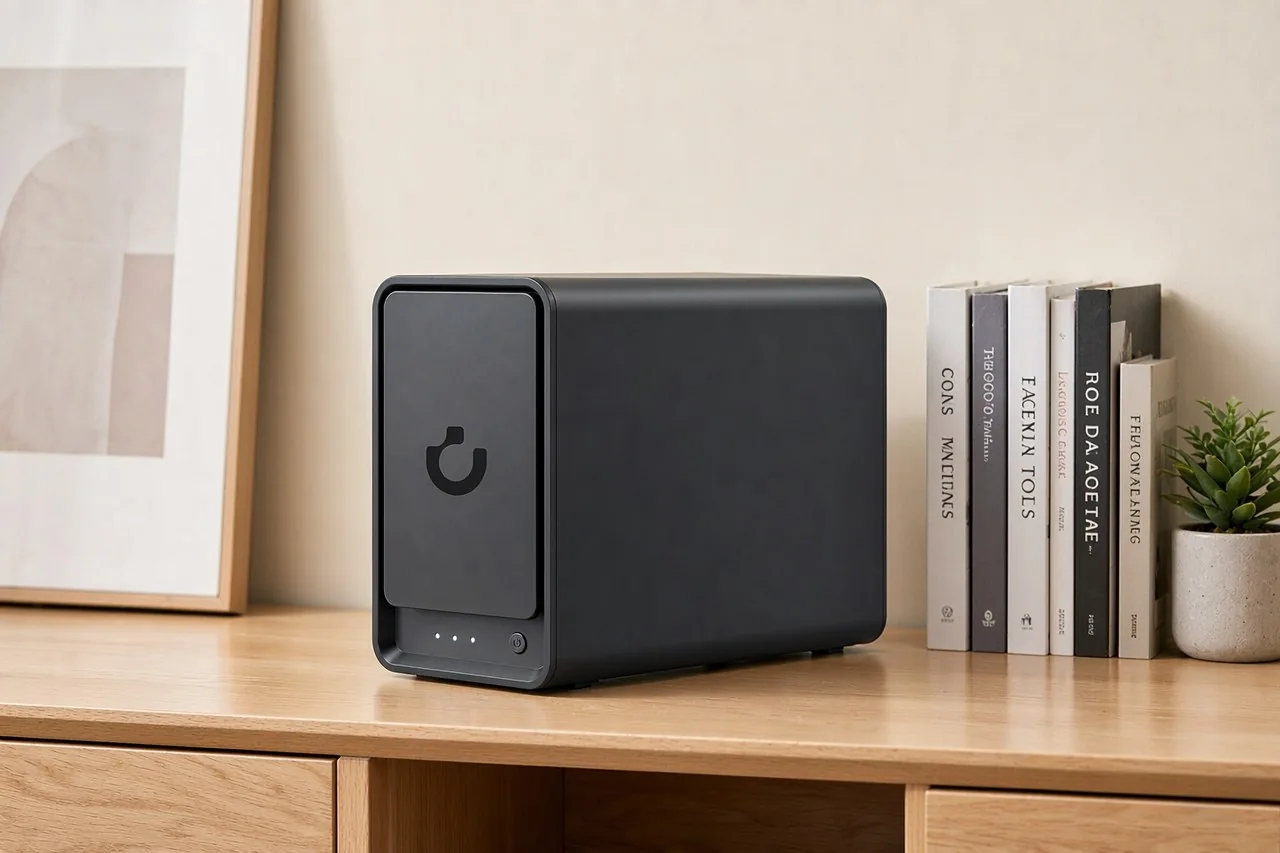
Direct answer up front, then the trade-offs that matter. This page covers how to set up a home nas and answers: What is a NAS and do I need one?.
By Konpin · Founder / Lead Analyst
Beat: Private-cloud economics · How we review
Quick Answer
Fifteen minutes buys you a working home NAS. You plug the box into your router, push in the drives, turn it on, and finish the rest in a browser — the first shared folder usually exists before your coffee goes cold. The part that eats a weekend is not the setup. It is deciding how many bays, which drives, and whether you want to pay a subscription forever.
Key Takeaways
- A two-drive mirror with 8 TB disks lands you near 8 TB of usable space and survives one dead drive.
- Amazon listed the UGREEN NASync DXP4800 Plus at $656.99 on 2026-10-02 — a diskless enclosure, so drives cost extra.
- The 15-minute promise covers hardware and the first share. Migration, permissions and offsite backups take longer.
- Buy NAS-rated CMR drives. Desktop drives in a 24/7 box are the single most common first-year failure.
Quick Answer in Context
The phrase "home NAS" (network attached storage) means one small computer whose whole job is holding files and serving them to your other devices. You plug it into the router with an Ethernet cable. It gets an address on your network. Your laptop, phone and TV see it as a folder. That is the entire concept.
A Synology DS925+ makes the shape concrete. Four 3.5-inch SATA bays, two M.2 NVMe slots, two built-in 2.5GbE ports, 4 GB of DDR4 ECC memory and a 3-year hardware warranty, according to Synology's own specification page (accessed 2026-10-13). That is the whole category in one sentence: a small box, a handful of drives, and software you configure once. A QNAP TS-464-8G runs four bays, two M.2 2280 slots on PCIe Gen 3 x1, two 2.5GbE ports and 8 GB of DDR4, per QNAP's hardware specification page (accessed 2026-10-13).
Two people arrive at the same question from opposite directions. One has a phone permanently full and an iCloud bill that keeps growing. The other has 6 TB of raw video sitting on three external drives and no idea which copy is the current one.
Both want the same thing: their files on hardware they own, reachable from anywhere, without a monthly charge.
How It Works
Here is the honest sequence, roughly in the order you will do it.
- Connect the hardware. Ethernet from NAS to router. Power on. Wait two to three minutes for first boot.
- Find the device. Vendors ship a discovery tool (Synology Assistant, Qfinder Pro, UGREEN's web finder) or an mDNS name. Type it into a browser on the same network.
- Create the admin account. Use a long passphrase, not the default. Enable two-factor authentication now, while you are already in the settings.
- Install the drives. Most 4-bay units are tool-free. Push each 3.5-inch drive into a tray until it clicks.
- Build the storage pool. The wizard asks one question that matters: RAID level. For four drives, RAID 5 leaves you three drives of usable space and survives one failure. RAID 1 mirrors two drives and survives one failure on two bays.
- Create a shared folder. Name it something you will still understand in five years.
- Map it on your computer. SMB on Windows and macOS, SMB or AFP on older Macs. It appears as a network drive.
family-photos beats data2. That one naming choice saves you ten minutes every time you go looking for something.
Step seven is where most people stall, and it is the step that decides whether the box actually gets used. Step six is the one you should think about longest tonight.
What to Look For
Budget is the wrong first question. Ask what you are backing up and how much you would pay to get it back.
Backup automation
The setup completes when backups run themselves.
Every major vendor covers this: Synology with Hyper Backup, QNAP with Hybrid Backup Sync, UGREEN with its own scheduling in UGOS Pro. What you are really buying is scheduling granularity and destination choice.
Check that the tool can write to three places — a USB drive, another NAS, and an S3-compatible cloud bucket. One destination is not a backup.
Local AI indexing
Photo search is where vendors now compete. UGREEN advertises face, object and scene recognition with natural-language search on the DXP4800 Plus product page (accessed 2026-10-13). Synology counters with its own photo stack on the DS925+ page (accessed 2026-10-13).
Treat every accuracy claim here as vendor marketing until you have indexed your own library. We could not verify indexing accuracy on a real 40,000-photo library, and no vendor publishes that number.
Expandability
Buy for year three, not year one. The DS925+ accepts one DX525 expansion unit for 9 total bays, per Synology's specification page (accessed 2026-10-13). The TerraMaster F4-424 Pro lists 88 TB of maximum internal capacity on TerraMaster's specification page (accessed 2026-10-13).
Watch for one pricing trap. Expansion units cost nearly as much as a second NAS in some product lines, so compare both numbers before you assume a small box can grow later. The DS925+ needs a DX525 to reach its 9-bay ceiling, and Synology sells that unit separately — which is why the chassis price is never the whole story on a small NAS.
A four-bay enclosure with two M.2 slots covers most household expansion paths, and the DXP4800 Plus pairs them with 10GbE. That single port is the difference between a 200 GB footage pull taking an overnight job and taking a lunch break.
Noise and power
Audio is the specification nobody checks before buying, right up until the box lives in a room where someone sleeps.
A NAS is silent in a shop and audible in a bedroom. Synology rates the DS925+ at 20.5 dB(A) and 37.91 W under access, per its specification page (accessed 2026-10-13). TerraMaster lists 21.0 dB(A) for the F4-424 Pro with two SATA SSDs idle, per its specification page (accessed 2026-10-13).
Both figures come from vendor labs running specific drives in a specific room, so treat the second one as the marketing number and the first one as the plan. Four spinning 7200 RPM disks will land you above both, and a closed cabinet makes it worse.
Real-World Costs
The table below comes from our tracking ledger, not from memory. Prices move, so read the retailer and the date on each row before you trust the number.
| Field | UGREEN NASync DXP4800 Plus | Synology DiskStation DS925+ | QNAP TS-464 (8 GB) | TerraMaster F4-424 Pro |
|---|---|---|---|---|
| Price (tracked) | Amazon $656.99 (2026-10-02) | Amazon $749.76 (2026-10-02) | Amazon $639 (2026-10-02) | DatacenterDisk listing $730.99 (2026-10-02) |
| Drive bays (SATA) | 4 bays | 4 bays | 4 bays | 4 bays |
| M.2 NVMe slots | 2 slots | 2 slots | 2 slots | 2 slots |
| Max raw capacity | 144 TB | — | — | 88 TB |
| Max bays with expansion | — | 9 bays | — | — |
| Hot-swap bays | Yes | Yes | Yes | Yes |
| CPU | Intel Pentium Gold 8505 | AMD Ryzen V1500B | Intel Celeron N5095 | Intel Core i3-N305 |
| CPU cores | 5 cores | 4 cores | 4 cores | 8 cores |
| Installed RAM | 8 GB | 4 GB | 8 GB | 32 GB |
| Max RAM | 64 GB | 32 GB | 16 GB | 32 GB |
| RAM slots | — | 2 slots | 2 slots | 1 slot |
| ECC RAM | — | Yes | — | — |
| RAM soldered (not upgradeable) | No | — | — | — |
| 2.5GbE ports | 1 port | 2 ports | 2 ports | 2 ports |
| 10GbE ports | 1 port | — | — | — |
| PCIe slots | — | — | 1 slot | — |
| USB ports | 4 ports | 2 ports | 4 ports | 2 ports |
| HDMI output | 4K 60Hz | — | 4K 60Hz | 4K 60Hz |
| Form factor | Desktop tower | Desktop tower | Tower | Desktop tower |
| Weight | — | 2.26 kg | 2.26 kg | 3.4 kg |
| Internal filesystem | — | Btrfs, ext4 | — | — |
| Warranty | 2 years | 3 years | 3 years | 2 years |
The pattern is obvious once it sits on one page. Enclosure prices cluster between $639 and $750 for four bays, and the gaps trace back to CPU class, network ports and warranty length rather than to capacity. Drives are the bigger bill, and they are the part that scales with redundancy.
Warranty deserves its own line, because it is the one specification you cannot fix after the sale. Synology and QNAP both list 3 years on the DS925+ and TS-464-8G specification pages (accessed 2026-10-13). UGREEN and TerraMaster list 2 years for the DXP4800 Plus and F4-424 Pro (accessed 2026-10-13). That extra year is real money when a chassis fan or power board fails in month 30. Ours has not, and one data point proves nothing — but the warranty term is the only part of this decision you cannot upgrade later.
Recommended Setups
Budget setup
Two bays, two NAS-rated 8 TB CMR drives, RAID 1. WD Red Plus 8 TB and Seagate IronWolf 8 TB both carry a 180 TB/year workload rating and 1,000,000-hour MTBF on their manufacturers' specification pages (accessed 2026-10-13). You lose half your raw capacity to the mirror. You gain the ability to lose one drive without a weekend of recovery.
Practical advice: skip this budget setup if you already store more than 6 TB. You will fill it inside a year and start over.
Our take is that the cheap box is the right first NAS for most people, and the wrong one for anyone who edits video. The trade-off is simple — you save the chassis cost now and pay it again at the first capacity wall.
Family setup
Four bays, RAID 5, three drives today and room for a fourth. This is the configuration that absorbs phones, laptops and camera cards without anyone managing folders by hand.
Automatic phone backup is the feature that actually gets used. Shared folders are the one people forget they created, which is why a quarterly five-minute tidy beats any clever folder taxonomy.
Creator setup
Four bays plus two M.2 NVMe slots for cache, on 2.5GbE at minimum, is the floor for editing footage off the array rather than copying it locally first. The DXP4800 Plus pairs one 10GbE and one 2.5GbE port with the Pentium Gold 8505 and 8 GB of DDR5 expandable to 64 GB, per UGREEN's specification page (accessed 2026-10-13). That single 10GbE port changes a 200 GB footage pull from an overnight job into a lunch break.
If a Sony Alpha 1 II is your camera, your workflow needs two streams: a fast cache for the 50.1 MP ARW files and a slow archive for finished projects. Sony's specification page lists two card slots with CFexpress Type A and UHS-II SD support (accessed 2026-10-13). Both belong in the plan.
Common Mistakes
Buying desktop drives. A WD Blue in a four-bay box running 24/7 is a warranty claim looking for a date. The $15-per-drive saving disappears the first time you rebuild.
Skipping RAID inside a two-drive box. Two disks, one volume, no redundancy means a single failure takes everything. It is not a backup strategy; it is a coin flip.
Treating a NAS as a backup. RAID protects against a dead drive. It does nothing against ransomware, a spilled mug or a house fire. The old mini PC in your cupboard plus an external drive is a cheap second copy.
Ignoring thermal management. A closed cabinet turns a 21 dB(A) NAS into a hot box. Leave 5 cm of clearance on every side, especially behind the exhaust fan.
Never testing a restore. An untested backup is a belief, not a backup. Pull one random file from the archive every quarter and time it.
Real-World Scenario: SME Enterprise-Wide Intelligent Data Collaboration
What this changes for the use case
A five-person studio hits the same wall every small team hits. Files live on one person's laptop. Two people edit the same spreadsheet and create two versions. Nobody knows which folder holds the signed contract.
One four-bay NAS with a permission model replaces that mess. You create accounts per person, groups per function, and shared folders per project. The contract lives in one place with an audit trail of who opened it.
Hardware and software requirements
Four bays is the practical floor for a team of five. You need per-user accounts, group permissions, and a sync client so an offline laptop still works.
The DXP4800 Plus covers the account side through UGOS Pro with Docker for containerized apps, per UGREEN's specification page (accessed 2026-10-13). The QNAP TS-464-8G lists 4,096 local user accounts, 512 local groups and Windows ACL support on QNAP's hardware specification page (accessed 2026-10-13). Both matter more than raw throughput once more than three people share the box.
Limits, caveats, and who should skip it
A consumer NAS is not a domain controller and does not replace a real identity provider. If your team passes ten people, or you need compliance evidence for an auditor, buy business-class hardware with a support contract.
Skip this scenario if your team is fully remote and cloud-native. You would be running a server in an office nobody visits.
The migration itself is the underrated cost. Mapping drive letters, re-pointing application paths, and retraining people who have used the same folder for six years takes longer than the hardware install — usually a full working day, not fifteen minutes. Budget for that day, or do the migration on a Friday and leave the weekend as the buffer for the calls you will get on Monday.
Frequently Asked Questions
What is a NAS and do I need one?
A NAS is a small computer that stores files and shares them across your network. You need one if your photos or videos no longer fit comfortably on your devices and you would rather own the hardware than rent cloud space. You do not need one if a single 2 TB external drive still holds everything, or if you genuinely never look at old files — and plenty of people are in that second group without realising it.
How much does a home NAS cost?
An enclosure plus drives plus a backup drive lands most home setups between $900 and $1,500 at 2026 prices for four bays. The diskless enclosure is the smaller half. Two 8 TB NAS-rated drives cost more than the chassis you put them in, and they are the part you will replace first.
How many bays do I need?
Two bays hold 8 TB usable in RAID 1 and cover most households. Four bays buy expansion room and RAID 5, which gives you three drives of usable space with one-drive protection. If you shoot 4K video, start at four and accept that you will want more within two years — the jump from $639 to $731 between tracked 4-bay models is smaller than buying the same class of box twice. Most people who regret a NAS purchase regret the bay count first, not the CPU.
Can a NAS replace cloud storage?
Yes, for bulk storage and media. No, for everything. A NAS gives you access to your files without a monthly charge, but it needs power, a working internet connection, and someone to keep the firmware patched. Keep an encrypted cloud copy of the 20 GB that would actually hurt to lose, and let the NAS hold the other 6 TB.
Sources
Primary specifications
- Synology. "DiskStation DS925+ — Hardware Specifications." synology.com, accessed 13 Oct. 2026, https://www.synology.com/en-global/products/DS925%2B#specs.
- QNAP. "TS-464-8G — Hardware Specifications." qnap.com, accessed 13 Oct. 2026, https://www.qnap.com/en-us/product/ts-464/specs/hardware.
- TerraMaster. "F4-424 Pro Specification." terra-master.com, accessed 13 Oct. 2026, https://www.terra-master.com/pages/f4-424-pro-specification-cn.
- UGREEN. "NASync DXP4800 Plus — NAS Storage." nas.ugreen.com, accessed 13 Oct. 2026, https://nas.ugreen.com/products/ugreen-nasync-dxp4800-plus-nas-storage.
Drives
- Western Digital. "WD Red Plus 8 TB (WD80EFPX) — Product Specifications." westerndigital.com, accessed 13 Oct. 2026, https://www.westerndigital.com/products/internal-drives/wd-red-plus-sata-3-5-hdd.
- Seagate. "IronWolf 8 TB (ST8000VN004) — Data Sheet." seagate.com, accessed 13 Oct. 2026, https://www.seagate.com/products/nas-drives/ironwolf-hard-drive/.
Setup steps and camera workflow
- Synology. "Quick Start Guide: Set Up Your Synology NAS and DSM." kb.synology.com, accessed 13 Oct. 2026, https://kb.synology.com/en-global/DSM/tutorial/Quick_Start_DSM.
- Sony. "Alpha 1 II (ILCE-1M2) — Specifications." electronics.sony.com, accessed 13 Oct. 2026, https://electronics.sony.com/imaging/interchangeable-lens-cameras/all-interchangeable-lens-cameras/p/ilce1m2b.
Every retail price on this page comes from our tracking ledger, which records the retailer and the date each figure was checked. Vendor specifications are quoted from manufacturer pages and carry an accessed date. Where a figure could not be verified, we say so instead of estimating.
Run your own 5-year cost comparison with the on-site calculator
Every figure above is attributed in the Sources list — put your own drive count and subscription tiers into the calculator to see where you land.
Open the cost calculator →Related reading
Was this article helpful?
One tap, no account and no comment box. It tells us which guides are actually worth updating.
How many drive bays is your NAS?
This is how we decide which setups to cover next.
Thanks.
Need help with a specific setup?
Storage choices depend on your drives, your budget and how many people share the box. Tell us what you are building and we will point you at a configuration that fits — no obligation, no sales script.
Affiliate Disclosure: SecureNAS Hub may earn a commission from qualifying purchases made through links on this page, at no extra cost to you. Facts and figures are attributed in the Sources list; nothing on this page is a fabricated test result. See our full disclosure. Product images are either supplied by the manufacturer or clearly labelled as illustrative renders; each one is captioned accordingly. Last reviewed 2026-10-13.