NAS Guides · Published 2026-10-01
Why Your NAS Competes With Cloud Storage, Not Other NAS
Direct answer up front, then the trade-offs that matter. This page covers nas vs cloud storage and answers: What is a NAS and do I need one?.
By Anne · Storage and Home Tech Editor
Beat: Phone photo backup · How we review
Quick Answer
A NAS is not really competing with other NAS boxes. In most homes the thing it actually replaces is a cloud storage subscription and a drawer full of external drives. Below roughly 2 TB of long-term data, renting that space monthly is usually cheaper and far less work. Above it, the subscription keeps billing you forever while an owned box eventually stops costing anything. That crossover — not a spec sheet — is the real decision.
Key Takeaways
- The competitors to a home NAS are Google One, iCloud+, Dropbox, an external USB drive, the USB port on your router, and simply doing nothing. Synology versus QNAP is a much smaller question.
- Cloud pricing scales linearly with time and capacity; hardware cost flattens after purchase. Ownership wins at capacity, not at the low end.
- Drives got more expensive, not less. Tom's Hardware measured an average 46% increase across 12 mainstream drives in the four months to January 2026, with some models up 66% (accessed 2026-10-01).
- A NAS alone is not a backup. The arrangement that actually works is a NAS as primary storage plus one offsite copy — the 3-2-1 shape.
- Buy for the job first. Automatic phone backup, a family media library and client-file storage land on different hardware, and the bay count follows from the job.
Quick Answer in Context
The useful question is not "is this NAS better than that NAS." It is "what is doing this job today, and how badly." That reframing matters because the honest competitor list is not what buyers expect.
For a household with two phones, the current job holder is usually iCloud+ or Google One. It backs up photos automatically, it works from anywhere, and it costs nothing to set up. Its weakness is that the free tier runs out fast: Google gives 15 GB shared across the whole account and Apple gives 5 GB shared with device backups, so a modern phone can consume the free allowance in weeks (doloffer, accessed 2026-10-01). The next step up is a monthly bill that does not end.
For a freelancer, the job holder is often a portable SSD and a promise to remember to copy it. For a family, it is a router with a USB port and a drive that nobody has looked at in two years. For a media collection, it is a streaming subscription plus a folder of files on a laptop. None of those are NAS products. All of them are what you are actually replacing.
A modern NAS can host all those jobs at once: photo backup for every phone in the house, one shared place for documents, a local media library, and workstation backups. It replaces a set of rented services with one box you own. It also hands you the job of administering it. That trade is the subject of every line below.
How It Works
The clearest way to think about the decision is as a set of jobs rather than a set of products. Five come up repeatedly: automatic lossless backup of phone photos and video; one shared location for family files; a media library that can stream without buffering; working storage for photo and video editing; and backups of every computer in the household. A cloud subscription covers the first job well, the second partly, and the third and fourth poorly.
Two differences decide whether the swap is worth it: speed and ownership.
Speed first. A NAS on a 1 GbE network moves data at roughly 100–110 MB/s, and on 2.5 GbE with capable drives closer to 250 MB/s (ubnas.com, accessed 2026-10-01). Cloud storage is bounded by your internet connection in both directions, and home upload speeds are a small fraction of download speeds. Backing up 2 TB over a 20 Mbit/s upload takes roughly ten days of continuous transfer, and a restore waits behind the same pipe (ubnas.com, accessed 2026-10-01). Editing a video directly from a local share is practical. Doing that from a cloud drive is not.
Second, ownership. Once the box is in place, the software suite is what you stop paying for. Synology Photos, for example, is a near-clone of Google Photos — face recognition, map view, timeline scrubbing and automatic mobile backup — running on hardware in your own home (Android Authority, accessed 2026-10-01). The same pattern repeats elsewhere in the stack: an open-source photo server such as Immich, a media server such as Jellyfin or Plex, and a backup target for every machine in the house. Cloud storage stores files. A NAS also runs the services that manage them.
A NAS definition, stated plainly: network-attached storage is a small always-on computer whose primary job is to hold disks, share their contents over your local network, and run software on top of them. It is worth keeping that definition in view, because it explains why the comparison against cloud storage is not apples to apples. One is a place you own; the other is a service you rent.
What to Look For
Backup automation
The job you are hiring is "my photos are safe without me thinking about it." Look for a mobile app that uploads in the background over Wi-Fi, keeps originals rather than compressed copies, and handles modern formats such as HEIC and Live Photos. Cross-platform support matters more than reviewers admit: a household with one iPhone and one Android phone needs an app that treats both the same. If the app requires manual triggering, it is a folder, not a backup.
Local AI indexing
Face grouping, object search and scene detection are the features that make a photo library usable at scale, and they are precisely what Google and Apple sell with their storage plans. Running the same indexing locally means the library stays searchable without the images leaving the house. This is the strongest technical argument for ownership, and it is worth checking that the specific model you are considering supports it, because the capability varies widely across price tiers.
Expandability
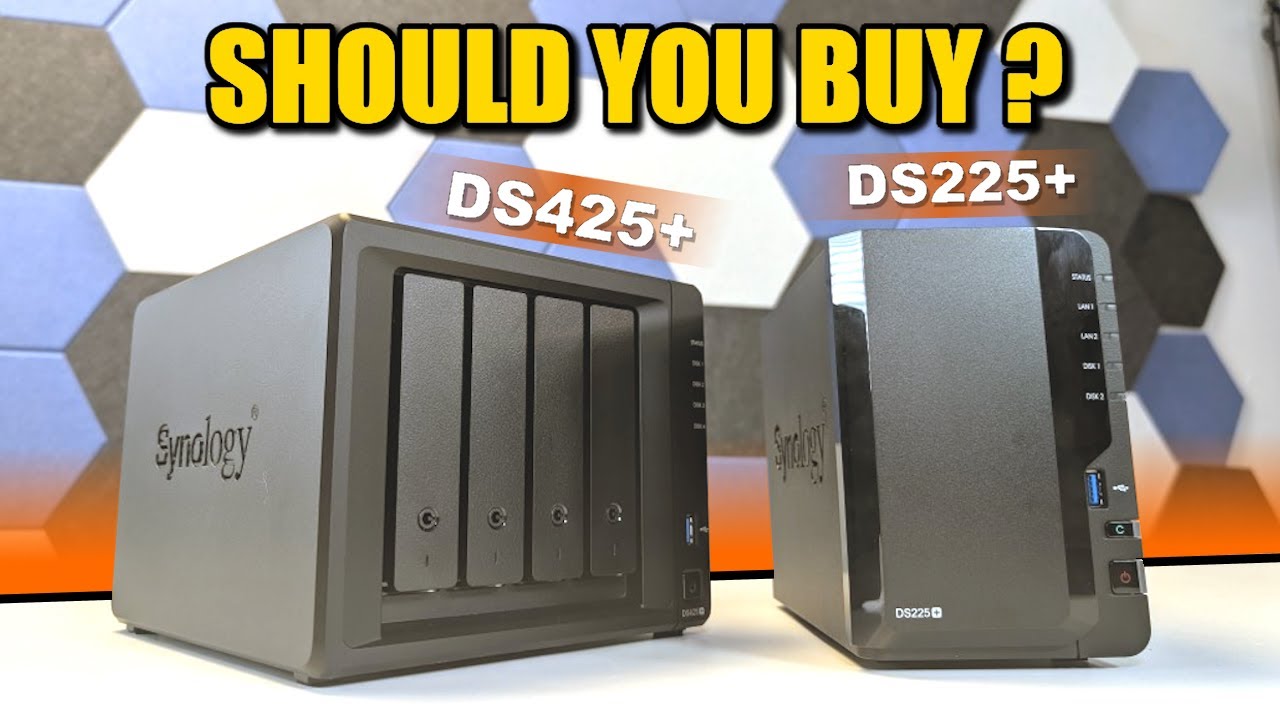
Bays plus drive size set the ceiling. A 2-bay unit in a mirror gives you one drive of usable capacity, which is a surprise to many first buyers. A 4-bay unit lets you start with two drives and grow. If you are unsure where you land, our drive bay guide walks the trade-off. Also confirm the drive type: NAS-grade CMR drives are the right choice, and SMR drives cause problems in RAID. ZDNET notes that Western Digital shipped SMR drives inside some WD Red models intended for NAS use in 2020, which led to class-action settlements and clearer labelling (accessed 2026-10-01).
Noise and power
A 2-bay unit with two drives is usually quiet enough for a shelf or an office. A 4-bay box with four spinning drives is audible in a living room, especially during a rebuild. On power, a 30 W draw at $0.20/kWh works out to roughly $53 a year (ubnas.com, accessed 2026-10-01) — real money, but an order of magnitude below a storage subscription at capacity.
Real-World Costs
The up-front structure is the whole story. Cloud storage costs nothing to start and bills forever. A NAS costs several hundred dollars to start and then bills almost nothing.
Android Authority worked the five-year comparison. An Apple user pushed onto the 6 TB iCloud+ tier pays $360 a year, or $1,800 across five years; a comparable Synology setup, including a generous electricity estimate, lands near $600, putting break-even at about one and a half years (accessed 2026-10-01). On Google One's 5 TB plan at $250 a year, break-even arrives at a little over two years and the five-year gap is roughly $650 (Android Authority, accessed 2026-10-01).
The counterweight in 2026 is drive pricing. Tom's Hardware reported an average 46% increase across 12 mainstream drives for the four months to January 2026, with individual models up between 23% and 66% (accessed 2026-10-01). In the US checks, a 4 TB Seagate IronWolf that sold for $70 in early 2023 was listed at $99, and the 8 TB model moved from $130 to $199, with WD Red Plus 8 TB at $175 (Tom's Hardware, accessed 2026-10-01). ZDNET's own price check found the cheapest reputable 4 TB NAS drive was a WD Red Plus at $195, the best price-per-terabyte at an 8 TB Seagate BarraCuda listed at $280, and the smallest dual-drive NAS in RAID 1 — two 4 TB drives giving 4 TB usable — at $400 or more (accessed 2026-10-01). Coverage of that increase was first tracked by the German outlet ComputerBase and has since been restated widely, including in Chinese-language tech media.
Cloud subscription prices, by contrast, barely moved. Both iCloud+ and Dropbox still list 2 TB at $9.99 a month (ZDNET, accessed 2026-10-01). So the honest summary is this: the long-run math still favors ownership, but the hardware entry ticket in 2026 is more expensive than it was in 2023, and that shifts the crossover point upward for small libraries. Run your own numbers with the on-site calculator before you commit.
Recommended Setups
Budget setup
Two bays with two 4 TB NAS drives in RAID 1, or two 8 TB drives if the budget stretches. Expect a few hundred dollars for the enclosure plus the drives. This covers automatic phone backup and shared documents for a couple or a small household. Accept that usable capacity is one drive, and plan to add an external drive for the offsite copy rather than a subscription.
Family setup
Four bays, three drives to start, RAID 5 with a hot spare if the model supports it. Separate accounts for each family member, a shared photo library, and scheduled backups for laptops. The extra bays are about future growth, not current need — three-drive RAID 5 buys both redundancy and usable capacity. Add the fourth drive when the array passes 70% full rather than when it fails.
Creator setup
Four bays with 2.5 GbE or better, four drives of 8 TB and up, and an NVMe slot for cache or a working pool. Local editing speed is the point here, so the network matters as much as the disks; a fast NAS behind a 1 GbE router is a bottleneck. Pair it with a genuine offsite copy, because client work is the data you cannot recreate. A creator workflow is one of the clearest cases where a private-cloud NAS beats renting storage, and the 2026 private-cloud picks cover the current options.
Common Mistakes
- Treating the NAS as the only copy. A box in your living room does not survive a fire, a flood or a burglary. ZDNET restates the old adage — "two is one, and one is none" — and the 3-2-1 rule of three copies, two media types and one offsite (accessed 2026-10-01). If there is one mistake on this list that actually loses data, it is this one.
- Buying two bays to save money. A 2-bay mirror gives you one drive of usable space, and the usual upgrade path becomes a second enclosure rather than one more disk. The savings at purchase can cost more later.
- Judging the box instead of the software. The app you open on your phone every day is the product. A better enclosure with a worse app loses to the reverse.
- Comparing only the sticker price. Subscriptions never stop. Compare five-year totals, not the day-one bill.
- Forgetting the network. A 1 GbE link caps a fast array, and Wi-Fi photo uploads are slower than most buyers expect.
- Skipping the UPS. An unclean shutdown during a write is a classic way to lose an array. A modest uninterruptible supply is cheap insurance.
- Assuming you need a NAS at all. Under about 2 TB, cloud storage is genuinely the better answer, and a straight comparison of public cloud against a private box is the fastest way to check where you sit.
Real-World Scenario: Automatic Lossless Photo Backup for Mobile
What this changes for the use case
Consider a household with an iPhone and an Android phone and a shared photo library approaching 400 GB. On the cloud, the free tiers are long gone and the couple is paying for two separate plans; neither can see the other's originals without sharing an album. With a NAS, a single app on each phone uploads originals over home Wi-Fi overnight, both libraries land in the same account structure, and the face grouping that used to be a paid cloud feature runs locally. The monthly bill stops. The friction moves to setup, which takes an evening rather than minutes.
Hardware and software requirements
A 2-bay or 4-bay NAS, NAS-grade CMR drives sized to at least double the current library, the vendor's photo app installed on every phone, and a local network the phones can reach. Mixed-platform households should confirm HEIC and Live Photo handling before buying, because that is where cheap implementations fail. If you want the same result without a NAS at all, there are free phone photo backup workflows that solve the storage problem with more manual steps — a reasonable intermediate answer while you decide.
Limits, caveats, and who should skip it
A NAS does not give you offsite protection by itself. That requires a second copy somewhere else — a drive at a relative's house, or a cheap object-storage bucket used purely as a backup target. Remote access needs configuration, whether through a vendor's relay service or a VPN, and shared access for non-technical relatives is more friction than sending a cloud link. And if your priority is zero maintenance with disaster protection built in, cloud storage is the better choice for that job. Most experienced setups end up hybrid: local storage for speed and control, cloud for the copy that survives the building.
Frequently Asked Questions
What is a NAS and do I need one?
Network-attached storage is a small always-on computer that holds disks, shares them across your local network, and runs software on top — photo management, media streaming, machine backups. You need one when your data has outgrown convenient cloud tiers, when you want local access speed, or when you would rather own the hardware than rent capacity. Under about 2 TB of long-term data, you probably do not.
How much does a home NAS cost?
Two parts: the enclosure and the drives. ZDNET's check found the smallest usable dual-drive setup — a 2-bay box with two 4 TB drives in RAID 1 — at $400 or more, with the cheapest reputable 4 TB NAS drive listed at $195 and the best price-per-terabyte at an 8 TB drive listed at $280 (accessed 2026-10-01). Four-bay builds with 24 TB usable land near $1,200 all in (techverdict.io, accessed 2026-10-01).
How many bays do I need?
Two bays for phone backup and shared files, in a mirror, accepting one drive of usable capacity. Four bays once you want room to grow — start with three drives in RAID 5 and add the fourth later. Beyond four is for media libraries, virtualization or RAID 6 redundancy, and the noise and power draw rise with the drive count.
Can a NAS replace cloud storage?
For primary storage and day-to-day access, usually yes. For disaster protection, no — a NAS sits in one place and inherits every risk that place carries. The arrangement that works is a NAS as primary storage with an offsite copy, which can itself be a cheap cloud bucket. That hybrid shape is what most experienced users converge on (ubnas.com, accessed 2026-10-01).
Is a NAS cheaper than Google One or iCloud+?
Not at low capacity, and the gap narrowed in 2026 because drives got more expensive. Android Authority's five-year comparison puts a Synology setup near $600 against $1,800 for the 6 TB iCloud+ tier, with break-even at about 18 months (accessed 2026-10-01). Below roughly 2 TB of long-term data, the cloud plan is still the cheaper and simpler answer.
What happens to my data if the NAS fails?
A mirrored or parity array survives a single drive failure and rebuilds when you replace the disk. It does not survive two simultaneous failures, a controller fault, or a fire. That is why the array is only one of the three copies the 3-2-1 rule calls for, and why the offsite copy is not optional for anything you cannot recreate.
Sources
- Tom's Hardware — "Hard drive prices have surged by an average of 46% since September": https://www.tomshardware.com/pc-components/hdds/hard-drive-prices-have-surged-by-an-average-of-46-percent-since-september-iconic-24tb-seagate-barracuda-now-usd500-as-ai-claims-another-victim (accessed 2026-10-01)
- Android Authority — "The tipping point: Here's when buying a NAS makes financial sense": https://www.androidauthority.com/p-3630469 (accessed 2026-10-01)
- ZDNET — "OneDrive Backup just got a massive change for the better — how it works now": https://www.zdnet.com/?p=675453 (accessed 2026-10-01)
- ubnas.com — "NAS vs Cloud Storage: Which Is Cheaper (and Better) in the Long Run?": https://ubnas.com/en/posts/nas-vs-cloud-storage (accessed 2026-10-01)
- doloffer — "Google Photos vs. iCloud: Full Comparison": https://doloffer.com/blog/google-photos-vs-icloud-full-comparison (accessed 2026-10-01)
- techverdict.io — "NAS vs Cloud Storage in 2026: The Verdict for Builders & Creators": https://www.techverdict.io/articles/nas-vs-cloud-storage-2026 (accessed 2026-10-01)
Run your own 5-year cost comparison with the on-site calculator
信息型内容且无合作相关标签 → 不放商业位
Open the cost calculator →Related reading
Was this article helpful?
One tap, no account and no comment box. It tells us which guides are actually worth updating.
How many drive bays is your NAS?
This is how we decide which setups to cover next.
Thanks.
Need help with a specific setup?
Storage choices depend on your drives, your budget and how many people share the box. Tell us what you are building and we will point you at a configuration that fits — no obligation, no sales script.
Affiliate Disclosure: SecureNAS Hub may earn a commission from qualifying purchases made through links on this page, at no extra cost to you. Facts and figures are attributed in the Sources list; nothing on this page is a fabricated test result. See our full disclosure. Product images are either supplied by the manufacturer or clearly labelled as illustrative renders; each one is captioned accordingly. Last reviewed 2026-10-01.