NAS Guides · Published 2026-10-05
Best NAS for Families: Photo Backup Without Subscriptions
Direct answer up front, then the trade-offs that matter. This page covers nas for families photo backup and answers: What is a NAS and do I need one?.
By Leo · Hardware Reviewer
Beat: Drive bays, RAID and expandability · How we review
Quick Answer
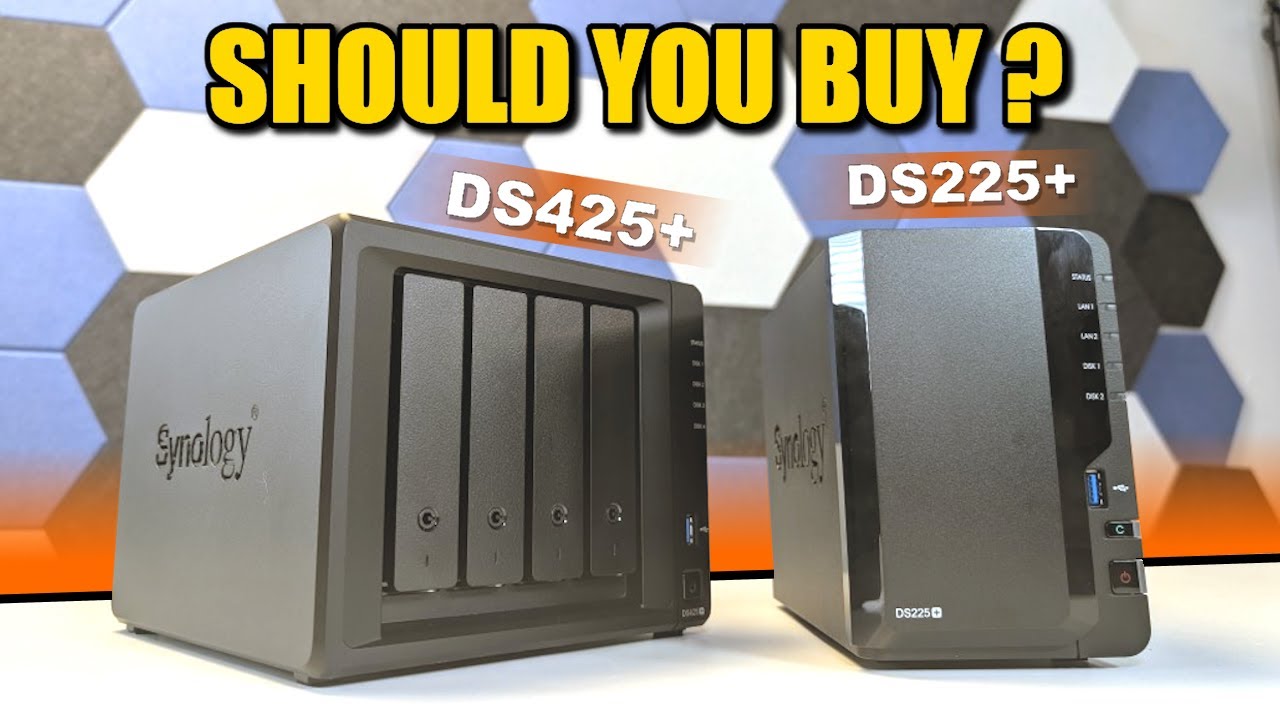
Buy the two-bay Synology DS225+ if your library fits one 8 TB drive. Amazon listed it at $364.99 on 2026-10-02; Synology Photos backs up phones automatically and runs face recognition on the NAS with no monthly fee. Choose a four-bay DS925+ only if you shoot a lot of 4K video.
Key Takeaways
- A home NAS is a small box on your shelf that replaces a monthly photo-storage bill. You pay once for hardware and drives; the photo app itself is license-free.
- Synology Photos runs on the NAS, not on Apple's or Google's servers. Synology says facial recognition needs no internet connection at all.
- The cheapest photo NAS in our price ledger is the DS225+ at $364.99 (Amazon, checked 2026-10-02). Two 8 TB Seagate IronWolf drives at $347 each (Amazon, same date) add $694.
- Object recognition — the albums that group beach photos or pets — needs at least 4 GB of RAM and Synology Photos 1.5.0 with DSM 7.2 or newer. The DS225+ ships with 2 GB.
- RAID is not a backup. You still need one copy off-site, or a single accidental folder delete ends the story.
Quick Answer in Context
A NAS — network attached storage — is a hard-drive enclosure with its own small computer and a web interface, connected to your router. You point your phone at it once, and every photo you take lands on your own disks instead of a subscription. That is the entire pitch, and for a family it is a genuinely different deal from iCloud+ or Google One.
Here is what "without subscriptions" does and does not mean. Synology Photos, the app that does the automatic backup, face grouping and album browsing, is included with the NAS at no extra charge. There is no per-month fee to store your own files on your own hardware. You still pay for electricity, you still buy the drives, and you should still keep one copy somewhere other than your house.
The price difference is not always in the NAS's favour, and we would rather say that up front. A 2 TB cloud plan runs $119.88 a year at Apple's 2026-10-02 price. A NAS costs four figures up front and lasts a decade. Where it wins immediately is capacity and control — 8 TB of your own space instead of 2 TB rented — and it wins on total cost somewhere around year nine.
If you only need 200 GB, keep the subscription.
Two independent reviewers reached the same conclusion from different directions. NASCompares walked through the migration from Google Photos and wrote that Synology's photo software covers the same ground as Google's, with the trade-off that Synology hardware "is slightly more expensive than most other brands" (accessed 2026-10-05). A Tom's Hardware writer started out planning a NAS for his family's growing photo library and bought a mini PC instead, partly because hard drive prices made the NAS build expensive (accessed 2026-10-05).
How It Works
Automatic backup is the whole trick. Install Synology Photos on the NAS, install the phone app, sign in, and every photo and video on the phone uploads over Wi-Fi.
Original quality, original metadata. Nothing is re-compressed the way some cloud services do.
The part that matters for privacy is where the thinking happens. Synology's own engineering write-up describes the phone's neural processing unit handling object recognition during upload, then sending only the results back to the NAS — which keeps memory use on the NAS low (blog.synology.com, accessed 2026-10-05). In an earlier DSM 7 announcement Synology states that Photos "is an entirely on-premises solution, meaning that no network connectivity is required to perform tasks like facial recognition."
Backup reliability is where NAS apps get interesting, and where the marketing gets thin. Mobile operating systems suspend background apps, so Synology runs three separate mechanisms: a background task (which the write-up says requires the phone to be charging), background push notifications that wake the app on a schedule, and a Focused Backup mode that keeps the app in the foreground with the screen off for large first-time uploads. Focused Backup is not a background process, so you have to leave the phone alone while it runs.
Album organisation is one more moving part. NASCompares notes in its DSM 7 review that Synology Photos expects albums to live in pre-designated folders — you cannot point the app at an arbitrary directory and have it index everything — and that the AI menus have to be switched on manually the first time you open the app (accessed 2026-10-05).
Neither is a dealbreaker. Both surprise people.
What to Look For
Four decisions separate a photo NAS you keep for ten years from one you outgrow in eighteen months.
Backup automation
Check that the app supports background upload on both iOS and Android, and that it keeps original files rather than resized copies. Synology Photos does both. Confirm the phone app can resume after the OS kills it; if a vendor cannot explain that mechanism, assume your first 20,000 photos will need a manual nudge.
Local AI indexing
Face and object recognition run on the NAS. Synology's compatibility list names the DS225+, DS923+, DS925+ and DS1525+ as supporting both face and object recognition (knowledge base page dated 10 June 2026, accessed 2026-10-05). The catch is memory: models that ship with 2 GB, including the DS225+, need a RAM upgrade to at least 4 GB before object recognition appears, and the feature needs Synology Photos 1.5.0 and DSM 7.2 or newer. Face-only grouping is lighter. On a 2 GB box with no object recognition, you get people albums but not "beach" or "pets".
Expandability
Count bays, then count M.2 slots. The DS225+ has two bays and no M.2 slot at all, so its ceiling is a mirrored pair plus an expansion unit. The DS925+ has four bays, two M.2 slots and a maximum of nine bays with expansion. Four bays in a two-drive mirror leaves two slots for growth, and that is the configuration most families should be buying.
Noise and power
The DS225+ weighs 1.3 kg and the DS1525+ 2.67 kg; larger enclosures carry more drives and more fans. Put the box where you will not hear it — a closet with an Ethernet drop, the same place the Tom's Hardware writer ended up installing his home server — and the noise question mostly disappears. Drives dominate the sound anyway, and a 7,200 RPM IronWolf is louder than the enclosure around it.
Real-World Costs
Hardware is a one-time number. Renting storage is not, and that is the whole comparison.
Our price ledger, checked 2026-10-02, holds four current Synology figures: the DS225+ at $364.99 from Amazon, the DS925+ at $749.76 from Amazon, the DS923+ at $599 from a US street (diskless) listing, and the DS1525+ at $1,309.99 from Amazon.
Drives from the same ledger: Seagate's 8 TB IronWolf (ST8000VN004) at $347 from Amazon, and WD's 8 TB Red Plus (WD80EFPX) at $431 from a DatacenterDisk listing. Channel prices move by five to ten percent between retailers, so treat each number with its seller attached.
Now the cloud side. Apple listed iCloud+ 2 TB at $9.99 a month and 6 TB at $29.99 a month on 2026-10-02; Google listed Google One 2 TB at the same $9.99. That is $119.88 a year for 2 TB, or $599.40 over five years.
Run the two against each other. A DS225+ plus two 8 TB IronWolf drives comes to $1,058.99 — roughly nine years of the 2 TB cloud plan, with 8 TB of mirrored space instead of 2 TB shared. A DS925+ with the same pair of drives lands at $1,443.76. Five years of iCloud+ at 6 TB costs $1,799.40, which is more than either build, and at that point the NAS is ahead on space and price at the same time.
The honest trade-off is this. Below about 1 TB of photos, renting wins on money and on effort. Between 1 TB and 4 TB it is a coin flip that depends on whether your time is free. Above 4 TB the subscription bill grows with your library while the NAS does not grow at all.
Recommended Setups
Three builds cover almost every household. Prices are the ledger figures above; drives are two Seagate IronWolf 8 TB units at $347 each unless stated.
| Field | Synology DS225+ (2025) | Synology DiskStation DS925+ | Synology DiskStation DS923+ | Synology DiskStation DS1525+ |
|---|---|---|---|---|
| Price (tracked) | Amazon $364.99 (2026-10-02) | Amazon $749.76 (2026-10-02) | US street (diskless) $599 (2026-10-02) | Amazon $1309.99 (2026-10-02) |
| Drive bays (SATA) | 2 bays | 4 bays | 4 bays | 5 bays |
| M.2 NVMe slots | 0 slots | 2 slots | 2 slots | 2 slots |
| Max bays with expansion | 7 bays | 9 bays | 9 bays | 15 bays |
| Hot-swap bays | Yes | Yes | Yes | Yes |
| CPU | Intel Celeron J4125 | AMD Ryzen V1500B | AMD Ryzen R1600 | AMD Ryzen V1500B |
| CPU cores | 4 cores | 4 cores | 2 cores | 4 cores |
| Installed RAM | 2 GB | 4 GB | 4 GB | 8 GB |
| Max RAM | 6 GB | 32 GB | 32 GB | 32 GB |
| RAM slots | 1 slot | 2 slots | 2 slots | 2 slots |
| ECC RAM | No | Yes | Yes | Yes |
| 1GbE ports | 1 port | — | 2 ports | — |
| 2.5GbE ports | 1 port | 2 ports | — | 2 ports |
| PCIe slots | — | — | 1 slot | 1 slot |
| USB ports | 2 ports | 2 ports | 2 ports | 2 ports |
| Form factor | Desktop tower | Desktop tower | Desktop tower | Desktop tower |
| Weight | 1.3 kg | 2.26 kg | 2.24 kg | 2.67 kg |
| Internal filesystem | — | Btrfs, ext4 | Btrfs, ext4 | Btrfs, ext4 |
| Warranty | 3 years | 3 years | 3 years | 3 years |
_— = the ledger has no verified reading for that field; we do not substitute another model's number._
Budget setup
The DS225+ at $364.99 plus two 8 TB drives, $1,058.99 all in. Two bays in a mirror, 8 TB usable, 1 GB Ethernet plus one 2.5GbE port. Skip it if you want subject albums: with 2 GB of RAM and a single memory slot that tops out at 6 GB, object recognition is a stretch, and there is no M.2 slot for cache or a scratch volume.
Family setup
Our pick for most households is the DS925+ at $749.76 with two IronWolf drives, $1,443.76. You get four bays, two M.2 slots, 4 GB of RAM that goes to 32 GB, dual 2.5GbE and ECC memory support. Leave two bays empty, add drives when you need them, and this box carries a family for a decade. The DS923+ at $599 is the value alternative if 1 GbE ports are enough for you — it has the same bay count and M.2 slots, but its Celeron-class replacement, the R1600, is a two-core part and its networking is 1 GbE only.
Creator setup
The DS1525+ at $1,309.99 with two drives is $2,003.99. Five bays, 8 GB of RAM out of the box, a PCIe slot, and a ceiling of 15 bays. This is overkill for phone photos. It makes sense if you also keep camera RAW files and 4K footage, where the extra bays let you separate working storage from archive.
Common Mistakes
Buying two bays when you need four is the expensive one, because the second purchase costs more than the first. A mirrored pair uses both slots; growth then means an expansion unit or a second NAS.
Trusting RAID as a backup runs a close second. RAID survives a dead drive. It does not survive a deleted folder, a house fire or a power surge through the wrong port.
Budget for one off-site copy — an external drive you rotate, or a cheap cloud backup tier — and the total cost rises by whatever you choose. That line item is the one families cut first, and it is the one that matters most.
Ignoring the RAM line is the third. Families buy the cheapest two-bay box, then wonder why the People album fills in and the Subject album stays empty. That is the 2 GB threshold doing its job, not a bug.
Finally, assuming the first upload happens by itself. Background tasks need the phone charging, and a 40,000-photo library is better pushed through Focused Backup in one sitting than drip-fed over six weeks.
Real-World Scenario: AI Smart Photo Album & Face/Scene Classification
Think about what you actually want at 9 pm on a Sunday: every photo of your daughter at the beach, from any phone in the house, without scrolling. That is a face-and-scene search problem, and it is the feature that decides whether a family NAS replaces Google Photos in practice.
What this changes for the use case
Shared albums become the household default. Synology Photos splits the library into a personal space and a shared space, so each family member keeps private photos while the pool of holiday shots stays visible to everyone. People albums build themselves from face recognition; subject albums add scene and object grouping once object recognition is enabled.
Hardware and software requirements
Per Synology's knowledge base: a supported model (the DS225+, DS923+, DS925+ and DS1525+ all qualify), at least 4 GB of RAM for object recognition, Synology Photos 1.5.0 or newer, and DSM 7.2 or newer. The DS225+ needs a memory upgrade to reach that 4 GB line. Synology also notes that the phone's NPU can do object recognition before upload, which shifts some of the work off a small NAS.
Limits, caveats, and who should skip it
Accuracy is not Google's. Local models on a NAS are good on clean, well-lit photos and weaker on odd angles, heavy motion blur and faces at distance — we could not find an independently benchmarked accuracy figure for Synology Photos, and the vendor does not publish one. Then there are the setup quirks NASCompares flagged: albums must sit in the folders the app expects, and the AI switches start off. Skip this entire approach if nobody in the house will maintain a second backup copy, or if the library lives on one phone and never exceeds 200 GB.
Frequently Asked Questions
What is a NAS and do I need one?
A NAS is a network storage box with its own processor and operating system, plugged into your router. You need one if your photo and video library has outgrown a phone plan and you would rather own the disks than rent 2 TB for $9.99 a month (Apple and Google, checked 2026-10-02). If your whole library fits on a 200 GB plan, you do not need one yet.
How much does a home NAS cost?
For a photo-focused family setup, budget $1,000 to $1,500. Our ledger has the DS225+ at $364.99 and the DS925+ at $749.76, both from Amazon on 2026-10-02, and 8 TB Seagate IronWolf drives at $347 each from Amazon on the same date. Two drives and an enclosure come to $1,058.99 at the low end.
How many bays do I need?
Four, for most families, unless the budget is tight. Two bays in a mirror leave no room to grow, and the DS225+ also has no M.2 slot. Four bays let you run a mirrored pair now and add two drives later. Five or more bays only pays off if you keep 4K video or camera RAW files alongside phone photos.
Can a NAS replace cloud storage?
For photos, usually yes — Synology Photos handles automatic phone backup, albums and sharing, and the software carries no monthly fee. Two conditions apply. Keep one copy off-site, because RAID protects against a dead drive, not a deleted folder. And expect local face recognition to be less accurate than Google's on difficult photos.
Sources
- Synology Blog: how the Synology Photos app manages photos — https://blog.synology.com/how-the-synology-photos-app-empowers-users-to-safeguard-and-manage-their-photos (accessed 2026-10-05)
- Synology Blog: data management and hybrid cloud future — https://blog.synology.com/the-future-for-data-management-hybrid-cloud-and-more (accessed 2026-10-05)
- Synology Knowledge Center: Synology Photos face and object recognition models — https://kb.synology.com/en-my/DSM/tutorial/Which_Synology_NAS_models_support_the_facial_recognition_feature_on_Synology_Photos (accessed 2026-10-05)
- NASCompares: switching from Google Photos to a Synology or QNAP NAS — https://nascompares.com/2020/12/23/switching-from-google-photos-to-a-synology-or-qnap-nas/ (accessed 2026-10-05)
- NASCompares: Synology DSM 7 review, multimedia and backup — https://nascompares.com/synology-dsm-7-review-part-2-multimedia-backup-management/ (accessed 2026-10-05)
- Tom's Hardware: a Mac Mini server manages a family photo library — https://www.tomshardware.com/desktops/mini-pcs/a-mac-mini-server-is-running-headless-in-my-closet-it-manages-my-photo-library-and-handles-my-backups (accessed 2026-10-05)
Prices in this piece come from our own tracker, each with its retailer and the date we checked it. Where a figure was not independently verifiable, we say so instead of estimating. See how many drive bays you actually need and why a NAS competes with cloud storage for the adjacent decisions.
Run your own 5-year cost comparison with the on-site calculator
与合作方产品高度相关(标签:backup)
See woCyber NAS details → or run the 5-year cost calculatorRelated reading
Was this article helpful?
One tap, no account and no comment box. It tells us which guides are actually worth updating.
How many drive bays is your NAS?
This is how we decide which setups to cover next.
Thanks.
Need help with a specific setup?
Storage choices depend on your drives, your budget and how many people share the box. Tell us what you are building and we will point you at a configuration that fits — no obligation, no sales script.
Affiliate Disclosure: SecureNAS Hub may earn a commission from qualifying purchases made through links on this page, at no extra cost to you. Facts and figures are attributed in the Sources list; nothing on this page is a fabricated test result. See our full disclosure. Product images are either supplied by the manufacturer or clearly labelled as illustrative renders; each one is captioned accordingly. Last reviewed 2026-10-05.