NAS Guides · Published 2026-10-27
Backup iPhone Photos to a NAS Without iCloud
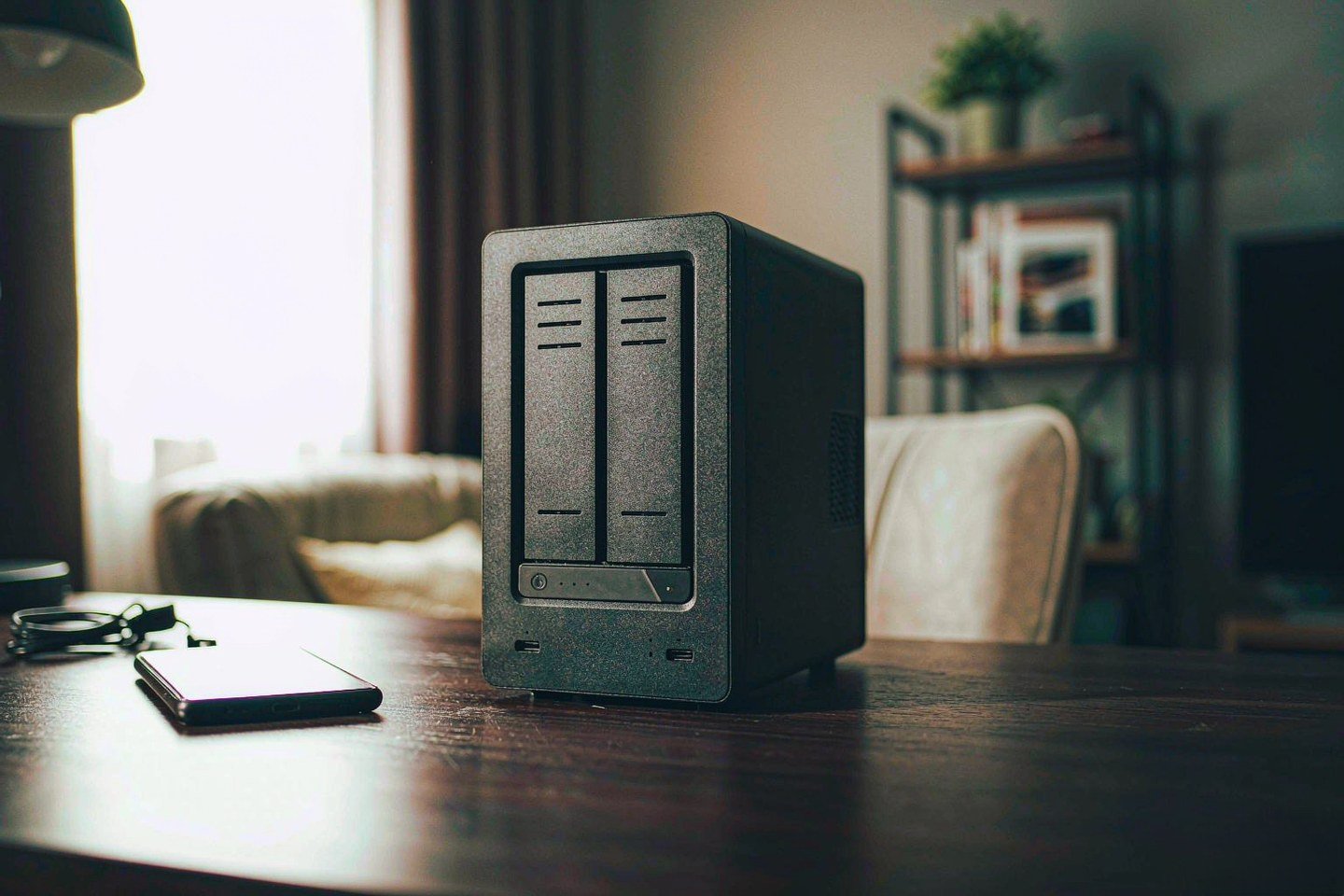
Direct answer up front, then the trade-offs that matter. This page covers backup iphone photos and answers: how to backup iphone photos to external hard drive.
By Lillian · Senior Editor, Buying Guides
Beat: Buying guides · How we review
Quick Answer
Copy the originals off your iPhone onto a NAS, then keep a second copy of that NAS folder somewhere else. Three routes work: the NAS vendor's iPhone app, an import through a Mac or PC that writes to a mounted share, or a manual drag over SMB inside the Files app. Apple supplies the reason you want one of them — photos held in iCloud Photos are "not duplicated in your iCloud backup," and a deletion on the phone travels to every device you own.
Key Takeaways
- iCloud Photos synchronises your library across devices. It is not an independent second copy, and Apple's own page tells you to "keep backup copies of your library."
- The 2 TB iCloud plan costs $599.40 across five years at $9.99/month. A two-bay NAS with two 8 TB drives costs $1,251.99 once. The jump from 2 TB to 6 TB is where the arithmetic flips.
- Per usable terabyte the NAS build works out at $156.50 against $299.70 for the 2 TB iCloud tier, same five-year window.
- A NAS keeps your files readable with no account and no monthly bill. It does not protect against fire, theft or a careless delete unless your second copy lives somewhere else.
Why a Sync Service Is Not a Backup
Apple's own wording settles this. "When you delete photos and videos on one device, they're deleted everywhere that you use iCloud Photos," the iCloud Photos support page reads. A 30-day Recently Deleted folder catches mistakes after that. Then the file is gone for good. Sync keeps two places identical; a backup keeps a copy that survives a mistake in the first place. Accept that distinction and "back up iPhone photos without iCloud" stops being a privacy hobby and becomes an ordinary thing to do with your 4 TB library.
One detail trips people up. iCloud Backup — the device snapshot under Settings, your name, iCloud, iCloud Backup — does not carry the photos you already keep in iCloud Photos, because Apple treats those as stored. The toggle that says "Back Up This iPhone" is not covering your camera roll.
Three Routes, Ranked by How Much You Have to Touch Them
Ranked by maintenance, not by speed. The first runs itself once configured. The last depends on your discipline, which is a poor storage policy.
Let the vendor's app do the upload
Every NAS maker ships an iOS app that reads your photo library and pushes copies to the box. You grant library access once, pick a destination folder, and the app uploads new shots while it is open or when iOS grants it background time.
The honest caveat. We could not verify UGREEN's current iOS app behaviour on 2026-10-27: the product pages answered with HTTP 429 rate-limit responses, and the App Store listing geo-redirected to a regional storefront that did not name the app. Treat the exact menu labels as vendor claims, and confirm that files land on the NAS before you delete anything from your phone.
Put a computer in the middle
Plug your iPhone into a Mac or PC, import through Photos or File Explorer into a folder, then point the NAS at that folder with a one-way job — Hyper Backup, a UGOS Pro backup task, or rsync over SSH.
Least glamorous of the three, and the one that survives iOS updates and app redesigns. The price is a computer that has to be awake occasionally, which for most households means the laptop already on your desk.
Boring wins here.
Copy by hand over SMB
The Files app mounts a network share: tap the ••• menu, choose Connect to Server, type smb:// followed by the NAS address, then sign in with a NAS account. Albums copy out of Photos into that share like any other file operation.
Useful for a one-time migration of 40 GB of your own files. Poor as a habit. The share is a file browser, not a sync engine — nothing schedules the copy, nothing retries it, and nothing tells you it stopped happening three months ago. Test one album end to end before you trust it with the whole library.
The Box: What the Spec Sheet Says
A twin-bay box is the right shape for photo archiving, and the UGREEN NASync DXP2800 is the unit we can quote from our own ledger: Intel N100, 8 GB installed with a 16 GB ceiling, two SATA bays, two M.2 NVMe slots, one 2.5GbE port, four USB ports, 4K 60Hz HDMI output, 80 TB maximum raw capacity, 2-year warranty.
Those M.2 slots matter more than the bay count for your job. A photo server needs somewhere to keep its database and thumbnail cache without eating a SATA bay.
| Field | UGREEN NASync DXP2800 | Synology DS225+ (2025) | UGREEN NASync DXP4800 Plus |
|---|---|---|---|
| Price (tracked) | Amazon $389.99 (2026-10-16) | Amazon $364.99 (2026-10-02) | Amazon $656.99 (2026-10-16) |
| Drive bays (SATA) | 2 bays | 2 bays | 4 bays |
| M.2 NVMe slots | 2 slots | 0 slots | 2 slots |
| Max raw capacity | 80 TB | — | 144 TB |
| Max bays with expansion | — | 7 bays | — |
| Hot-swap bays | Yes | Yes | Yes |
| CPU | Intel N100 | Intel Celeron J4125 | Intel Pentium Gold 8505 |
| CPU cores | 4 cores | 4 cores | 5 cores |
| Installed RAM | 8 GB | 2 GB | 8 GB |
| Max RAM | 16 GB | 6 GB | 64 GB |
| RAM slots | — | 1 slot | — |
| ECC RAM | — | No | — |
| RAM soldered (not upgradeable) | No | — | No |
| 1GbE ports | — | 1 port | — |
| 2.5GbE ports | 1 port | 1 port | 1 port |
| 10GbE ports | — | — | 1 port |
| USB ports | 4 ports | 2 ports | 4 ports |
| HDMI output | 4K 60Hz | — | 4K 60Hz |
| Form factor | Desktop tower | Desktop tower | Desktop tower |
| Weight | — | 1.3 kg | — |
| Warranty | 2 years | 3 years | 2 years |
_Table built from our spec and price ledgers; each cell carries the vendor page and check date recorded there. — = no verified reading, not zero._
The Synology DS225+ costs less at $364.99, but it brings a much smaller stock memory kit and no M.2 slots at all; it answers with a 3-year warranty and expansion to 7 bays. The DXP4800 Plus at $656.99 buys four bays, a Pentium Gold 8505 and a 10GbE port that photo uploads will never saturate.
Five Years of iCloud Versus Five Years of Hardware
$1,251.99 is what the hardware costs once: DXP2800 at $389.99 (Amazon, checked 2026-10-16) plus two WD Red Plus 8 TB drives at $431 each (DatacenterDisk listing, checked 2026-10-02). Mirror the pair and 8 TB is usable.
iCloud is a subscription, so put both on the same clock. At $9.99/month the 2 TB plan totals $599.40 over five years. The 6 TB tier runs $29.99/month, which is $1,799.40 across the same window. Twelve terabytes costs $59.99/month, or $3,599.40. All three readings come from Apple's US pricing page, checked 2026-10-02. Read those as steps, not a slope. Below 2 TB of photos, iCloud is cheaper by roughly half, and a NAS becomes a hobby purchase rather than a financial one. The moment your library needs the 6 TB tier, the NAS is $547.41 cheaper over the same five years.
Then the monthly payments stop.
Per usable terabyte the gap widens further: $156.50 for the build, $299.70 for the 2 TB tier. Swapping in Seagate IronWolf 8 TB drives at $347 each (Amazon, 2026-10-02) drops the whole build to $1,083.99.
Across the 12 NAS hosts in our price ledger the median is $648 as of 2026-10-24. That sample covers the machines we track, not the market, and any model with a missing field drops out of the per-bay averages.
What Goes Wrong in Week Two
Two things, usually.
Format first. Apple stores originals as HEIF, JPEG, RAW, PNG, GIF, TIFF and HEVC/MP4, plus the special formats an iPhone produces — slo-mo, time-lapse, 4K video, Live Photos.
A Live Photo is not a plain JPEG, so copy one early and confirm the motion survives the trip; a still that loses its companion clip is a silent downgrade you will not notice for a year.
Then storage management. Turn on Optimize Storage and your phone keeps "space-saving versions" while iCloud holds the high-resolution originals, in Apple's phrasing. Copy from the phone in that state and you may be archiving the small version of everything. Download originals first, or copy from the machine that already has them.
Duplicates are a trap nobody warns you about. Re-import the same album twice and most photo servers keep both files, because the names differ by an IMG_0001 (1) suffix. Import by year, not by mood.
One more mistake is worth naming before you spend your money: buying the box, filling it, and never testing a restore. A backup you have not read back is a hope, not a copy.
Our Take: Buy, Wait, or Skip
Worth it if you are past 2 TB, if you want your library readable without an account, or if a copy on your own shelf is the point of the exercise. Skip it if your library fits inside 2 TB and you mainly want cheap storage — iCloud wins that comparison, and the hardware will not earn back the difference inside a decade.
Our pick for a first photo box is the DXP2800 with two 8 TB drives in a mirror: $1,251.99, 8 TB usable, two M.2 slots left free for a photo app's database.
Take the DS225+ instead if a 3-year warranty is worth more to you than memory and cache slots. Skip both if you will not run a second copy — one NAS with no offsite copy is a single point of failure dressed as a backup.
That last point is the whole argument. Backblaze's 3-2-1 write-up asks for three copies, on two kinds of media, with one off site. Your phone plus a NAS is two copies on two media, both in the same room. Add an external drive at a relative's house, or a cheap cloud bucket for the irreplaceable years, and the rule is satisfied.
Frequently Asked Questions
Can I back up iPhone photos to an external hard drive instead?
Yes, and for a one-off copy it beats a NAS on price — a USB drive plus the Files app or a laptop does the job. The trade-off is that nothing updates it and nothing warns you when it stops working. Use it as your third copy, not the only one.
Does turning off iCloud Photos delete my pictures?
No. Switching it off stops the sync; the deletion risk lives in removing an item while sync is still on, because that removal propagates to every signed-in device. Check your library on iCloud.com before you trust a local copy.
Can a NAS replace Google Photos or iCloud entirely?
For storage, yes. For sharing and automatic albums, only partly — self-hosted photo servers can do the browsing and album work, but you maintain them, and a failed update lands on your weekend. You can keep a small cloud tier for sharing and let the NAS hold your archive.
How much space do I actually need?
Measure before you buy: open the Photos app and read your library size, then double it for the mirror and leave headroom for the next phone.
Stills are compact; 4K video is what fills disks, and a single holiday clip can outweigh a month of photographs. Read our guide to bay counts if video is part of the plan.
Do I need a four-bay box?
Not for photos alone. Two bays in a mirror survive one disk failure, which is the common case, and a twin-bay unit keeps the rebuild short. Four bays buy room to grow and nothing else you cannot add later — unless you also store video projects, in which case plan your capacity first.
Sources
- Apple Support, "Set up and use iCloud Photos" — https://support.apple.com/en-us/108782 (accessed 2026-10-27)
- Apple Support, "How to back up your iPhone or iPad with iCloud" — https://support.apple.com/en-us/108366 (accessed 2026-10-27)
- Apple Support, "iCloud+ plans and pricing" — https://support.apple.com/en-us/108047 (accessed 2026-10-27)
- Backblaze, "Data Backup Strategies: Why the 3-2-1 Backup Strategy is the Best" — https://www.backblaze.com/blog/the-3-2-1-backup-strategy/ (accessed 2026-10-27)
Run your own 5-year cost comparison with the on-site calculator
Every figure above is attributed in the Sources list — put your own drive count and subscription tiers into the calculator to see where you land.
Open the cost calculator →Related reading
Was this article helpful?
One tap, no account and no comment box. It tells us which guides are actually worth updating.
How many drive bays is your NAS?
This is how we decide which setups to cover next.
Thanks.
Need help with a specific setup?
Storage choices depend on your drives, your budget and how many people share the box. Tell us what you are building and we will point you at a configuration that fits — no obligation, no sales script.
Affiliate Disclosure: SecureNAS Hub may earn a commission from qualifying purchases made through links on this page, at no extra cost to you. Facts and figures are attributed in the Sources list; nothing on this page is a fabricated test result. See our full disclosure. Product images are either supplied by the manufacturer or clearly labelled as illustrative renders; each one is captioned accordingly. Last reviewed 2026-10-27.