Backup & Privacy · Published 2026-10-06
Toshiba Hard Drive Expansion: What NAS Buyers Should Do Now
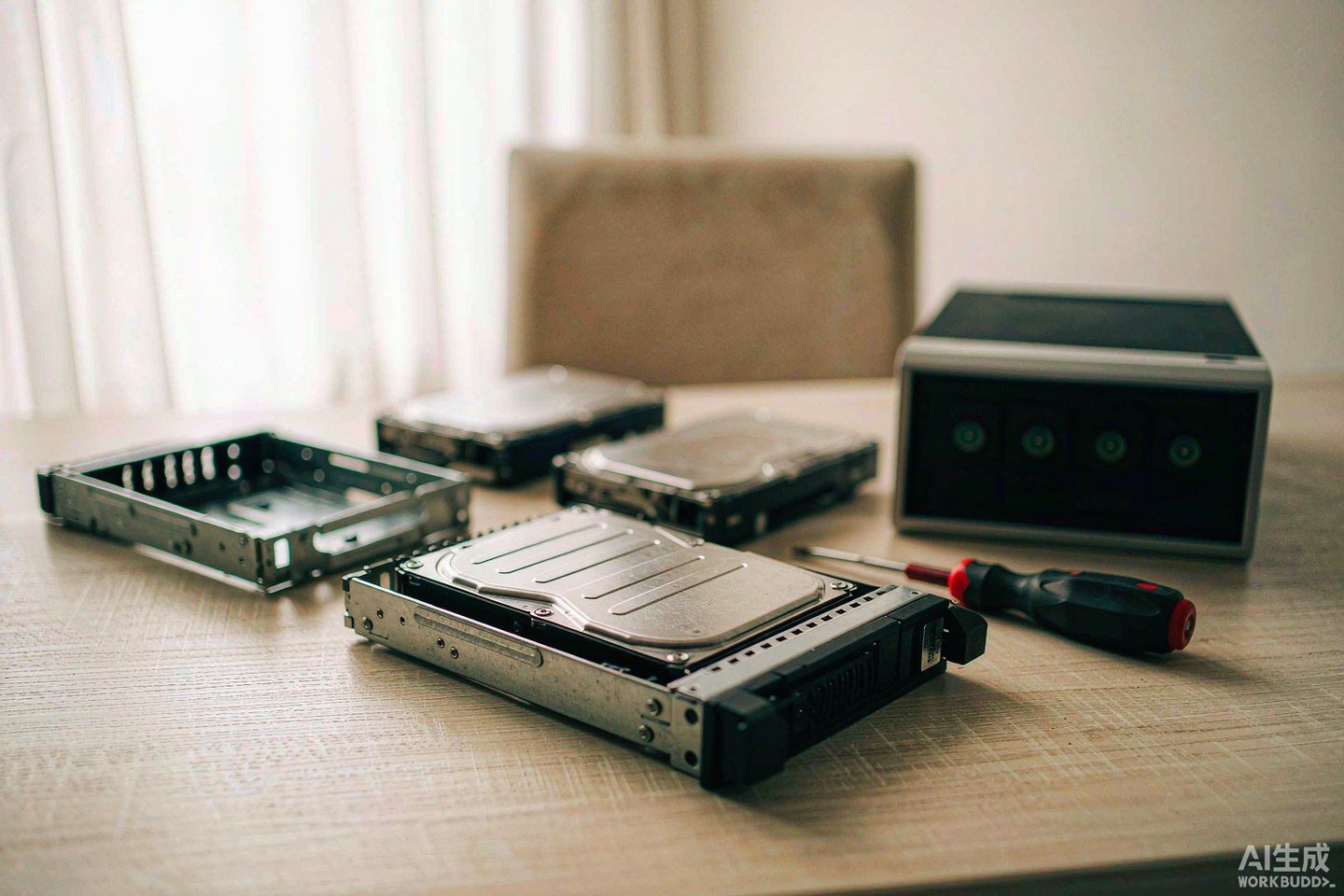
Direct answer up front, then the trade-offs that matter. This page covers toshiba hard drive and answers: How do I secure a NAS on my network?.
By Anne · Storage and Home Tech Editor
Beat: Phone photo backup · How we review
Quick Answer
Toshiba said on 2026-10-02 that it will spend about ¥60 billion (roughly $380 million) to double nearline HDD capacity at its Philippine plant by fiscal 2027 — its first major hard-drive investment in about five years. The announcement moved Seagate and Western Digital shares, but it does nothing for the price of the drive you might buy this month: the extra capacity lands in 2027, and Toshiba's new lines are aimed at 30TB-class data-centre drives, not 8TB desktop NAS disks. If you need storage now, the useful work is picking the right drives and mounting them properly, not waiting for a discount that has not been scheduled.
Key Takeaways
- Toshiba's investment is about ¥60 billion (~$380M) to roughly double nearline HDD output at its Philippine facility by fiscal 2027, compared with fiscal 2025.
- The new production lines support drives with up to 40% more capacity per unit, pointing at Toshiba's 30TB-class M12 series; 65TB-class volume production is targeted around 2030, with 100TB-class after that.
- Seagate and Western Digital have said their 2026 HDD output is sold out, with long-term agreements running into 2027 and 2028 — neither has announced a comparable capacity expansion.
- For a home or small-office NAS, the practical decision is not "which brand wins" but "which protocol do my devices actually speak": SMB for Windows and macOS, NFS for Linux and hypervisors, WebDAV for remote access over HTTPS.
What Changed
Toshiba's announcement is a supply-side story, and it is worth reading precisely. The company is spending about ¥60 billion to double its nearline HDD production capacity at the Laguna Technopark facility of Toshiba Information Equipment (Philippines), targeting fiscal 2027 — the year ending March 2028 — against a fiscal 2025 baseline. Nikkei reported the plan first; Toshiba later confirmed that the expanded line has already produced and shipped its first nearline units.
That detail matters. A capacity announcement and a qualified production line are different things, and Toshiba's line is at least partly qualified. The ramp can therefore start on the company's own schedule rather than after a fresh tooling cycle.
The drives coming off those lines are the interesting part for anyone tracking the storage market. Toshiba says the new lines support products with as much as 40% more capacity per drive, which maps onto its next-generation M12 series — microwave-assisted magnetic recording, up to 11 platters, capacities above 30TB. The company's stated roadmap runs 30TB-class drives in 2027, 65TB-class around 2030, and 100TB-class beyond that. Toshiba currently holds just over 10% of the market measured by shipped capacity and wants to reach 30% over the medium term.
For anyone who has priced a Toshiba hard drive for a home server recently, the headline is both good news and a reason to wait — and those pull in opposite directions.
Who Is It For
Toshiba's expansion is aimed at a buyer most home users will never meet: the hyperscale and enterprise data centre operator buying nearline drives by the pallet. Nearline drives sit between fast online storage and cold archive — they are the tier that holds training datasets, model checkpoints and telemetry logs, where capacity per dollar beats latency.
That is not you.
That is why the announcement moved the market. Seagate and Western Digital have both said their 2026 output is effectively sold out, with supply agreements extending into 2027 and 2028; Seagate has said it is not adding raw drive capacity and expects growth to come from higher-capacity models instead. A third supplier promising to double nearline output is the first real change to that picture in years, and investors in the two larger makers sold on the news.
Read the headline as a 2027 story, though, if you are shopping for a NAS this month. The capacity Toshiba adds will first be absorbed by the ramp of its own 30TB-class drives, and those are not the drives that end up in a four-bay desktop enclosure. The shortage that pushed nearline lead times out and lifted wholesale prices is a data-centre problem before it is a consumer one — but it is the same supply chain, and consumer drives get squeezed when the lines are full of 30TB parts.
What This Means for NAS Buyers
If the capacity is not arriving this quarter, the question becomes what a buyer should actually do. That is a configuration problem, and it splits into three decisions: which drives, how many, and how the rest of your devices reach them.
Drives. For a desktop NAS, the 8TB class is still the sweet spot between cost per terabyte and rebuild time. Two current, verified data points from the price ledger: a Seagate IronWolf 8TB (ST8000VN004) was listed on Amazon at $347, and a WD Red Plus 8TB (WD80EFPX) was listed at $431 on a DatacenterDisk listing, both checked 2026-10-02. Those are NAS-rated CMR drives with rotational-vibration sensors, which is what you want in a multi-bay enclosure; desktop drives without those features are a false economy once you put four of them in one box.
Bays and redundancy. Buy for the array you will need in three years, not the one you can fill today. A two-bay unit can only do mirroring; a four-bay or five-bay unit lets you run RAID 5 or SHR and lose one drive without losing data.
The trade-off is real: more bays means more drives to buy at once, and more spinning disks means more noise and heat in a room you actually use. If you only store documents and photos, two bays and a mirror is a defensible choice. If you are archiving video projects, plan for four.
Protocol. This is where most first-time setups go wrong. Drives in an enclosure do nothing until something mounts them, and different devices speak different languages. Our take: pick the protocol first, then buy the hardware that supports it, not the other way around.
Choosing the Right Protocol: SMB, NFS, or WebDAV
Think of the NAS as a filing cabinet with three different locks. SMB is the one your Windows PC, your Mac and most smart TVs already have a key for. NFS is the one Linux boxes and hypervisors prefer. WebDAV is the one that works over the open internet through HTTPS.
Three doors. Three different sets of rules.
SMB (Server Message Block). The default for Windows and macOS. Enable it and your NAS appears in File Explorer or Finder as a network location. It handles file locking and permissions well, which matters if two people edit the same folder. Use SMB version 2 or 3 and disable SMBv1 — SMBv1 is the protocol family that made WannaCry possible.
NFS (Network File System). The default on Linux and the usual choice for Proxmox, VMware and other hypervisors that need to mount storage for virtual machines. NFS is fast and simple to set up, but its permission model is based on user IDs, not passwords, so it is a poor fit for a mixed Windows/phone household. Keep NFS on your LAN; do not route it through a firewall.
WebDAV. An HTTP-based protocol that lets you reach your NAS over HTTPS without a VPN. That convenience is exactly why it needs care: expose WebDAV and you have exposed a port to the internet. Pair it with strong authentication, a reverse proxy, and if possible client certificates, and treat it as your least-trusted path in.
A practical order of operations
- Format the array. Use the NAS vendor's own filesystem (Btrfs or the vendor's equivalent) unless you have a specific reason to use ext4 — checksumming and snapshots are the features that catch silent corruption.
- Enable SMBv2/3 and create one share per purpose, not one share for everything. Separate folders for documents, media and backups make permissions and snapshots tractable.
- Add NFS only on the VLAN your hypervisors sit on. If your NAS has two network ports, this is the moment to use them.
- Leave WebDAV off until you need remote access. When you turn it on, require HTTPS and strong passwords, and watch the access log for a week.
How It Compares
The table below is generated directly from the spec ledger and pairs each Synology model with its tracked price. It is here to make one point concrete: the enclosure is only part of the cost, and the drive bill scales with bay count.
Capacity, connectivity and tracked prices
| Field | Synology DS225+ (2025) | Synology DiskStation DS925+ | Synology DiskStation DS923+ | Synology DiskStation DS1525+ |
|---|---|---|---|---|
| Price (tracked) | Amazon $364.99 (2026-10-02) | Amazon $749.76 (2026-10-02) | US street (diskless) $599 (2026-10-02) | Amazon $1309.99 (2026-10-02) |
| Drive bays (SATA) | 2 bays | 4 bays | 4 bays | 5 bays |
| M.2 NVMe slots | 0 slots | 2 slots | 2 slots | 2 slots |
| Max bays with expansion | 7 bays | 9 bays | 9 bays | 15 bays |
| Hot-swap bays | Yes | Yes | Yes | Yes |
| CPU | Intel Celeron J4125 | AMD Ryzen V1500B | AMD Ryzen R1600 | AMD Ryzen V1500B |
| CPU cores | 4 cores | 4 cores | 2 cores | 4 cores |
| Installed RAM | 2 GB | 4 GB | 4 GB | 8 GB |
| Max RAM | 6 GB | 32 GB | 32 GB | 32 GB |
| ECC RAM | No | Yes | Yes | Yes |
| 1GbE ports | 1 port | — | 2 ports | — |
| 2.5GbE ports | 1 port | 2 ports | — | 2 ports |
| Warranty | 3 years | 3 years | 3 years | 3 years |
A four-bay unit like the DS925+ needs four drives to be worth its bay count. At the verified 8TB prices above, four IronWolf drives add $1,388 to the enclosure cost, and four WD Red Plus drives add $1,724 — before you account for the spare you should keep on the shelf for a rebuild. That arithmetic, not the Toshiba news, is what decides whether a build fits your budget.
What to Watch
Three things could change this picture, and all three are open questions right now.
Whether the capacity actually ships on time. Doubling output means new lines, new automation and new processes ramping together. Toshiba has installed and qualified at least one new line, but a full ramp by fiscal 2027 assumes clean execution over the next two years.
Whether it reaches the consumer tier at all. If Toshiba's new lines fill up with 30TB-class enterprise drives — the parts with the best margin and the most demand — the trickle-down to 8TB desktop drives may be small. The company has not said how the new capacity will be split across product lines and performance tiers.
Whether Seagate and Western Digital respond. Neither has announced a comparable expansion. If Toshiba's move holds and demand stays strong, that could change; if not, the market stays a two-and-a-half-supplier negotiation for a while longer. We could not verify any commitment from either company to expand HDD manufacturing beyond the head-production investment Seagate has described.
Real-World Scenario: SMB / WebDAV / NFS Cross-Protocol Mounting
This is the part a Toshiba press release will never tell you. You have bought the enclosure, filled the bays, and now three kinds of device need the same files: a Windows laptop that expects SMB, a Linux box running containers that wants NFS, and a phone or laptop away from home that needs WebDAV. Getting all three to coexist without one breaking the others is the actual work.
What this changes for the use case
Each protocol is a separate door with its own lock semantics. A share exposed over SMB and NFS at the same time can produce two different permission views of the same files — the SMB client sees its logged-in user, the NFS client sees a numeric UID. If you map the same folder both ways and the UID mapping is wrong, files can appear to vanish or become read-only depending on which door you came through. The fix is to keep each protocol's reach narrow and its permission mapping deliberate, rather than "turn everything on and see what works."
Hardware and software requirements
You need an enclosure with at least one network port and a filesystem that supports per-share permissions. A second network port — present on the DS923+ and DS1525+ in the table above, absent on the DS225+ and DS925+ — lets you put NFS traffic on a separate segment from WebDAV, which is the cleanest way to separate trust levels. On the software side, SMBv2/3 and NFS are built into the NAS operating systems; WebDAV usually needs an add-on package. For remote WebDAV access, you also need a reverse proxy and a valid TLS certificate.
Limits, caveats, and who should skip it
Skip the multi-protocol setup if everyone in your household uses one kind of machine. A Windows-only or Mac-only home can run SMB alone and never touch NFS or WebDAV, and that is a smaller attack surface for free.
If you do go multi-protocol, name the trade-offs honestly. WebDAV over the internet is the weakest link — it is an HTTP service reachable from anywhere, and it will be probed. Prefer a VPN for remote access when your devices support one, and treat WebDAV as the fallback. NFS has no meaningful authentication of its own; it trusts the network, so it belongs on a segment you control. And none of this substitutes for a backup: RAID is not a backup, and a protocol configuration error will happily replicate itself across a mirror.
So who should skip it outright? Anyone who only ever opens their files from one laptop, in one room, on one operating system. That reader should enable SMB, set a strong password, and stop there. The catch is that "one laptop, one room" rarely stays true for long — the phone, the TV and the work machine arrive within a year, which is why it is worth thinking about protocol access before, not after, you migrate your data.
Frequently Asked Questions
Will Toshiba's expansion make NAS drives cheaper this year?
Almost certainly not. The investment targets fiscal 2027, ending March 2028, and the new lines are configured for 30TB-class nearline drives aimed at data centres. Consumer 8TB drives depend on the same supply chain but are not the priority for the new capacity. We could not verify any announced price reduction tied to the expansion.
Should I use SMB, NFS, or WebDAV for my NAS?
Use SMB if you are on Windows or macOS — it is the default and handles permissions well. Add NFS only if you run Linux or hypervisors that need to mount the storage. Turn on WebDAV only when you need remote access over HTTPS, and guard it with strong authentication and a reverse proxy. Most homes need only SMB.
Is it safe to expose my NAS to the internet?
Exposing any NAS service increases your attack surface. If you must reach your files remotely, prefer a VPN, which keeps the service off the public internet entirely. If you use WebDAV, require HTTPS, use long unique passwords, and check the access log regularly. Do not expose SMB or NFS directly — both are designed for trusted local networks.
How many drives should I buy for a new NAS?
Buy enough bays to run RAID 5 or SHR with one drive of redundancy, plus one spare on the shelf. A four-bay unit with three drives and a spare is a common starting point. Buy NAS-rated CMR drives, not desktop drives, and buy them in one batch so firmware and platter revisions match — mixed batches in one array can behave unpredictably during a rebuild.
Sources
- Toshiba to double HDD production capacity amid devastating shortages — https://www.tomshardware.com/pc-components/hdds/toshiba-to-double-hdd-production-capacity-as-30tb-class-loom-65tb-100tb-drives-on-the-roadmap-for-2030-and-beyond (accessed 2026-10-06)
- Toshiba to double hard-disk drive supply to fill AI chip memory gap — https://asia.nikkei.com/Business/Tech/Semiconductors/Toshiba-to-double-hard-disk-drive-supply-to-fill-AI-chip-memory-gap (accessed 2026-10-06)
- Toshiba plans to double AI data centre HDD production capacity by 2027 — https://www.newelectronics.co.uk/content/news/toshiba-plans-to-double-ai-data-centre-hdd-production-capacity-by-2027 (accessed 2026-10-06)
- Toshiba Bets 380 Million on Hard Drives as AI Keeps Data Centers Hungry — https://pbxscience.com/toshiba-bets-380-million-on-hard-drives-as-ai-keeps-data-centers-hungry-for-storage (accessed 2026-10-06)
- Toshiba Will Double HDD Manufacturing Capacity By 2027 — https://gfm.news/news/toshiba-will-double-hdd-manufacturing-capacity-by-2027-n7i1 (accessed 2026-10-06)
- NAS drive and enclosure prices, checked 2026-10-02 — https://smarthomecompared.com/brands/synology (accessed 2026-10-06)
- Seagate IronWolf 8TB (ST8000VN004) price, checked 2026-10-02 — https://raidsize.com/blog/en/homelab-deals (accessed 2026-10-06)
Run your own 5-year cost comparison with the on-site calculator
信息型内容且无合作相关标签 → 不放商业位
Open the cost calculator →Related reading
Was this article helpful?
One tap, no account and no comment box. It tells us which guides are actually worth updating.
How many drive bays is your NAS?
This is how we decide which setups to cover next.
Thanks.
Need help with a specific setup?
Storage choices depend on your drives, your budget and how many people share the box. Tell us what you are building and we will point you at a configuration that fits — no obligation, no sales script.
Affiliate Disclosure: SecureNAS Hub may earn a commission from qualifying purchases made through links on this page, at no extra cost to you. Facts and figures are attributed in the Sources list; nothing on this page is a fabricated test result. See our full disclosure. Product images are either supplied by the manufacturer or clearly labelled as illustrative renders; each one is captioned accordingly. Last reviewed 2026-10-06.