Backup & Privacy · Published 2026-10-07
Mac mini VMs and Containers: What a NAS Adds to a Home Lab
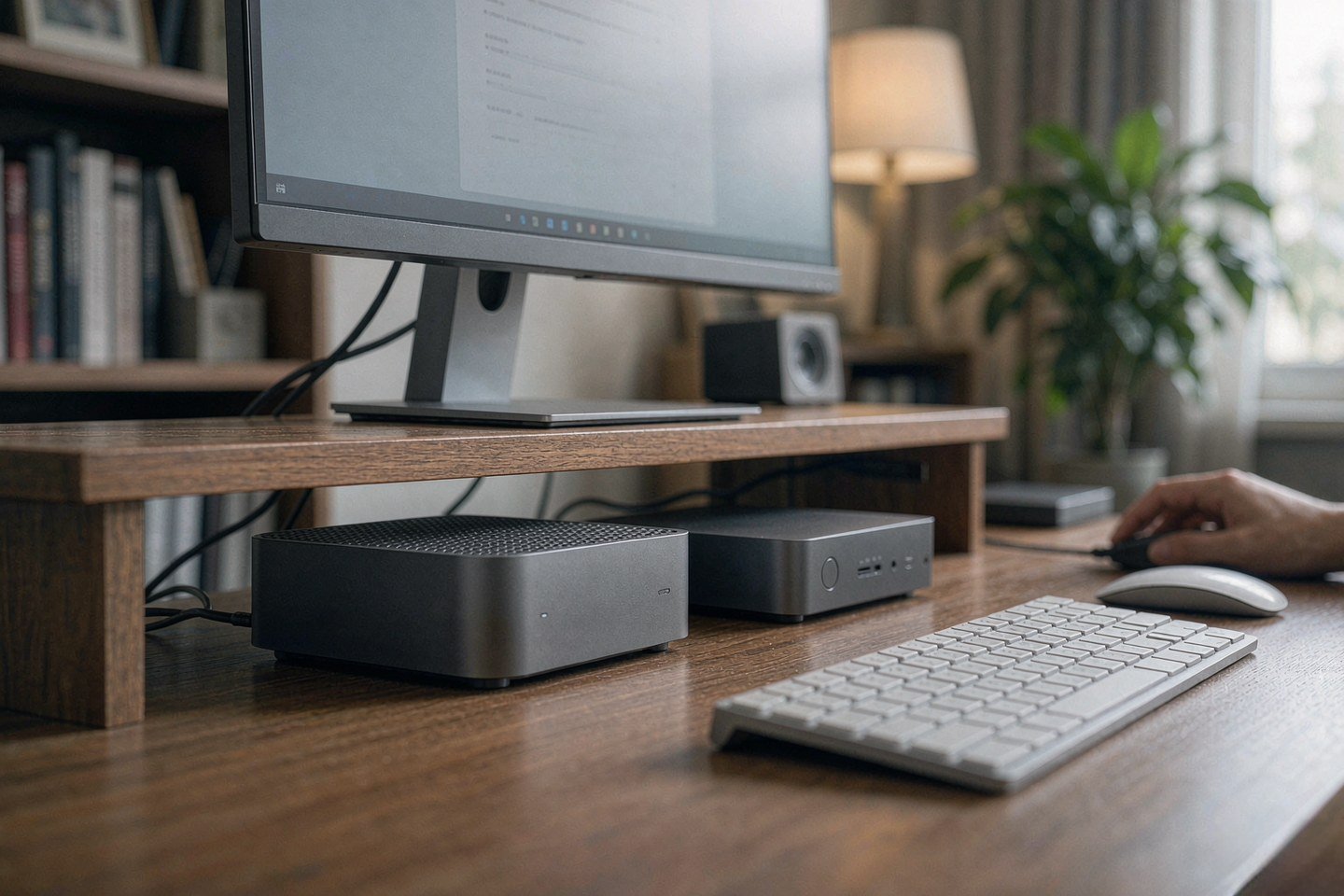
Direct answer up front, then the trade-offs that matter. This page covers mac mini and answers: How do I secure a NAS on my network?.
By Anne · Storage and Home Tech Editor
Beat: Phone photo backup · How we review
Quick Answer
Docker runs fine on a Mac mini. A hypervisor does not: Apple silicon cannot host Proxmox VE or TrueNAS on bare metal, so any x86 VM you want still lives somewhere else. What the mini actually needs is a NAS. Put VM disk images, Docker volumes, Time Machine targets and snapshots on a NAS over iSCSI, NFS or SMB, and the mini becomes a fast client for a lab whose data survives a dead SSD. Estimated budget: $779.99 for the base M6 mini at Amazon on 2026-10-07, plus the NAS.
Key Takeaways
- Apple's 2026 Mac mini starts at $899, with the base M6 model discounted to $779.99 at Amazon on 2026-10-07 — $120 below list and the lowest price tracked in 30 days.
- The mini has 2.5GbE on board, up from gigabit on the M4, which is the port that matters once VM images live on a NAS rather than the internal SSD.
- Base storage is 256GB and no longer on a replaceable module, and unified memory is soldered at 16GB. Storage for a lab has to come from outside the box.
- Proxmox VE and TrueNAS do not run on Apple silicon. If your lab is x86 virtualisation, the NAS is not optional — it is the storage and snapshot tier for a separate hypervisor.
- The scenario that pays off fastest is a local code knowledge base: embeddings, indexes and model weights sitting on the NAS, queried from the mini.
What Changed
Apple shipped two configurations this year — M6 and M5 Pro — and the M6 is the company's first 2nm desktop chip. It lists at $899 with 16GB of unified memory and a 256GB SSD, which is $300 above where the M4 generation started at $599. There is a real reason for the gap and a marketing one. The real one: memory bandwidth on the base M6 moves to roughly 153GB/s from about 120GB/s on the M4 base, the GPU core count goes to 12, and Apple put a Neural Accelerator in each GPU core. The marketing one: Apple's "up to 4.8x faster AI" figure is measured against a specific older machine and a specific task, and Gizmodo's 2026-10-06 write-up treats it as a ceiling rather than an everyday gain. That is the honest reading.
Two changes matter more for anyone building a lab than the raw AI numbers.
First, the rear Ethernet port is now 2.5GbE instead of gigabit.
Second, the removable SSD module is gone — the 256GB base drive reads and writes at roughly 3,150 MB/s, while the 512GB version runs near 6,300 MB/s. Apple raised the floor on networking and lowered the ceiling on storage expansion in the same generation.
Who Is It For
The mini is a thin client with teeth. It is a poor choice as the single box that holds everything, and a very good choice as the box you sit at while something else holds everything.
Read the ports and the intent is clear. Three Thunderbolt 4 ports on the back, HDMI, 2.5GbE, two USB-C on the front and a headphone jack. It drives up to three external displays. The N1 wireless chip adds Wi-Fi 7, Bluetooth 6 and Thread. Nothing here says "storage server." Everything here says "workstation that reaches storage over the network."
That is exactly the shape of a 2026 home lab. The cheap, quiet box with the spinning disks sits in a closet and serves iSCSI LUNs and NFS exports. The fast, small box on the desk runs your editor, your containers and your queries. When a lab is split this way, the mini's weak points — a soldered 16GB of memory and a 256GB boot SSD — stop being fatal, because they are no longer where the data lives.
Who it is not for: anyone who wants one box under a monitor doing storage, virtualisation and compute at once. That is a NAS with a CPU, or a mini PC you can open.
Key Specifications
Apple M6, 12-core CPU split into two "super" cores, four performance cores and six efficiency cores. The base configuration ships with 16GB of installed unified memory, and Apple's maximum for this model is 32GB. Memory is part of the chip package; the 16GB you pick at checkout is the 16GB you keep. One 2.5GbE port. Five USB ports across front and rear, three of them Thunderbolt 4. A 5 x 5 x 2 inch desktop chassis. Every one of those figures comes from the Tom's Guide review of 2026-10-06, checked 2026-10-07.
Capacity and bays
Zero. The Mac mini has no drive bays and no M.2 slot a user can reach. This is the whole argument for pairing it with a NAS: a 4-bay enclosure with two 8TB drives in a mirrored pair gives you roughly 8TB of usable, redundant space, and that number does not depend on what Apple decided to solder this generation.
Connectivity
2.5GbE is the spec to check first. On a gigabit link a VM disk image over iSCSI caps out near 110 MB/s, which is slower than a laptop SSD and enough to make you blame the wrong box. A 2.5GbE link moves about 280 MB/s in ideal conditions. If the mini and the NAS both negotiate 2.5GbE through the same switch, booting a VM off the NAS stops feeling like a compromise.
Software stack
Docker runs natively through macOS, and Colima gives you a Linux VM to host it if you want the container tooling you are used to on Linux. Apple's own container tooling exists on macOS 27. What does not exist is a supported path to Proxmox VE or TrueNAS on this hardware. A native macOS dashboard for Proxmox, mNas, shipped as an unofficial app and talks to a separate x86 box over an API token — a good illustration of the actual architecture.
What Is New
The N1 chip. Wi-Fi 7 and Bluetooth 6 are incremental, but Thread is the interesting addition: it lets the mini act as a smart home border router for a Thread network, which means one less hub on the shelf. For a lab that already runs Home Assistant, that removes a device rather than adding one.
The 2.5GbE upgrade is the other genuinely new networking change, and it is the one that directly affects storage performance. Everything else — the 2nm process, the wider memory bus, the GPU Neural Accelerators — improves the mini's own compute. Only the Ethernet port and Thread change how the mini fits into a network with other hardware on it.
One thing that did not change and should have: the 256GB base SSD at a higher starting price. Tom's Guide, Gizmodo and a hands-on review from The Daily Tech Feed on 2026-10-05 all land on the same conclusion — the base model is a machine you outgrow, and the $200 step to 512GB is close to mandatory if you keep anything locally. If your data plan is "everything lives on the NAS," you can stay at 256GB without pain.
How It Compares
Upgrade math first. Against the M4 mini it replaces, the M6 wins on bandwidth, GPU cores and the 2.5GbE port, and loses on price and on the removable SSD. If you already own an M4 mini, the case is weak unless you are specifically blocked by gigabit Ethernet or by the memory bandwidth ceiling on local model inference.
Then there are the x86 boxes in the same size class — the Intel N355 and AMD Ryzen machines that show up in every Proxmox thin-client list. Those run Proxmox VE natively. The mini cannot, and no software update will change that, because it is an architecture question rather than a driver question.
So the real comparison is not "Mac mini versus mini PC." It is "Mac mini plus a NAS versus mini PC plus a NAS." In that framing the mini's value is the desk experience — silence, macOS, three Thunderbolt 4 ports, three displays — and the NAS carries the storage and virtualisation duties either way. The mini PC wins on lab duties; the mini wins on the machine you actually sit at.
Who Should Consider It
Worth it if you want a quiet daily driver that reaches a NAS over 2.5GbE and you are happy for virtualisation to live on a separate x86 host. Worth it if you are building a local retrieval system for code and documents, where the mini does the querying and the NAS holds the corpus. Worth it if Thread and Wi-Fi 7 let you retire a smart home hub.
Skip it if your plan is one box that does storage, containers and VMs at once. Skip it if you need more than 32GB of memory in the machine itself, because there is no path past that. Skip it if you already own an M4 mini and gigabit Ethernet is not your bottleneck. And skip the 256GB configuration outright if you plan to keep project files, model weights or a media cache on the internal drive — that storage is soldered-in-absent, and the 512GB step is the cheaper mistake.
What Existing Users Should Know
If you own the M4 mini, the ports are the story, not the chip. Your accessories carry over — the chassis is the same 5 x 5 x 2 inch footprint — so a dock or VESA mount you already own still fits. Your bottleneck is almost certainly the gigabit port, not the processor, and no Mac mini generation fixes the fact that 256GB of internal storage is thin for a lab. Both generations benefit from the same fix: move the working data to a NAS.
If you own an older Intel mini from 2020 or earlier, note that Apple's own comparison for the M6 cites LM Studio prompt processing up to 13.5x faster than the M1-based 2020 mini. That is a vendor figure for a specific task, so treat it as directionally meaningful rather than as a promise about your workload.
Real-World Scenario: AI Code Generation & Local Programming Knowledge Base Search
What this changes for the use case
Here is the concrete version. You want a local assistant that answers questions about your own private repositories — the ones you cannot paste into a hosted model — plus internal docs, runbooks and design notes. That stack has three parts: an embedding model, a vector index, and the source files. Two of the three are storage. The embedding model and the index are small enough to sit next to the query engine, but the corpus — every branch, every PDF, every exported ticket — is the part that grows past 256GB within a year on a working repo set.
Splitting it is the point. The NAS holds the corpus and the snapshot history. The Mac mini holds the index and runs the queries over 2.5GbE. When you rebuild the index after a schema change, you are not competing with the boot drive for capacity. When a bad import corrupts the vector store, you roll back to a snapshot instead of re-embedding 40,000 files.
Hardware and software requirements
The mini side: the base M6 with 16GB of unified memory handles embedding and retrieval workloads, though 24GB or 32GB gives real headroom if you also want a chat model loaded. At least 512GB of internal storage if the index lives locally, 256GB if the index lives on the NAS too.
The NAS side: a 4-bay enclosure with 2.5GbE or faster, two drives minimum in a mirrored pair, and support for NFS exports and snapshot scheduling. Create an NFS export for the corpus, a separate share for the vector index, and enable scheduled snapshots with a retention policy measured in weeks rather than hours. Point your container's volume mount at the NFS path. On the mini, mount the corpus read-only for the indexer and read-write for the ingest job — two mounts, one export.
The network side: the single hardest requirement. Both devices need to negotiate 2.5GbE through the switch, and a cheap unmanaged gigabit switch will silently hold you at 110 MB/s. Check the link speed on both ends before you blame the software.
Limits, caveats, and who should skip it
NFS over Wi-Fi is a bad idea, and Wi-Fi 7 does not fix it — the latency is the problem, not the throughput.
Run the cable anyway.
Snapshots protect against mistakes and corruption, not against a failed drive on a single-disk volume, so mirror your drives before you rely on snapshot retention. The index rebuild still costs real time, too: a large corpus means hours of embedding, and nothing about the NAS makes that faster. Budget for it.
Skip this setup if your corpus is under 50GB. At that size the internal SSD is fine, the complexity is not worth it, and you will spend more time on mount options than you save. Skip it if you cannot run Ethernet to both devices. Skip it if your employer prohibits local model deployment entirely — the architecture does not matter if the policy says no.
Frequently Asked Questions
Can a Mac mini run Proxmox VE or TrueNAS?
No. Both are designed for x86-64 hardware and neither runs natively on Apple silicon. The Mac mini can run Docker through macOS, and Colima provides a Linux VM for container tooling, but a bare-metal hypervisor requires an x86 machine. In practice you run Proxmox on a separate box and use the mini as a client, with the NAS providing shared storage to both.
What does a NAS add if the Mac mini already has an SSD?
Capacity, redundancy and history — three things soldered storage cannot provide. The base mini has 256GB that cannot be replaced or expanded, and unified memory is fixed at 16GB. A NAS adds mirrored or parity-protected capacity, scheduled snapshots you can roll back to, and a single place to store data that outlives any one machine. The mini stays fast; the data stays put.
Is 2.5GbE enough for VM disk images on a NAS?
For most home lab work, yes. A 2.5GbE link moves roughly 280 MB/s in good conditions, against about 110 MB/s on gigabit. That is enough for several containers and one or two VMs sharing an iSCSI LUN without obvious stalls. If you plan to run many VMs with heavy random I/O, plan for 10GbE on both the NAS and the network rather than expecting 2.5GbE to absorb it.
How should I back up a Mac mini home lab?
Three copies, two media, one off-site is still the standard. Use the NAS as the primary target: Time Machine for the mini's own state, and snapshots of the shares that hold your corpora and indexes. Then replicate the most important share to a second device or a second NAS. A snapshot on the same volume as the data protects you from mistakes; it does not protect you from the volume failing.
Sources
- I reviewed the new Mac mini M6 and it's a tiny powerhouse — https://www.tomsguide.com/computing/mini-pcs/i-reviewed-the-new-mac-mini-m6-and-its-a-tiny-powerhouse-add-one-to-your-desk-for-usd120-off-right-now (accessed 2026-10-07)
- Apple Mac mini M6 Hits a Record Low for the First Time — https://gizmodo.com/apple-mac-mini-m6-hits-a-record-low-for-the-first-time-a-rare-price-break-on-a-desktop-apple-almost-never-discounts-2000821628 (accessed 2026-10-07)
- M6 Mac mini review: impressive chip, disappointing base storage — https://thedailytechfeed.com/m6-mac-mini-review-impressive-chip-disappointing-base-storage (accessed 2026-10-07)
- Apple Launches M6 Mac mini Featuring First 2-Nanometer Chip — https://technewsreel.com/gadgets/apple-launches-m6-mac-mini-featuring-first-2-nanometer-chip (accessed 2026-10-07)
- Self-Host Everything: Sovereign Home Server Guide 2026 — https://vucense.com/privacy-sovereignty/self-hosting/self-host-everything-complete-sovereign-home-server-guide-2026 (accessed 2026-10-07)
- mNas: a native macOS dashboard for Proxmox VE — https://forum.proxmox.com/threads/mnas-a-native-macos-dashboard-for-proxmox-ve-free-open-source-unofficial.186848/ (accessed 2026-10-07)
Run your own 5-year cost comparison with the on-site calculator
信息型内容且无合作相关标签 → 不放商业位
Open the cost calculator →Related reading
Was this article helpful?
One tap, no account and no comment box. It tells us which guides are actually worth updating.
How many drive bays is your NAS?
This is how we decide which setups to cover next.
Thanks.
Need help with a specific setup?
Storage choices depend on your drives, your budget and how many people share the box. Tell us what you are building and we will point you at a configuration that fits — no obligation, no sales script.
Affiliate Disclosure: SecureNAS Hub may earn a commission from qualifying purchases made through links on this page, at no extra cost to you. Facts and figures are attributed in the Sources list; nothing on this page is a fabricated test result. See our full disclosure. Product images are either supplied by the manufacturer or clearly labelled as illustrative renders; each one is captioned accordingly. Last reviewed 2026-10-07.