NAS Guides · Published 2026-11-04
Home Assistant on a NAS: Complete Setup Guide
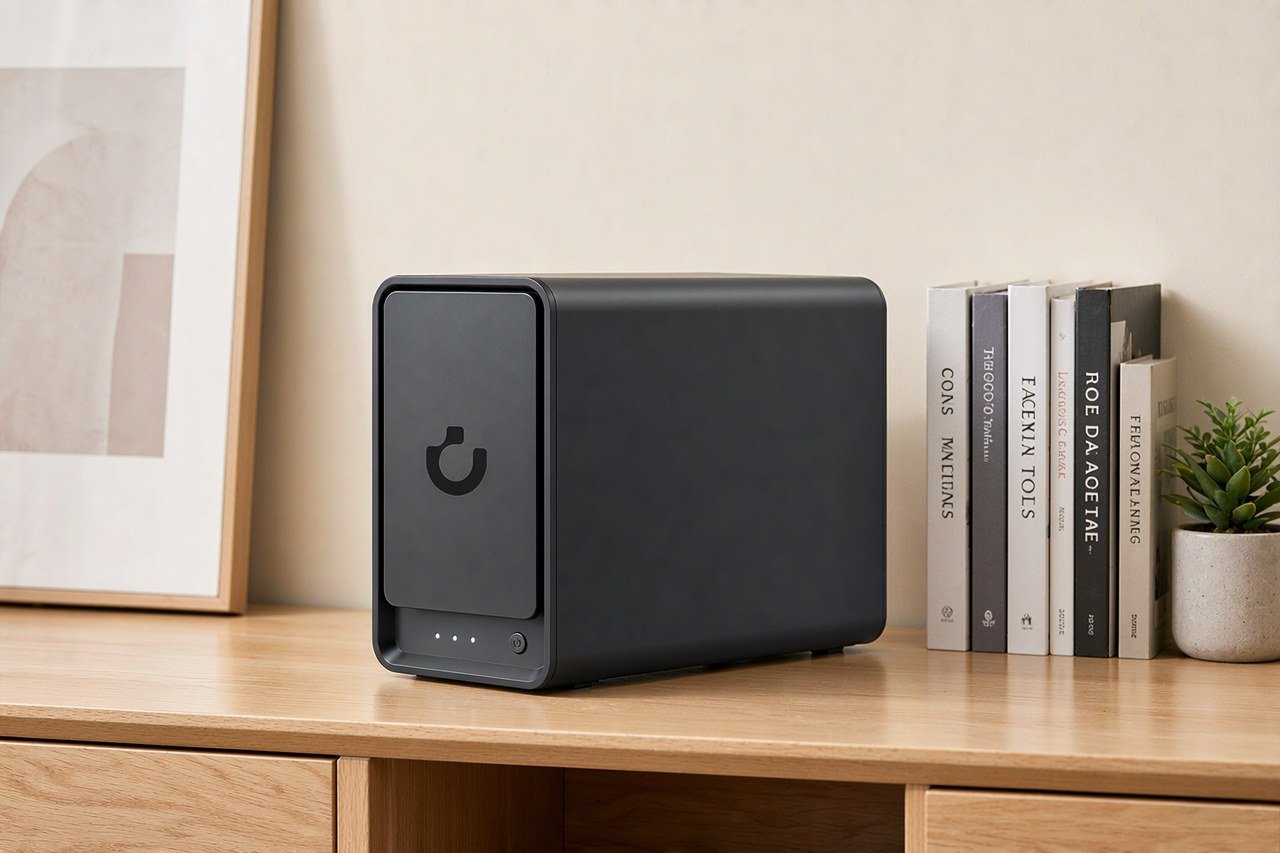
Direct answer up front, then the trade-offs that matter. This page covers home assistant on nas and answers: how to install home assistant on nas.
By Anne · Storage and Home Tech Editor
Beat: Phone photo backup · How we review
Quick Answer
Home Assistant runs on a NAS in two supported ways: as a Docker container on the NAS itself, or inside a virtual machine the NAS hosts. Synology and QNAP both get their own walkthroughs in Home Assistant's official installation docs. The container build ships without the add-on store, and the add-on store is where Thread and Z-Wave support lives. That single omission decides the whole project.
Key Takeaways
- Home Assistant Container needs Docker Engine 23.0.0 or newer. Docker Desktop does not work; the docs say so outright.
- The container listens on port 8123 and expects host networking, which most NAS container wizards expose as a dropdown.
- A virtual machine install wants two gigabytes of RAM and two vCPUs at minimum, and the guest must boot under UEFI.
- Synology lists Container Manager for the DS925+, DS225+ and DS425+, so current consumer models are covered.
- Set a 60-second stop grace period. The default ten seconds can cut the recorder database off mid-write.
A NAS Is the Wrong First Purchase and the Right Second One
Buying a four-bay box to run Home Assistant is a $650 answer to a $100 question. Home Assistant Green exists for exactly that job, ships with Home Assistant OS already on it, and needs an Ethernet cable and a power brick. We could not verify current pricing for the Green against our own ledger, so treat it as the cheap path rather than a specific number.
The NAS wins on a different argument. You already own one. It already runs twenty-four hours a day. Your backups already land on it. Adding a container costs nothing, and the hardware sits behind a UPS you bought for the files.
That is the honest trade. Home Assistant on a NAS is a consolidation decision, not a performance decision.
Consolidation has a price too. When DSM or QTS pushes a firmware update and reboots, your lights, heating schedule and door sensors go offline with the file server. A dedicated hub reboots in ninety seconds; a NAS with a parity check running can take far longer. If your automations control anything safety-adjacent, keep them on separate hardware.
How It Actually Runs: Container or Virtual Machine
Two installation types, one meaningful difference. Home Assistant OS is an embedded image that includes the Supervisor and the add-on store. Home Assistant Container is the application by itself, running on an OS you maintain, with updates you apply by hand. The official installation page states the split plainly and recommends the OS image for most people.
Container route, for the NAS owner who wants one service and no extra hardware:
`bash
docker run -d \
--name homeassistant \
--privileged \
--restart=unless-stopped \
-e TZ=America/Los_Angeles \
-v /volume1/docker/homeassistant:/config \
-v /run/dbus:/run/dbus:ro \
--network=host \
ghcr.io/home-assistant/home-assistant:stable
`
--privileged grants the container broad device access, which is why the Bluetooth integration can reach the host adapter. --network=host skips Docker's network address translation so discovery protocols and mDNS see the real LAN. Without host networking, devices advertise themselves to an address Home Assistant cannot answer on.
The virtual machine route keeps the add-on store. Download the .qcow2 for KVM or Proxmox, the .vdi for VirtualBox, or the .ova for ESXi. Assign two gigabytes of RAM and two vCPUs to start, enable UEFI, and pass the Zigbee or Z-Wave stick through as a USB device. Home Assistant's alternative-install page walks through each hypervisor, including Unraid.
Which one should you pick? Our take: if you want the add-on store and you have spare RAM, take the VM. If you want the smallest possible footprint on a two-drive box that is already busy, take the container and accept manual updates.
What to Look For in the NAS Itself
RAM decides how much you can run
The container idles light, then grows. The recorder database, a handful of integrations and a couple of MQTT bridges add up, and Python does not return memory politely. Eight gigabytes is a sane floor for a container plus file serving; sixteen gives you room for a VM. Buy the bigger kit up front if your board has two slots and you plan to add a VM later.
The UGREEN NASync DXP4800 Plus ships with 8 GB installed and a 64 GB ceiling, and the memory is not soldered, so a later upgrade is a purchase rather than a replacement. That matters more than the bay count for this workload.
The container package and the Docker version
Synology's Container Manager is described by Synology as a lightweight virtualization application that runs containers on DSM, with Docker Hub built in as the image source. The package listing shows Docker Inc. 24.0.2-1706, comfortably past the 23.0.0 floor Home Assistant sets. QNAP's equivalent is Container Station, which handles Docker, LXD and Kata containers. QNAP's published minimum for the Docker path is a single gigabyte of memory and QTS 4.2.6 or newer on a 64-bit x86 or ARM machine. One gigabyte is the package floor, not a comfortable Home Assistant floor — the two numbers get confused in forum posts constantly.
USB passthrough is the part that breaks
Everything else on this list is a setting. This one is a terminal command.
Home Assistant's own Synology section carries a blunt note: the Container Manager instructions do not correctly configure the container to access USB devices, so a Z-Wave stick or Bluetooth adapter needs the --device flag added by hand. On Synology the device is usually /dev/ttyACM0. You add it with --device=/dev/ttyACM0 and restart the container.
QNAP users on ARM hardware have reported a separate problem: Container Station 3 refusing to create the container on models such as the TS-233, with a compose file as the workaround. That comes from Home Assistant's community notes, not from QNAP, so treat it as reported rather than confirmed.
Noise, power and the 24/7 question
A NAS that already runs for file storage costs you nothing extra in electricity. A NAS bought for Home Assistant alone costs you a always-on box plus spinning disks. We ran the arithmetic on idle draw and regional electricity rates in a separate piece, and the conclusion there holds here: the drives set the floor, not the CPU.
Noise is the underrated one. A four-bay chassis with enterprise drives is audible from a hallway. Put it where you would put a printer, not where you would put a smoke detector.
Real-World Costs
Two readings on the same model, nineteen days apart, and they disagree by thirty-seven dollars.
| Field | UGREEN NASync DXP4800 Plus | Synology DiskStation DS925+ | QNAP TS-464 (8 GB) | TerraMaster F4-424 Pro |
|---|---|---|---|---|
| Price (tracked) | Amazon $656.99 (2026-10-16);UGREEN official store (US), sale price $619.99 (2026-11-03) | Amazon $749.76 (2026-10-02, stale) | Amazon $639 (2026-10-02, stale) | DatacenterDisk listing $730.99 (2026-10-02, stale) |
| Drive bays (SATA) | 4 bays | 4 bays | 4 bays | 4 bays |
| M.2 NVMe slots | 2 slots | 2 slots | 2 slots | 2 slots |
| Max raw capacity | 144 TB | — | — | 88 TB |
| Max bays with expansion | — | 9 bays | — | — |
| Hot-swap bays | Yes | Yes | Yes | Yes |
| CPU | Intel Pentium Gold 8505 | AMD Ryzen V1500B | Intel Celeron N5095 | Intel Core i3-N305 |
| CPU cores | 5 cores | 4 cores | 4 cores | 8 cores |
| Installed RAM | 8 GB | 4 GB | 8 GB | 32 GB |
| Max RAM | 64 GB | 32 GB | 16 GB | 32 GB |
| RAM slots | — | 2 slots | 2 slots | 1 slot |
| ECC RAM | — | Yes | — | — |
| RAM soldered (not upgradeable) | No | — | — | — |
| 2.5GbE ports | 1 port | 2 ports | 2 ports | 2 ports |
| 10GbE ports | 1 port | — | — | — |
| PCIe slots | — | — | 1 slot | — |
| USB ports | 4 ports | 2 ports | 4 ports | 2 ports |
| HDMI output | 4K 60Hz | — | 4K 60Hz | 4K 60Hz |
| Form factor | Desktop tower | Desktop tower | Tower | Desktop tower |
| Weight | — | 2.26 kg | 2.26 kg | 3.4 kg |
| Internal filesystem | — | Btrfs, ext4 | — | — |
| Warranty | 2 years | 3 years | 3 years | 2 years |
Amazon listed the DXP4800 Plus at $656.99 on 2026-10-16. UGREEN's own US store showed $619.99 on 2026-11-03, and that is a sale price against a higher regular price, so do not budget from it. Channel spread of this size is normal. It is why we never publish a single "market price" for a model, and why you should check the store you actually buy from before you commit.
Drives are the other half of the bill.
Our ledger has a WD Red Plus 8 TB at $431 from Amazon, checked 2026-10-02 — a historical reading now, not a current quote. Pair it with the sale price and a two-drive mirror lands at $1,481.99. Fill all four bays and you are at $2,343.99 before you have stored a single automation.
Where does that sit? Across the 22 NAS hosts in our ledger, prices run from $199 to $3,759 with a median of $599. Per bay, the median across nine models with published bay counts is $182.75. Home Assistant does not care about your bay count; it cares that the box is on.
Every number above comes from our own price and spec ledger, checked against vendor pages or mainstream retailer listings with an accessed date. The sample is 22 NAS hosts, 3 drives and 15 subscription tiers that this site covers. It is not the whole market, and models missing a field are excluded from that metric's denominator.
Recommended Setups
You already own a twin-drive box
Run the container. Do not buy anything. Map /config to a shared folder that your existing backup job already covers, set the timezone variable, and give it host networking. Your ceiling is the add-on store, and you will not miss it until you want Z-Wave.
You are buying with Home Assistant in mind
Spend on RAM before bays. A four-drive chassis with eight gigabytes beats a twin-drive box with four for this workload, because the second drive is a mirror you add later while the memory ceiling is a return.
The DXP4800 Plus is the easy recommendation at $656.99 on Amazon as of 2026-10-16: four bays, two M.2 slots for a container volume, one 10GbE port you will probably never saturate with Home Assistant, and memory that is not soldered. Worth it if you want one box for files, backups and automation. Skip it if Home Assistant is the only reason you are shopping.
You want the virtual machine route
You need a hypervisor the NAS supports and enough RAM to give the guest two gigabytes without starving the host. Synology's Virtual Machine Manager and QNAP's Virtualization Station both work; Proxmox on separate hardware works better and costs more. The payoff is the add-on store and one-click updates. The cost is a second operating system to patch.
Common Mistakes
The catch with every item below is that the NAS gives you no warning. Installing the container and then hunting for the add-on store. It is not hidden. Container installs do not include it, and no amount of clicking will produce it.
Leaving the default stop timeout. Docker sends SIGTERM and kills the container after ten seconds; Home Assistant can still be closing its database. The next boot logs Ended unfinished session and a warning that the SQLite file was not shut down cleanly. Add --stop-timeout 60 when you create the container.
Forgetting the DSM firewall. Synology's walkthrough is explicit: if the built-in firewall is on, port 8123 has to be allowed or the web interface never answers.
Mounting /config somewhere clever. Put it on a volume with a backup job. The configuration directory is the whole installation — lose it and you rebuild every automation by hand.
Assuming a USB adapter keeps its device node. Check the path after a reboot instead of trusting the one you wrote down — if your stick moves from ttyACM0 to ttyUSB0, your Zigbee network quietly stops answering.
Real-World Scenario: The Four-Year-Old Box Gets a Second Job
A DS925+ doing nothing but file serving is the best case for this project. Here is what the work looks like in Synology's own terms.
Open Package Center, install Container Manager, then go to Registry and pull homeassistant/home-assistant on the stable tag. In the run wizard, add a folder under your docker share, mount it at /config with read-write permission, add a TZ environment variable, and set the network dropdown to host. Tick auto-restart. The interface comes up at http://<nas-ip>:8123.
That is fifteen minutes if the firewall cooperates. Then the Z-Wave stick arrives, and the GUI path stops working. You need SSH, and you need to rebuild the container with --device=/dev/ttyACM0 — which on Synology means a terminal command, not a checkbox. Home Assistant documents this, and documents that the GUI instructions do not handle USB devices correctly.
What you get at the end: one box, one backup target, one place where your automations and your files live. What you give up: the add-on store, Supervisor-managed updates, and the ability to reboot Home Assistant without touching the file server.
Skip this if your automations are the reason the house works. A $100-class hub that reboots independently is worth more than the space you save on the shelf. Choose the NAS route if you already have the hardware and you want the convenience of one dashboard; skip it if you are buying hardware for Home Assistant alone.
Frequently Asked Questions
How do I install Home Assistant on a NAS?
Install the container package first — Container Manager on Synology, Container Station on QNAP — then pull ghcr.io/home-assistant/home-assistant:stable and run it with /config mounted and host networking enabled. The web interface answers on port 8123. Add-ons are not available with this installation type.
How do I set up Home Assistant on a NAS step by step?
Create the container with a persistent config folder, set the TZ variable to your timezone, and choose host networking. Open port 8123 if the NAS firewall is enabled, then finish onboarding in the browser. For a Z-Wave or Bluetooth stick, add the device mapping through the command line, because the GUI does not configure USB access correctly.
How do I run Home Assistant on a NAS without Docker?
Use a virtual machine. Download the .qcow2, .vdi or .ova image from Home Assistant's installation page, create a guest with two gigabytes of RAM and two vCPUs, enable UEFI, and pass the USB radio through. This route keeps the add-on store and one-click updates, at the cost of a second OS to maintain.
How do I install Home Assistant on a Synology NAS specifically?
Synology's path is Container Manager from Package Center, the homeassistant/home-assistant image on the stable tag, a /config mount inside a shared folder, host networking, and a firewall rule for port 8123. Synology lists Container Manager for the DS925+, DS225+ and DS425+, so current consumer models are supported.
Do I need a NAS to run Home Assistant?
No. A single-board computer or a prebuilt hub runs it with less power draw and fewer moving parts. A NAS makes sense when you already own one, it already runs around the clock, and your backups already live there. Buying a four-bay box for automation alone is overkill.
How much does a home NAS cost?
Across the 22 hosts in our ledger, prices run from $199 to $3,759 with a median of $599, as of 2026-11-03. Add drives: a WD Red Plus 8 TB was $431 at Amazon on 2026-10-02, a historical reading rather than a current one. Budget for RAM before bay count.
Sources
- Home Assistant, "Installation" — installation types, container limitations, Raspberry Pi memory floor. Accessed 2026-11-04. https://www.home-assistant.io/installation/
- Home Assistant, "Alternative" — virtual machine minimums, Synology Container Manager and QNAP Container Station walkthroughs, USB caveat. Accessed 2026-11-04. https://www.home-assistant.io/installation/alternative/
- Home Assistant, "Linux" — Docker Engine 23.0.0 requirement,
docker runflags, stop timeout and database warning, device mapping. Accessed 2026-11-04. https://www.home-assistant.io/installation/linux/ - QNAP, "Container Station" — Docker, LXD and Kata support; minimum of one gigabyte of memory and QTS 4.2.6 for the Docker path. Accessed 2026-11-04. https://www.qnap.com/solution/container_station/en/
- Synology, "Container Manager" package page — package description and supported model list including DS925+, DS225+, DS425+. Accessed 2026-11-04. https://www.synology.com/en-us/dsm/packages/ContainerManager
Run your own 5-year cost comparison with the on-site calculator
Every figure above is attributed in the Sources list — put your own drive count and subscription tiers into the calculator to see where you land.
Open the cost calculator →Related reading
Was this article helpful?
One tap, no account and no comment box. It tells us which guides are actually worth updating.
How many drive bays is your NAS?
This is how we decide which setups to cover next.
Thanks.
Need help with a specific setup?
Storage choices depend on your drives, your budget and how many people share the box. Tell us what you are building and we will point you at a configuration that fits — no obligation, no sales script.
Affiliate Disclosure: SecureNAS Hub may earn a commission from qualifying purchases made through links on this page, at no extra cost to you. Facts and figures are attributed in the Sources list; nothing on this page is a fabricated test result. See our full disclosure. Product images are either supplied by the manufacturer or clearly labelled as illustrative renders; each one is captioned accordingly. Last reviewed 2026-11-04.