NAS Guides · Published 2026-10-27
Brother Printer Scan to Network: Send Scans to a NAS Share
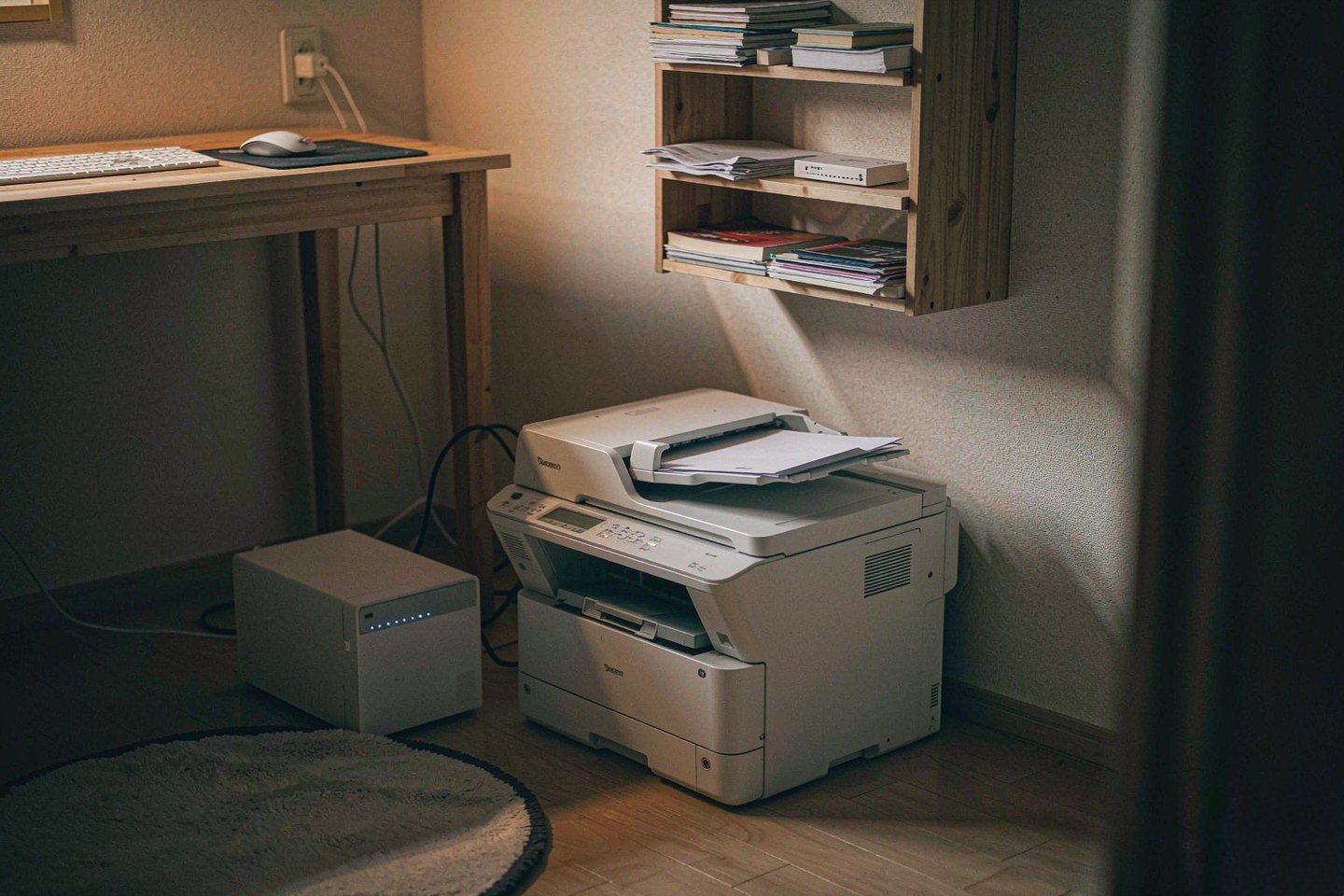
Direct answer up front, then the trade-offs that matter. This page covers brother printer and answers: how to brother printer to wifi.
By Jack Huang · Senior Writer, Local AI and Smart Home
Beat: On-device AI features · How we review
Quick Answer
If your Brother MFC or DCP offers the Scan to Network feature, you can send scans straight from the printer's button to a shared folder on your NAS — network-attached storage, a small box on your network that holds your own disks — over SMB, with no PC in the middle and no vendor cloud account (Brother Support, accessed 2026-10-27). You configure one profile in the printer's Web Based Management, point it at a dedicated NAS user's folder, and the machine handles the rest. The timing for caring about this got sharper this month: at Pwn2Own Ireland 2026, researchers took control of a business-class Brother printer with a single zero-day, which is a blunt reminder that the device on your network is a computer, and the documents it scans should land on storage you control.
Key Takeaways
- FuzzingLabs researchers Lucas Van Haaren and Hugo Leclercq exploited the Brother MFC-L8970CDW with a single zero-day on day three of Pwn2Own Ireland 2026 (October 8), earning $20,000 and 2 Master of Pwn points (Zero Day Initiative, accessed 2026-10-27).
- The vulnerability is reported to ZDI and Brother under coordinated disclosure; technical details stay confidential for now, and ZDI's policy gives the vendor a 120-day window before a limited advisory (FuzzingLabs, accessed 2026-10-27).
- Brother's own documentation confirms Scan to Network uploads scans directly to a shared folder on a CIFS server, with Kerberos or NTLMv2 authentication configured through Web Based Management (Brother Support, accessed 2026-10-27).
- Windows 11 24H2 and Windows Server 2025 require SMB signing by default for all connections, so an out-of-date printer or NAS can silently fail the handshake (Microsoft Learn, accessed 2026-10-27).
- Watch out for the small print: profile names top out at 15 characters, usernames at 96, passwords at 32, and the printer's date and time must be correct or authentication fails (Brother Support, accessed 2026-10-27).
What Changed
At Pwn2Own Ireland 2026 in Cork (October 6–9), FuzzingLabs took the Brother MFC-L8970CDW — a business color laser that prints, copies, scans and faxes — on day three and broke it with one bug. One. ZDI confirmed the result in its day-three write-up and paid out $20,000 plus 2 Master of Pwn points (Zero Day Initiative, accessed 2026-10-27). Across the whole contest, organizers recorded $1,262,000 in awards for 98 unique zero-days over 61 attempts from 29 teams (CyberInsider, accessed 2026-10-27).
This is not Brother's first ride on that carousel. In June 2025, Rapid7 disclosed eight vulnerabilities across 748 printer, scanner and label-maker models from five vendors, 689 of them Brother. The worst, CVE-2024-51978 (CVSS 9.8), let a remote attacker derive the default administrator password from the serial number; Brother stated it could not be fully fixed in firmware, and Japan's JPCERT/CC published the advisory (FuzzingLabs, accessed 2026-10-27).
What does this change for your home office? Your printer is a computer with your paperwork behind it, so the scan destination is your decision, not the vendor's. A scan of a signed contract, an invoice or a passport has no business transiting someone else's cloud folder when a $364.99 two-bay NAS can be the endpoint instead (Amazon, checked 2026-10-02).
Who Is It For
Does this setup earn its keep in your situation? It does in three. Small offices that scan invoices, contracts and ID documents daily — a drop folder on your NAS beats emailing scans to yourself. Home offices with a filing discipline: your tax records, warranties and kids' school paperwork land in dated subfolders without anyone renaming files. And shared households where several people scan from the same machine and nobody wants your documents trapped on one person's laptop.
Skip it if you scan a handful of pages a month. The profile setup takes maybe thirty minutes of your time the first time, and if that saves you one cloud subscription it pays off — but for rare scanning, your printer's scan-to-email does the same job with less thought. You also need a NAS already on your network. Buying one just for your scans is overkill; buying one for your backups and getting scans as the bonus is the sensible order for you.
Key Specifications
Which Brother models support Scan to Network? Availability varies by model — Brother's own manual carries a "some features are not available depending on the model" notice, and we could not verify a complete compatibility list as of 2026-10-27 — so check your model's manual before planning around it. Our spec ledger currently tracks three current Brother models with verified readings (all from Brother US product pages, checked 2026-10-08). Scan-relevant rows first: the DCP-L2640DW and MFC-L3780CDW both list a 50-sheet ADF, while the MFC-T780DW's ADF holds 20 sheets.
| Field | Brother MFC-T780DW | Brother DCP-L2640DW | Brother MFC-L3780CDW |
|---|---|---|---|
| Price (tracked) | Brother US store (list) $379.99 (2026-10-08);US street (Tom's Guide review) $340 (2026-10-08) | Brother US store (list) $209.99 (2026-10-08) | Brother US store (list) $569.99 (2026-10-08) |
| 1GbE ports | — | — | 1 port |
| Print speed | 16 ppm | 36 ppm | 31 ppm |
| Scan speed (black, ADF) | — | 23.6 ipm | 29 ipm |
| ADF capacity | 20 sheets | 50 sheets | 50 sheets |
| Input tray capacity | 150 sheets | — | 250 sheets |
| Automatic two-sided printing | Yes | — | Yes |
| Two-sided (duplex) ADF scanning | — | — | Yes |
| Dual-band Wi-Fi | — | Yes | Yes |
_Sources: Brother US — DCP-L2640DW product page (official specs) · Brother US — MFC-L3780CDW product page (official specs) · Brother US — MFC-T780DW product page (official specs)_
_— = no verified data for that field in our ledger. Never fill gaps with another model's numbers._
Step-by-Step: Sending Scans to a NAS Share
Start on your NAS side, not your printer. Create a dedicated user — say brother-scan — and a shared folder that only this user can write to; DSM's shared-folder permission model handles the isolation (Synology Knowledge Center, accessed 2026-10-27). A locked-down scan drop matters more than it sounds: if the printer is ever compromised, the credentials on it should not reach your other shares.
Then configure the printer, following Brother's documented flow (Brother Support, accessed 2026-10-27):
- Print the Network Configuration Report to get the printer's IP address.
- Enter that IP in a browser on the same network to open Web Based Management.
- Open the Scan tab, then Scan to FTP/SFTP/Network/SharePoint, and choose the Network profile type.
- Set the Network Folder Path to your NAS share (for example
\\nas\scans). - Enter the dedicated NAS username (up to 96 characters) and password (up to 32), and pick the auth method — Auto, Kerberos or NTLMv2. In a home or small office without a domain, NTLMv2 is the realistic choice.
- Pick your file-name prefix, quality, file type and document size. Your saved names get the scanner counter's last six digits appended, so your files sort cleanly in the share.
- Set the date, time and time zone — or an SNTP server — on the printer. Authentication fails when the clocks disagree; Brother says the machine's time must match the CIFS server's for all auth methods.
- Submit, run the test send, then press the physical Scan button and confirm the file appears in the share.
That is the whole job. One profile, one user, one folder.
One more Windows-side fact worth knowing: since Windows 11 24H2 and Windows Server 2025, SMB signing is required by default on all connections (Microsoft Learn, accessed 2026-10-27). That is good for security. It also means ancient firmware that never supported signed sessions can start failing after an OS upgrade — so update the printer and NAS firmware before you blame the settings.
How It Compares
Three destinations compete for your scans, and they are not equal. Scan-to-email is universal and needs nothing but an SMTP account, yet your scan sits in a mailbox subject to retention rules you do not control. Vendor cloud scan apps are convenient on phones, but they add an account, a sync layer and a privacy policy between the glass and the archive. Scan to Network over SMB is the only one of the three where the document lands directly on your own disks, in a folder structure you define, with backup jobs you chose.
Control is the difference.
The trade-off is setup friction. Email works in five minutes. Your NAS profile takes half an hour and one debugging session when your clocks disagree. After that, both are one button press on your printer. Pay the half hour once, and your archive thanks you for years.
Who Should Consider It
Worth it if you scan weekly, keep your documents for years, or share one printer across your household or small team — the drop folder turns your scanning from a chore with file naming into a pipeline that files itself. Worth it too if the Pwn2Own result changed how you look at the printer: local-only scanning means the device does not need a cloud account, and the scan credentials open exactly one folder.
Skip it if your scanning is occasional and low-stakes, or if your NAS sits behind a messy network you do not want to touch. Our take: the setup cost is real but front-loaded, and your payoff compounds with every document that never had to be renamed, re-downloaded or re-attached by you.
What Existing Users Should Know
Already scanning to a NAS share? Three checks worth ten minutes of your morning. Change the printer's default admin password if you have not — the 2025 serial-number password derivation (CVE-2024-51978) is exactly why defaults became a liability, and Brother itself said that class of issue could not be fully fixed in firmware (FuzzingLabs, accessed 2026-10-27). Keep your firmware current on both your printer and your NAS, particularly with SMB signing now mandatory by default on your Windows 11 24H2 clients (Microsoft Learn, accessed 2026-10-27). And keep your scan user's permissions narrow: write-only into one folder, no read on anything else you care about.
The Pwn2Own zero-day itself is still under coordinated disclosure — no patch details are public as of 2026-10-27 — so the practical move is the boring one: updates on, defaults changed, management interface off any network that does not need it.
Real-World Scenario: SMB / WebDAV / NFS Cross-Protocol Mounting
What this changes for the use case
A scan button that writes to an SMB share changes your office's paperwork physics. Your document is on your NAS the second the scan finishes, so your backup job picks it up that night, and anyone you granted share access sees it immediately — no forwarding, no attachments on your part. Because SMB is the native language of Windows and macOS file sharing, the same drop folder can be mounted on every desk in the office. If part of your team works remotely, the same NAS can expose the folder over WebDAV; if you run Linux tooling, NFS mounts the same data. One storage target, three protocols, zero copies.
Hardware and software requirements
You need a NAS with SMB shares and user accounts — any current Synology, QNAP or comparable box in your budget qualifies — plus a Brother model that includes the Scan to Network feature, which is model-dependent per Brother's own manual (accessed 2026-10-27). On the network side, the printer and NAS must share a subnet, the printer's clock must be right, and Windows 11 24H2 clients expect SMB signing to work end to end (Microsoft Learn, accessed 2026-10-27). Budget-wise, the storage end can be modest: our ledger shows the two-bay Synology DS225+ at $364.99 (Amazon, checked 2026-10-02) and 8 TB NAS drives such as the Seagate IronWolf 8 TB at $347 (Amazon, checked 2026-10-02).
Limits, caveats, and who should skip it
The limits are concrete, and you should know them before you start. Character caps on your profile fields (15/96/32) mean your long passwords are out. Kerberos needs a domain most homes do not run, so you land on NTLMv2 — fine on a trusted LAN, not something to expose. The feature set varies by model and we could not verify a full compatibility list, so confirm yours before buying hardware around this plan. And SMB does not encrypt transit by default the way a VPN-tunnelled WebDAV mount can, so for scans leaving the building, WebDAV over TLS is the better door. Skip the whole arrangement if your scan volume is trivia; the cloud scan app costs less attention at that point.
Frequently Asked Questions
Does my Brother printer support Scan to Network?
It depends on the model, and Brother says so directly — its manual notes that some features are not available depending on the model (accessed 2026-10-27). The quickest check you can do: log into your printer's Web Based Management page in your browser and look for the Scan to FTP/SFTP/Network/SharePoint menu. If you see it, your machine takes a Network profile; if not, the feature is not exposed on your firmware, and Brother's model-specific FAQ pages list what your product supports.
What is a NAS and do I need one?
A NAS (network-attached storage) is a small box holding your own disks that serves files to every device on your network over protocols like SMB. You need one for this setup because Scan to Network uploads to a shared folder on a CIFS server, and your NAS is that server. If you already back up your computers to a NAS, adding your scan drop folder costs you nothing extra — it is one user, one folder and ten minutes of your time in the permissions panel.
How much does a home NAS cost?
Entry points are moderate for your budget. Our price ledger shows the two-bay Synology DS225+ (diskless) at $364.99 on Amazon, checked 2026-10-02, and 8 TB NAS-class drives such as the Seagate IronWolf 8 TB at $347 on Amazon the same date (prices move; we could not verify current pricing as of 2026-10-27). A single-drive setup halves your cost. Against your paid cloud scan destination, the hardware pays for itself within a couple of years for a scanning household like yours.
Sources
- Pwn2Own Ireland 2026 - Day Three Results & Master of Pwn: FuzzingLabs exploited the Brother MFC-L8970CDW with a single zero-day for $20,000 and 2 Master of Pwn points — Zero Day Initiative, https://www.zerodayinitiative.com/blog/2026/10/8/pwn2own-ireland-2026-day-three-results-amp-master-of-pwn (accessed 2026-10-27)
- Pwn2Own Ireland 2026: the MFC-L8970CDW fell to one zero-day; disclosure is coordinated with ZDI and Brother; June 2025 Rapid7 background covers 689 Brother models and CVE-2024-51978 — FuzzingLabs, https://fuzzinglabs.com/pwn2own-ireland-2026-brother-printer/ (accessed 2026-10-27)
- Pwn2Own Ireland 2026 wrap: $1,262,000 total, 98 unique zero-days, 61 attempts, 29 teams; printer category results — CyberInsider, https://cyberinsider.com/google-pixel-10-hacked-as-pwn2own-ireland-wraps-with-1-26-million-in-rewards (accessed 2026-10-27)
- Configure and use the Scan to Network feature: direct scanning to a CIFS shared folder via Web Based Management, Kerberos/NTLMv2 auth, profile fields — Brother Support, https://support.brother.com/g/b/faqend.aspx?c=us&faqid=faq00002979_001&lang=en&prod=mfc9130cw_us (accessed 2026-10-27)
- Set up a Scan to Network Profile: field limits (profile name 15, username 96, password 32 characters), file naming with scanner counter, SNTP/date-time requirement — Brother Support, https://support.brother.com/g/s/id/htmldoc/mfc/cv_mfcl8730cdw/uke/html/GUID-4BC1C997-276E-4BE6-BDAD-5BDC47114E7E_1.html (accessed 2026-10-27)
- Secure SMB: SMB signing required by default on all connections in Windows 11 24H2 and Windows Server 2025 — Microsoft Learn, https://learn.microsoft.com/en-us/windows-server/storage/file-server/smb-signing (accessed 2026-10-27)
- Shared folder permissions in DSM: dedicated users and permission-limited shared folders — Synology Knowledge Center, https://kb.synology.com/en-us/DSM/help/DSM/AdminUtils/file_share_permission_desc (accessed 2026-10-27)
Run your own 5-year cost comparison with the on-site calculator
Every figure above is attributed in the Sources list — put your own drive count and subscription tiers into the calculator to see where you land.
Open the cost calculator →Related reading
Was this article helpful?
One tap, no account and no comment box. It tells us which guides are actually worth updating.
How many drive bays is your NAS?
This is how we decide which setups to cover next.
Thanks.
Need help with a specific setup?
Storage choices depend on your drives, your budget and how many people share the box. Tell us what you are building and we will point you at a configuration that fits — no obligation, no sales script.
Affiliate Disclosure: SecureNAS Hub may earn a commission from qualifying purchases made through links on this page, at no extra cost to you. Facts and figures are attributed in the Sources list; nothing on this page is a fabricated test result. See our full disclosure. Product images are either supplied by the manufacturer or clearly labelled as illustrative renders; each one is captioned accordingly. Last reviewed 2026-10-27.