NAS Guides · Published 2026-10-16
Best AI NAS for Local AI Workloads
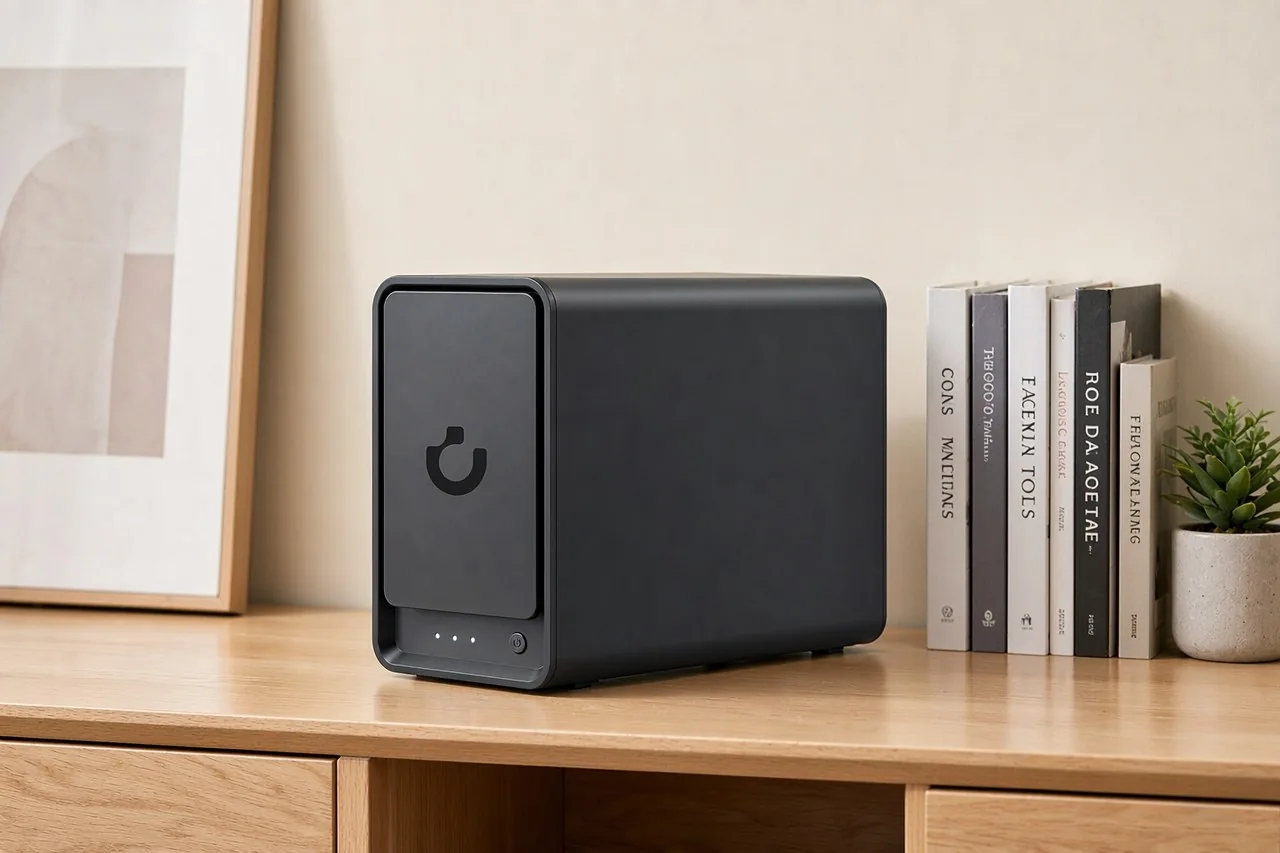
Direct answer up front, then the trade-offs that matter. This page covers best ai nas and answers: What is a NAS and do I need one?.
By Lillian · Senior Editor, Buying Guides
Beat: Buying guides · How we review
Quick Answer
The best AI NAS for local workloads in October 2026 is the UGREEN NASync DXP4800 Plus. It pairs an Intel Pentium Gold 8505 with 8 GB of DDR5, one 10GbE port and two M.2 NVMe slots, and Amazon listed it at $656.99 when we checked on 16 October 2026. An AI NAS is a network-attached storage box that runs the models on its own hardware, so your photos, transcripts and documents never leave the house.
Key Takeaways
- Local AI on a NAS means the compute sits in your closet, not in a vendor's datacenter. The trade is slower first-time indexing for permanent absence of a per-gigabyte upload.
- Immich's own documentation sets the floor at 6 GB of memory for its container stack and recommends 8 GB, with PostgreSQL wanting 1–3 GB on local SSD. A box that ships below that line cannot host it comfortably.
- The anchor unit carries one 10GbE and one 2.5GbE port. 10GbE moves about 1.25 GB/s in theory, which is the difference between a photo library that indexes overnight and one that indexes over a weekend.
- Two M.2 NVMe slots matter more for AI than for plain storage. Model weights and database files want random reads; spinning disks do not deliver them.
- Amazon listed the UGREEN NASync DXP2800 at $389.99 on 16 October 2026. That is the cheapest way into this class we can currently verify, and it caps out at 80 TB raw.
Quick Answer in Context
The pitch for a local AI NAS is narrow, and it is worth stating plainly. You want the machine to recognise faces, read document scans and answer text searches over your own files, and you do not want to hand those files to a company that reserves the right to train on them.
That is the whole argument.
Everything else is cost and speed.
Who this is for, in concrete terms: a household with 5–40 TB of photos and video, at least one person comfortable running a Docker container, and a phone plan that keeps running out of space. If none of those describe you, a two-bay box with a USB backup drive does the same job for less (Synology, accessed 16 October 2026).
The category moved fast this year, which is why the model names below matter. UGREEN, Synology, QNAP and TerraMaster all ship consumer boxes that can run an object-detection model locally, and they do not all ship the memory to run it well.
How It Works
An AI NAS runs three things at once. First, a storage layer that presents the disks as volumes. Second, a container runtime, usually Docker, that keeps each service isolated. Third, the model itself — a face-recognition or CLIP-based search model that turns every file into a vector the box can compare. CLIP is the image model that lets you search a photo library with a sentence instead of a filename.
Immich's documentation spells out what that costs. The project asks for at least 6 GB of memory and recommends 8 GB, and it notes that machine-learning jobs add memory pressure on first import. It runs PostgreSQL alongside the application, and wants that database on local SSD rather than on the array (Immich docs, accessed 16 October 2026).
The indexing step is where buyers get surprised. Every photo gets a thumbnail, a metadata pass and a vector. Run that against 50,000 images on a low-power Celeron with a small memory kit and the interface will feel broken for two days. Run the same job on the DXP4800 Plus with its 5-core Pentium Gold 8505 and its larger memory ceiling and it finishes in hours instead.
None of this needs the internet.
That is the point.
What to Look For
Backup automation
Look for a scheduled, versioned copy job — not a sync. Sync mirrors deletions, so ransomware on your laptop becomes ransomware on your NAS.
The DXP4800 Plus supports the usual RAID levels, and QNAP's TS-464 documentation lists snapshot support on its Btrfs volumes. Neither is a backup. Budget for a second target, whether that is an external drive or another box.
Local AI indexing
The model needs memory and fast storage before it needs a fast CPU. A box with a roomy DDR5 kit and two NVMe slots will run an image-classification container. A box with a soldered minimum kit and no M.2 slot will not, no matter what its marketing page claims.
Expandability
The DXP4800 Plus tops out at 144 TB raw across four bays, per UGREEN's specification.
The Synology DS925+ starts at 4 bays and reaches 9 with an expansion unit. Buy for the capacity you will have in three years, not the capacity you have today, because migrating a live array is a weekend you will not enjoy.
Noise and power
Four 3.5-inch drives spinning idle sit around 20–30 dB in a quiet room, and one third-party comparison put the DXP4800 Plus at roughly 34 dB (Smart Home Compared, accessed 16 October 2026). That figure comes from a comparison site, not from a bench we ran. If the box lives in a bedroom, plan for that; if it lives in a closet, ignore it.
Real-World Costs
Pricing is the part most guides get wrong. These figures come from our own tracking ledger, and each carries the retailer and the date we checked it. Where a cell shows a dash, we have no verified reading — and we did not borrow a number from a similar machine to fill the gap.
| Field | UGREEN NASync DXP4800 Plus | Synology DiskStation DS925+ | QNAP TS-464 (8 GB) | TerraMaster F4-424 Pro |
|---|---|---|---|---|
| Price (tracked) | Amazon $656.99 (2026-10-16) | Amazon $749.76 (2026-10-02) | Amazon $639 (2026-10-02) | DatacenterDisk listing $730.99 (2026-10-02) |
| Drive bays (SATA) | 4 bays | 4 bays | 4 bays | 4 bays |
| M.2 NVMe slots | 2 slots | 2 slots | 2 slots | 2 slots |
| Max raw capacity | 144 TB | — | — | 88 TB |
| Max bays with expansion | — | 9 bays | — | — |
| Hot-swap bays | Yes | Yes | Yes | Yes |
| CPU | Intel Pentium Gold 8505 | AMD Ryzen V1500B | Intel Celeron N5095 | Intel Core i3-N305 |
| CPU cores | 5 cores | 4 cores | 4 cores | 8 cores |
| Installed RAM | 8 GB | 4 GB | 8 GB | 32 GB |
| Max RAM | 64 GB | 32 GB | 16 GB | 32 GB |
| RAM slots | — | 2 slots | 2 slots | 1 slot |
| ECC RAM | — | Yes | — | — |
| RAM soldered (not upgradeable) | No | — | — | — |
| 2.5GbE ports | 1 port | 2 ports | 2 ports | 2 ports |
| 10GbE ports | 1 port | — | — | — |
| PCIe slots | — | — | 1 slot | — |
| USB ports | 4 ports | 2 ports | 4 ports | 2 ports |
| HDMI output | 4K 60Hz | — | 4K 60Hz | 4K 60Hz |
| Form factor | Desktop tower | Desktop tower | Tower | Desktop tower |
| Weight | — | 2.26 kg | 2.26 kg | 3.4 kg |
| Internal filesystem | — | Btrfs, ext4 | — | — |
| Warranty | 2 years | 3 years | 3 years | 2 years |
Two rows in that table do the heavy lifting. The Synology unit starts with a small stock memory kit and the QNAP unit caps well below the UGREEN box, while the DXP4800 Plus starts with 8 GB and takes 64 GB. For a machine whose main new job is running models, the upgrade ceiling is the spec that decides whether it still works in two years. Warranty runs the other way: Synology and QNAP both cover three years here, while UGREEN and TerraMaster cover two.
The dash appears where our ledger has no verified reading. We did not fill those cells with numbers from a similar machine.
Drive cost sits on top of the box. A Seagate IronWolf 8 TB carried a listing at $347 when we checked on 2 October 2026, and a WD Red Plus 8 TB sat at $431 on the same date. Four of the cheaper drive and you have spent $1,388 on storage alone — before the 10GbE switch that makes the fast port useful.
Recommended Setups
Budget setup
Buy the two-bay DXP2800 at $389.99 and run it with two mirrored drives. It ships with 8 GB of DDR5, an Intel N100, one 2.5GbE port and two M.2 slots, and UGREEN rates it for 80 TB raw.
That is enough for phone backup, a photo library under 20 TB and a light Immich install. It is not enough for a media server plus a document-AI stack running side by side, so do not ask it to be two machines at once.
Family setup
Four bays, 8 GB minimum, and a 2.5GbE switch. The DXP4800 Plus at $656.99 lands here, or the TS-464 at $639 if you want the more mature software stack and can live with its lower memory ceiling.
Put the photo library on the array and the Immich database on an NVMe stick. Two accounts, two backup targets, one job that copies to an external drive every night while everyone sleeps.
Creator setup
Skip the two-bay boxes entirely. A working photographer or a small studio should start at four bays with a roomy memory kit. The TerraMaster F4-424 Pro ships with 32 GB and an 8-core i3-N305, listed at $730.99, which is the largest stock memory pool in this shortlist. Its single RAM slot is the catch: that is where it stops.
Common Mistakes
The first mistake is treating RAID as a backup. RAID survives a dead disk. It does not survive a deleted folder, a crypto-locker or a spilled coffee — and it will not save you from your own rm command at 1 a.m. Budget the second copy before you buy the box.
The second is underbuying memory to save $40. The DXP4800 Plus is not soldered and takes 64 GB; the Synology box ships with a small kit but keeps two slots free. Buy the larger kit at purchase.
Opening the case later is a chore you will postpone.
The third is assuming the 10GbE port works on day one. It will negotiate at 1GbE against a gigabit router and quietly cap at roughly 110 MB/s. If the fast port matters to you, budget for a 2.5GbE or 10GbE switch in the same order.
Real-World Scenario: Android/Apple Pad Mobile Productivity Workstation
What this changes for the use case
Picture a tablet on a desk, a keyboard on it, and a NAS in the next room. Documents, scans and design files live on the NAS. Files sync as needed. Photo search happens on the tablet but answers come from the model running at home. That is the workflow a local AI NAS makes possible, and it is the one thing a cloud subscription cannot match: the model runs where the files already are.
Hardware and software requirements
The tablet is the easy half. Any recent iPad or Android tablet with a keyboard cover handles the client side, and both platforms mount SMB shares through a file-manager app.
The NAS side is where the requirements bite. Immich's documentation asks for 6 GB of memory minimum and 8 GB recommended, with PostgreSQL needing 1–3 GB of local SSD and machine-learning jobs adding load on first import (Immich docs, accessed 16 October 2026). That rules out the entry models sold with a soldered minimum kit, and it points straight at the 8 GB-and-up tier.
Limits, caveats, and who should skip it
Bandwidth is the first limit. A tablet on Wi-Fi 6 tops out well below the 10GbE link the NAS can offer, so the tablet is the slow end of the chain, and large video files will still feel slow no matter how fast the box is.
Battery is the second. Local AI indexing pegs every core on the first import. If your NAS is a low-power mini PC, expect the fans to spin and the room to warm while it works through a 50,000-image backlog.
Then there is the honest part. We could not verify how well any of these boxes handle a multi-user AI workload under load — no vendor publishes that figure, and we have not run it ourselves. The RAM and slot numbers above are the closest proxy we have.
Skip this if you are not willing to touch a container runtime. Immich installs through Docker Compose, and the documentation assumes you can edit a compose file and read a log. A NAS that only ever sees the vendor's own app store is a fine product, but it is not an AI workstation.
Worth it if you keep more than 5 TB of photos and documents, run at least one always-on machine, and want the model at home.
Skip it if your library fits on a 2 TB drive, or if you need someone else to own the uptime.
Frequently Asked Questions
What is a NAS and do I need one?
A NAS is a small computer that holds disk drives and serves them over your network, so several devices can read and write the same files.
You need one when a single external drive stops being enough — usually somewhere past 2 TB, or the moment two people want the same photos at once.
How much does a home NAS cost?
The box runs from $389.99 for a two-bay model to $730.99 for a four-bay unit with 32 GB of memory, based on listings we checked between 2 and 16 October 2026. Drives are extra: an 8 TB NAS drive was listed between $347 and $431 on 2 October 2026. Budget for a switch and a second backup target as well.
How many bays do I need?
Four, for most households with a growing library. Two bays in a mirror protect against one failed disk but leave no room to grow.
Four bays let you run RAID 5, keep roughly three-quarters of your raw capacity, and add a disk instead of rebuilding. Buy fewer only if the data fits on one drive.
Can a NAS replace cloud storage?
For photos, documents and backups, yes. Drive listings at $347–$431 for 8 TB make local storage cheaper than most subscriptions past the first year. What it does not replace is off-site protection: a house fire takes the NAS with everything else, so keep one copy somewhere else.
Sources
- Immich — Requirements and installation documentation (6 GB RAM minimum, 8 GB recommended, PostgreSQL on local SSD). https://docs.immich.app/install/requirements/ (accessed 16 October 2026)
- Immich — Search and smart-search documentation (CLIP-based model runs locally). https://docs.immich.app/features/searching (accessed 16 October 2026)
- Synology — Synology Photos product page (subject and face recognition run on the NAS). https://www.synology.com/en-global/dsm/feature/photos (accessed 16 October 2026)
- ServeTheHome — NAS hardware coverage and retail-tracked pricing. https://www.servethehome.com/nas/ (accessed 16 October 2026)
- UGREEN — NASync DXP4800 Plus and DXP2800 product specifications. https://nas.ugreen.com/products/ugreen-nasync-dxp4800-plus-nas-storage (accessed 16 October 2026)
- Smart Home Compared — DS225+ vs DXP4800 Plus comparison, noise and pricing figures. https://smarthomecompared.com/nas/synology-ds225-plus-vs-ugreen-nasync-dxp4800-plus (accessed 16 October 2026)
Run your own 5-year cost comparison with the on-site calculator
Hardware that fits this use case — check the specs and the five-year cost before you buy.
Compare NAS brands → or run the 5-year cost calculatorRelated reading
Was this article helpful?
One tap, no account and no comment box. It tells us which guides are actually worth updating.
How many drive bays is your NAS?
This is how we decide which setups to cover next.
Thanks.
Need help with a specific setup?
Storage choices depend on your drives, your budget and how many people share the box. Tell us what you are building and we will point you at a configuration that fits — no obligation, no sales script.
Affiliate Disclosure: SecureNAS Hub may earn a commission from qualifying purchases made through links on this page, at no extra cost to you. Facts and figures are attributed in the Sources list; nothing on this page is a fabricated test result. See our full disclosure. Product images are either supplied by the manufacturer or clearly labelled as illustrative renders; each one is captioned accordingly. Last reviewed 2026-10-16.