NAS Guides · Published 2026-10-31
Apple Watch to NAS: Moving Health Exports over SMB and WebDAV
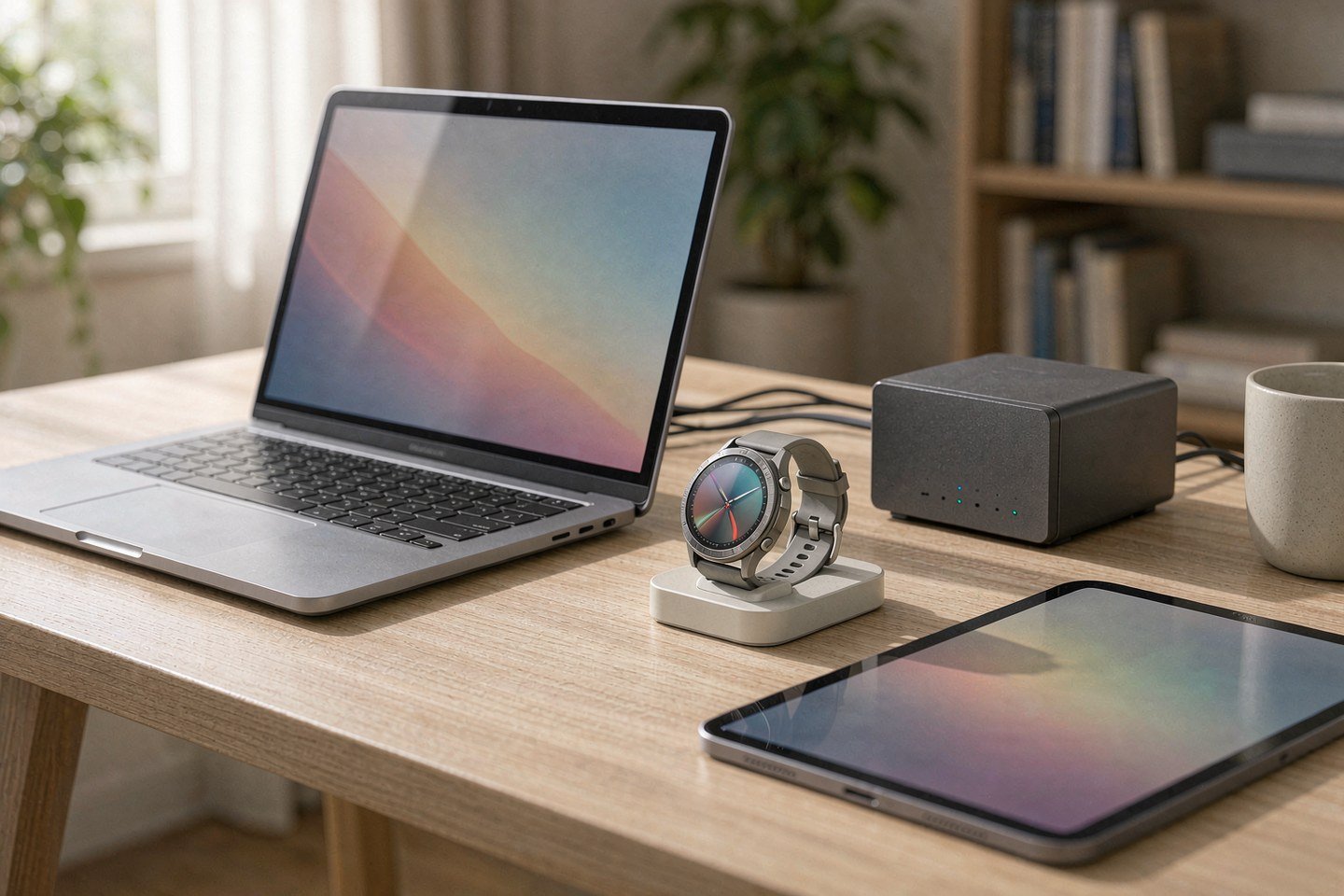
Direct answer up front, then the trade-offs that matter. This page covers apple watch and answers: What is a NAS and do I need one?.
By Leo · Hardware Reviewer
Beat: Drive bays, RAID and expandability · How we review
Quick Answer
Apple gives your Apple Watch health data exactly one official exit: the Health app's Export All Health Data button, which packs the full history into an XML archive you can save straight to a NAS share over SMB (Apple Support, accessed 2026-10-31). App-driven automation exists, but Health Auto Export — the main automation tool — writes to REST APIs, MQTT, Home Assistant and cloud drives, not SMB or WebDAV, and iOS decides when it actually runs (developer FAQ, accessed 2026-10-31). Export manually for the full archive. Automate for the trickle. Forget NFS on your phone side.
Key Takeaways
- The official export is manual: Health app → your profile picture → Export All Health Data → choose a sharing method. The result is an XML archive of the whole history (Apple Support, accessed 2026-10-31).
- The iPhone Files app speaks SMB and reaches NAS shares; Save to Files in the share menu can drop export.zip straight onto your server (How-To Geek, accessed 2026-10-31).
- Health Auto Export automates CSV/JSON/GPX exports to REST API, MQTT, Home Assistant, iCloud Drive, Google Drive and Dropbox — SMB and WebDAV are absent from its destination list (App Store listing and developer FAQ, accessed 2026-10-31).
- An automation cannot keep a fixed schedule: iOS only lets the app read Health while your iPhone is unlocked, so background runs land whenever the system grants time (vendor documentation, accessed 2026-10-31).
- Synology ships a WebDAV Server add-on package for DSM, but we could not verify any native WebDAV client in the iOS Files app as of 2026-10-31.
What Changed
Two Apple Watch cycles are stacked on your wrist right now. The Series 12 and Ultra 4 shipped in September, and 9to5Mac reports both will gain two Audio Intelligence features later this year: Siri Recap, which takes ambient notes on your conversations, and Live Rewind, which recalls the last 15 seconds of speech on a double-press of the Digital Crown (accessed 2026-10-31). One detail in that report matters more to your storage than either feature. Siri Recap summaries auto-delete after seven days unless you save them.
The hardware is also recording more than before. Apple's new Health Sensing System samples heart rate every five seconds, where prior models sampled every five minutes, and Theater Mode or Sleep Mode falls back to the slower interval (9to5Mac, accessed 2026-10-31). Five-second sampling multiplies the row count in your health database whether you look at it or not.
So the question you should ask gets sharper: Apple keeps your history inside Health and iCloud on its terms, with some new outputs expiring on a timer. A NAS share gives you a copy on disks you own. The export pipeline below is the part Apple documents thinly, and the protocol you pick decides whether it takes five minutes or an afternoon.
Who Is It For
Worth it if you have worn a watch for years and your history now spans workouts, sleep stages and ECGs — a zip you hold yourself is the only version no server-side policy can touch. Also worth it if a family member's data lives on your Apple ID and you want it out before an account change.
Skip it if you started wearing the watch last month. A few weeks of step counts fit anywhere, and iCloud already mirrors them. Skip it too if you will not keep a box powered on; an archive you never wake up is just a drive with anxiety.
Our take: treat the export as a quarterly ritual, not an engineering project. Thirty minutes per season covers the full-history zip, and it needs no new software on your phone.
Key Specifications
Two artifact types come off the wrist. The official one is a single XML archive — export.zip — containing the complete history, produced by Export All Health Data in the Health app (Apple Support, accessed 2026-10-31). The app-driven one is per-metric data in CSV, JSON or GPX: Health Auto Export covers what its developer claims as 150-plus metrics, from sleep phases to AFib notifications (App Store listing, accessed 2026-10-31). We could not verify current pricing for the app as of 2026-10-31, so treat its free-basic-premium tier split as vendor claims until you check the listing yourself. None of the steps below depend on them.
The NAS side needs less than you think. Any SMB-capable box works — our tracker's entry point is the two-bay Synology DS225+ at $364.99 (Amazon, checked 2026-10-02) with a WD Red Plus 8 TB at $431 or a Seagate IronWolf 8 TB at $347 (both checked 2026-10-02). Health archives are text-heavy, not video-heavy, so a small volume serves you for years. We could not verify Apple Watch hardware figures in our spec ledger as of 2026-10-31; none of the steps below depend on them.
What Is New
Siri Recap and Live Rewind sit under the watchOS 27 umbrella and are limited to the Series 12 and Ultra 4, per 9to5Mac (accessed 2026-10-31). Recap summarizes your day's conversations with Apple Intelligence; Live Rewind shows a text snippet of what was just said. Apple has published privacy papers for both, and the seven-day auto-delete for unsaved summaries is the concrete number we can cite.
Neither feature streams to your NAS. That is the point of mentioning them here: features arrive on Apple's storage terms, and the retention timer is one of them. If a recap of a conversation matters to you, saving it is a manual act — and your backup destination should already exist before you tap save.
An exact release version is unconfirmed; the report says later this year, and we could not verify a watchOS build number as of 2026-10-31.
How It Compares
Four paths can move your health data off your iPhone. Only one is scheduled, and it cannot write SMB. That asymmetry is the whole comparison.
| Path | What moves | What you need | Where it breaks |
|---|---|---|---|
| SMB (Files → Connect to Server) | Full export.zip, by hand | Any SMB share; built into iOS since iOS 13 (How-To Geek) | Manual only; Health has no native scheduler |
| WebDAV | Manual copies via file apps | Synology WebDAV Server add-on package | No native Files-app WebDAV client we could verify |
| REST API (Health Auto Export) | JSON/CSV metric trickle, background | A receiver on the NAS or Home Assistant | Timing at iOS's mercy; no SMB/WebDAV destination |
| NFS | — | Linux/Unix hosts | No native iOS NFS client we could verify |
For the box that receives all of this, the ledger table below shows the two Synology models we track most closely. Both expose SMB and can add WebDAV Server.
| Field | Synology DS225+ (2025) | Synology DiskStation DS925+ |
|---|---|---|
| Price (tracked) | Amazon $364.99 (2026-10-02) | Amazon $749.76 (2026-10-02) |
| Drive bays (SATA) | 2 bays | 4 bays |
| M.2 NVMe slots | 0 slots | 2 slots |
| Max bays with expansion | 7 bays | 9 bays |
| CPU | Intel Celeron J4125 | AMD Ryzen V1500B |
| Installed RAM | 2 GB | 4 GB |
| Max RAM | 6 GB | 32 GB |
| 2.5GbE ports | 1 port | 2 ports |
| Warranty | 3 years | 3 years |
_Sources: Synology official comparison (DS225+) · Synology official comparison (DS925+)_
_— = no verified reading in our ledger. Never fill gaps with another model's numbers._
Real-World Scenario: SMB / WebDAV / NFS Cross-Protocol Mounting
This is where the pipeline lives or dies: one protocol connects the phone, one connects everything else, and one does not connect the phone at all.
What this changes for the use case
Your health history sits in Apple's format until you move it, and the move is protocol-bound. SMB is the only route built into iOS: since iOS 13, Files connects to Windows, Mac, Samba and NAS shares, and the share menu's Save to Files writes documents straight to them (How-To Geek, accessed 2026-10-31). That makes your quarterly ritual trivial: you export, save to the share, done in two taps. The automated trickle is different: a REST API receiver on the NAS catches JSON written by Health Auto Export, which turns your archive into many small files instead of one zip.
Hardware and software requirements
Phone side: nothing to install for SMB — Files ships with the system, and you add the server under Browse → Connect to Server (Apple's iPhone User Guide, accessed 2026-10-31). NAS side: enable SMB in DSM, create a user whose only write target is the health archive folder, and enable snapshots on that folder if your model supports them. For the automation path, run the receiver in Home Assistant or a small container, and keep it on the LAN — the developer documents the built-in local TCP option as unencrypted and intended for trusted networks only (HealthyApps FAQ, accessed 2026-10-31). A shared drive you reach over the internet needs a VPN in front of it.
Limits, caveats, and who should skip it
Watch out for the timing myth. An automation schedule is a request, not a promise: the developer's own FAQ states that iOS decides when background runs happen, that Health is only readable while your iPhone is unlocked, and that Low Power Mode or disabled Background App Refresh delays your runs further (accessed 2026-10-31). If you expect files to appear at midnight, you will be disappointed.
Three more limits deserve their own sentences. The official zip is all-or-nothing — years of history means a long preparation time, and we could not verify a partial-export option in Apple's documentation. WebDAV has no system-level client in Files that we could verify, so it needs a third-party file app and another credential to manage. And NFS never enters the picture from an iPhone; it stays a Linux-and-desktop protocol.
Skip this whole setup if your history is short, or if you already trust one cloud with it. The trade-off you are accepting is thirty minutes of manual ritual per quarter in exchange for a copy no vendor can expire.
Who Should Consider It
Pick SMB if you want the simplest honest backup: the full zip, your disks, two taps per quarter (How-To Geek, accessed 2026-10-31). Pick the REST API path if you graph your metrics anyway and already run Home Assistant; the JSON files it writes are small and machine-readable. Pick WebDAV only when a client you already use requires it — Synology's WebDAV Server package makes the server side a five-minute job, but the phone side is on you.
Multi-user households land on SMB too, because you export from your own Health app into your own folder. That separation survives an account change — the scenario this whole guide exists for.
What Existing Users Should Know
If you already export, change one habit: date your zips. export.zip is the same filename every time, and a share with snapshots will thank you for never overwriting last quarter's copy. Keep the XML archive untouched as your source of truth; converted CSVs are working copies, not the master.
The other habit is verification. Open the zip once after each export and confirm for yourself that the XML inside is current — the file is only as trustworthy as the one time you checked it. Readers sizing up a first NAS for this job can start with our best private cloud NAS of 2026 picks, and the privacy argument behind all of this is laid out in our cloud vs private NAS comparison.
Frequently Asked Questions
Can the Apple Watch back up health data to a NAS by itself?
No. Your watch syncs to the iPhone's Health app, and Apple's documented exit from Health is the manual Export All Health Data button, which produces an XML archive (Apple Support, accessed 2026-10-31). Automated paths need a third-party app on the iPhone, and even those cannot write SMB directly — Health Auto Export's destinations are REST API, MQTT, Home Assistant and cloud drives (developer documentation, accessed 2026-10-31).
Why does my automated export not run at its scheduled time?
Because iOS, not the app, decides when background runs happen. The developer's FAQ states that automations cannot sync on a reliable schedule, that Health is only readable while your iPhone is unlocked, and that Low Power Mode and disabled Background App Refresh delay your runs (accessed 2026-10-31). Unlock the phone and trigger a manual export when you need data on a deadline.
Do I need WebDAV on the NAS?
Only if a file app you already use speaks it. Synology distributes WebDAV Server as an add-on package, so the server side is easy. The phone side is the constraint: we could not verify any native WebDAV client in the iOS Files app as of 2026-10-31, which is why SMB — built into Files since iOS 13 — remains the default for manual exports (How-To Geek, accessed 2026-10-31).
Is a NAS worth it if I already pay for iCloud?
Worth it if your history is measured in years; skip it if it is measured in weeks. Our tracker lists iCloud+ 2 TB at $9.99 a month (checked 2026-10-02), a bill that never ends, while a two-bay Synology DS225+ at $364.99 (Amazon, checked 2026-10-02) is a one-time cost. Both can coexist: cloud for convenience, NAS for the archive you control.
Sources
- Apple Support, iPhone User Guide — "Share your health and fitness data in XML format": Export All Health Data produces an XML archive you can share by a method of your choice: https://support.apple.com/guide/iphone/share-your-health-data-iph5ede58c3d/ios (accessed 2026-10-31).
- Apple Support, iPhone User Guide — "Connect servers or external devices with Files on iPhone": Connect to Server, hostname or network address, Guest or Registered User login: https://support.apple.com/guide/iphone/iph8d8f0f1a0/ios (accessed 2026-10-31).
- How-To Geek, "How to Connect to Network Shares With the iOS Files App," published September 2, 2021 — Files speaks SMB since iOS 13 and Save to Files writes to network shares: https://www.howtogeek.com/devops/how-to-connect-to-network-shares-with-the-ios-files-app/ (accessed 2026-10-31).
- 9to5Mac, October 28, 2026 — Series 12 and Ultra 4 gain Siri Recap and Live Rewind later this year; unsaved Siri Recap summaries auto-delete after 7 days: https://9to5mac.com/2026/10/28/apple-watch-series-12-ultra-4-adding-two-new-features-soon/ (accessed 2026-10-31).
- 9to5Mac, September 21, 2026 — the new Health Sensing System samples heart rate every five seconds, with a five-minute fallback in Theater and Sleep Mode: https://9to5mac.com/2026/09/21/apple-watch-series-12-and-ultra-4-introduce-a-new-theater-mode-setting/ (accessed 2026-10-31).
- HealthyApps (Health Auto Export developer) FAQ — automations run under iOS background limits with no fixed schedule; destinations include REST API, MQTT, Home Assistant and cloud drives; local TCP is unencrypted: https://help.healthyapps.dev/en/health-auto-export/faq (accessed 2026-10-31).
- Apple App Store, Health Auto Export - JSON+CSV listing — 150+ metrics to CSV/JSON/GPX; automated exports to cloud and API destinations; free, basic and premium tiers: https://apps.apple.com/us/app/id1115567069 (accessed 2026-10-31).
- Synology, WebDAV Server add-on package page (DSM): https://www.synology.com/en-global/dsm/packages/WebDAVServer (accessed 2026-10-31).
NAS, drive and iCloud+ prices come from our own price tracker (entries checked 2026-10-02).
Run your own 5-year cost comparison with the on-site calculator
Every figure above is attributed in the Sources list — put your own drive count and subscription tiers into the calculator to see where you land.
Open the cost calculator →Related reading
Was this article helpful?
One tap, no account and no comment box. It tells us which guides are actually worth updating.
How many drive bays is your NAS?
This is how we decide which setups to cover next.
Thanks.
Need help with a specific setup?
Storage choices depend on your drives, your budget and how many people share the box. Tell us what you are building and we will point you at a configuration that fits — no obligation, no sales script.
Affiliate Disclosure: SecureNAS Hub may earn a commission from qualifying purchases made through links on this page, at no extra cost to you. Facts and figures are attributed in the Sources list; nothing on this page is a fabricated test result. See our full disclosure. Product images are either supplied by the manufacturer or clearly labelled as illustrative renders; each one is captioned accordingly. Last reviewed 2026-10-31.